Account
Open Account / Settings for General, My Connectors, notifications, and usage.
Overview
Account (Settings) is where you manage personal preferences and connections that make the rest of JioAI Assistant work smoothly. Open it from your profile to adjust General options, connect apps under My Connectors, set Notification Preferences, and check Usage & Budget.
End-to-end flow
A simple path to follow:
Click your profile or avatar → Open Settings / Account → General → My Connectors → Notification Preferences → Usage & Budget
How it works
General:
General summarises your basic account and assistant preferences in one place. What should JioAI Assistant call you? — 50 characters. Add team name (when you choose Other) — 50 characters. All logged-in sessions are visible here, and you can log out of any session.
My Connectors — not connected:
You see only the Microsoft 365 card with Connect. The four source cards appear after you connect.
My Connectors — connected:
You see your email, the date you connected, a Disconnect button, and a Sources list you can open.
Disconnect all:
Click Disconnect and confirm. All four sources and their stored data are permanently deleted. You return to the not-connected view with the message Microsoft 365 disconnected. Cancel leaves everything unchanged.
Disable one source:
Open the source menu, choose Disable, and confirm. That source and its stored data are deleted. The source stays in the list with an Enable button. Click Enable to turn it back on — it is indexed again from scratch.
Connect or Decline:
If you see Connect Microsoft 365 or Decline, choose one of those two actions. Connect signs you in the same way as during onboarding. If you already had a connection and choose Decline, your connectors and stored data are deleted. If you are new and choose Decline, nothing is connected.
Notification Preferences:
Notification Preferences control how alerts reach you — including broadcasts, access updates, and task updates where available.
Usage & Budget:
Usage & Budget helps you keep an eye on usage; if you need more later, come back to us.
Tip:
If search, calendar, or file answers look incomplete, open My Connectors and connect the app that holds the missing content.
Walkthrough
1. General
In Settings, open General to see a summary of your basic account and assistant preferences.
What should JioAI Assistant call you? — 50 characters. Add team name (when you choose Other) — 50 characters. Extra text past the limit is not accepted. All logged-in sessions are visible here, and you can log out of any session.
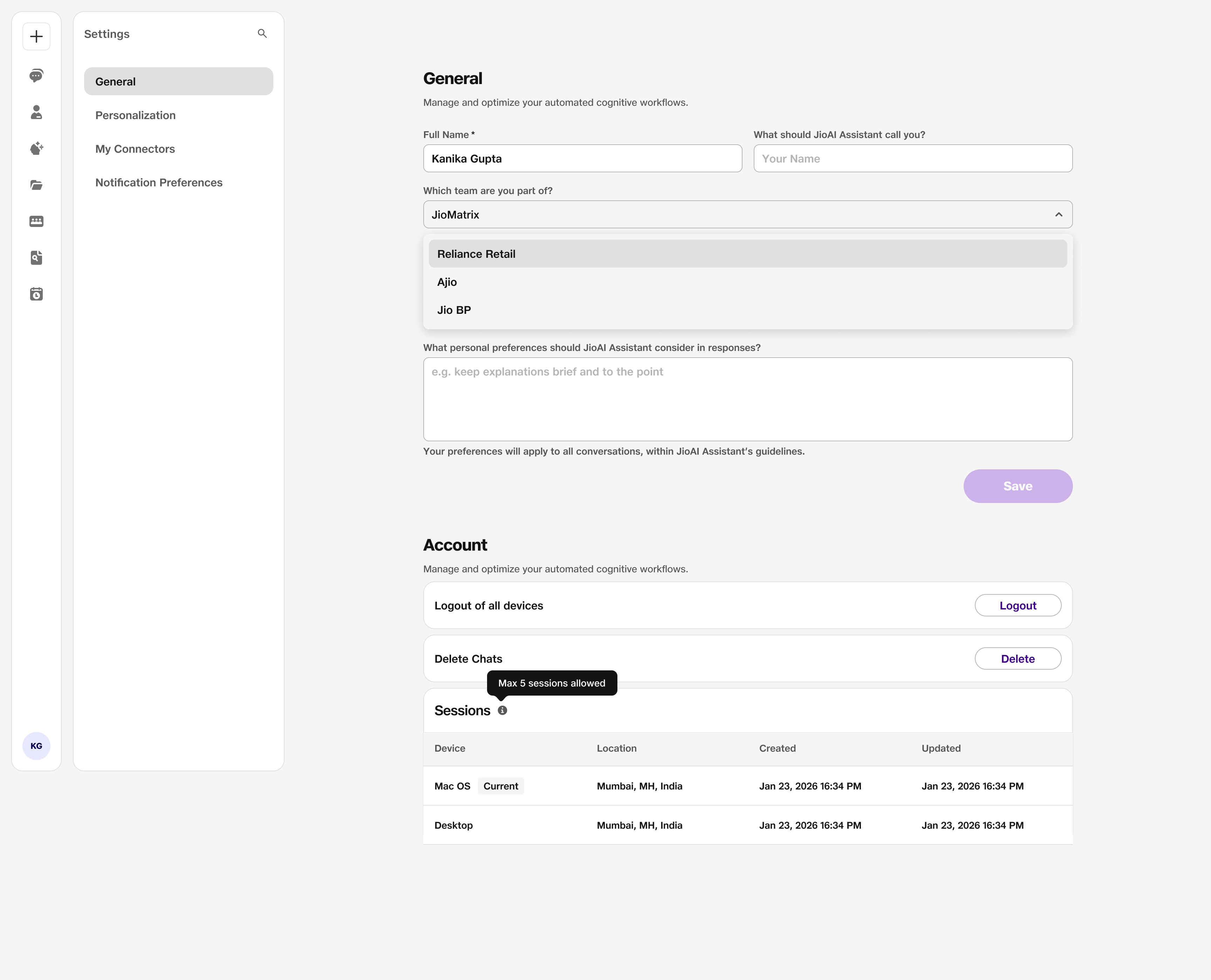
- General: Your account preferences at a glance.
- Sessions: View logged-in sessions and log out.
2. My Connectors
Open Settings → My Connectors to connect, review, or disconnect Microsoft 365.
When not connected, you see only the Microsoft 365 card with Connect. After you connect, you see your email, connection date, Disconnect, and the four sources. Use Disable on a single source to turn it off, or Disconnect to remove all sources and stored data. Choose Connect or Decline when prompted — Decline removes an existing connection and its data.
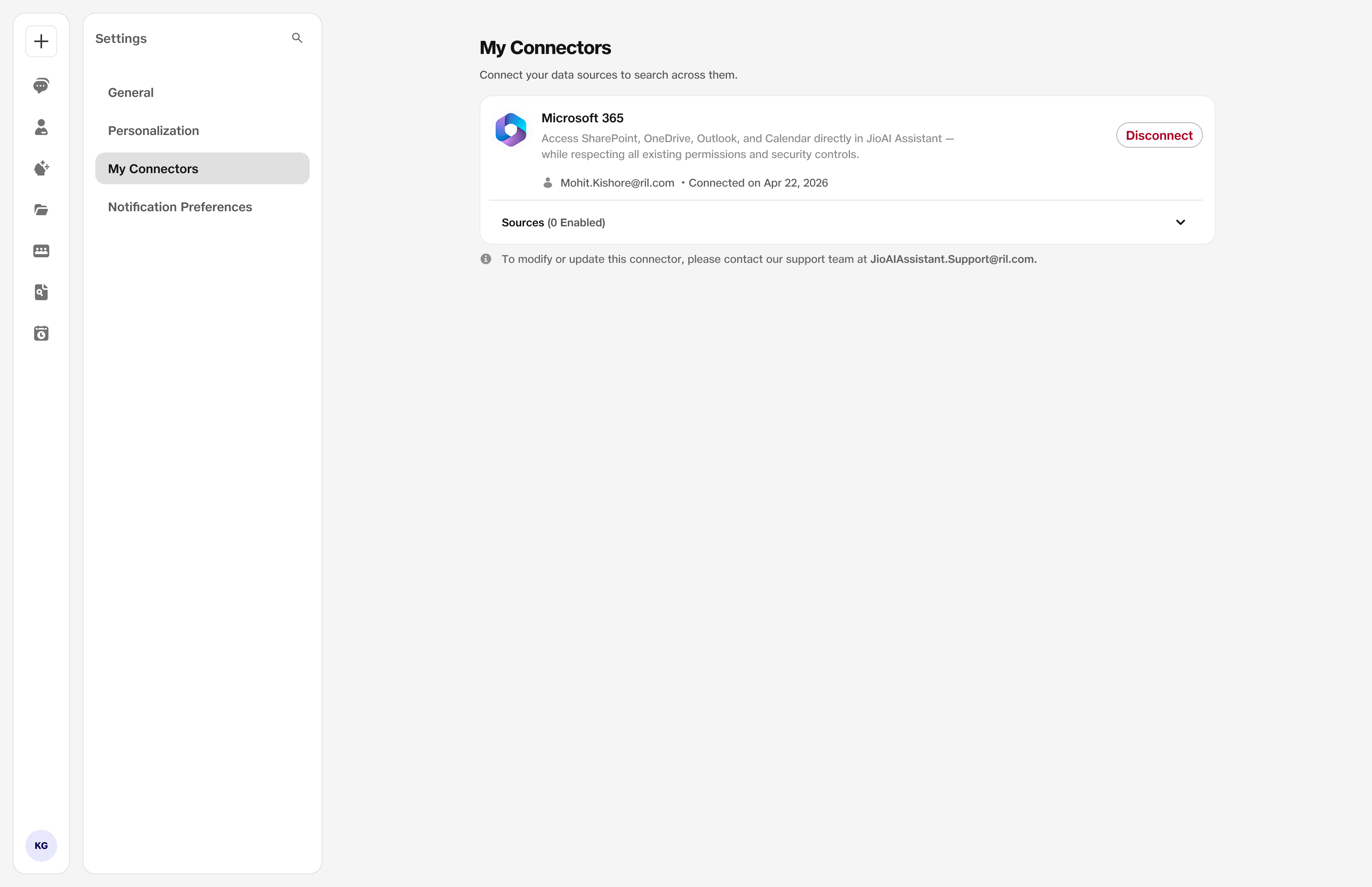
- Connect: Link SharePoint, OneDrive, Outlook, and Calendar.
- Disconnect: Removes all sources and stored data permanently.
3. Notification Preferences
Open Notification Preferences to choose how you receive in-app, email, or push alerts — including broadcasts, access updates, and task updates where available.
Tune channels so the alerts you care about stay easy to notice.
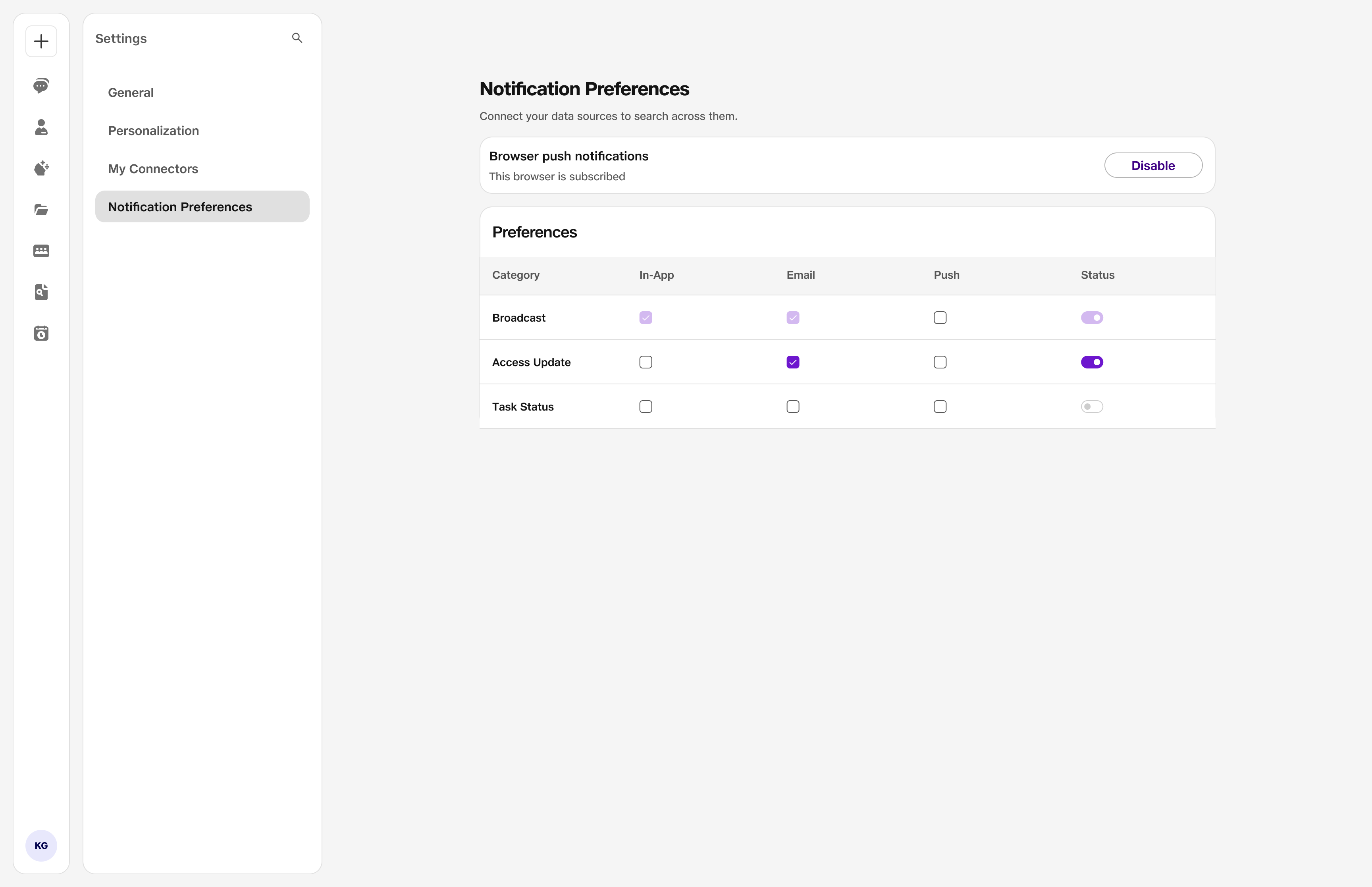
- Notifications: Alert preferences.
4. Usage & Budget
Open Usage & Budget to keep a watch on your usage.
If you need more capacity later, come back to us — we can help with what you need.
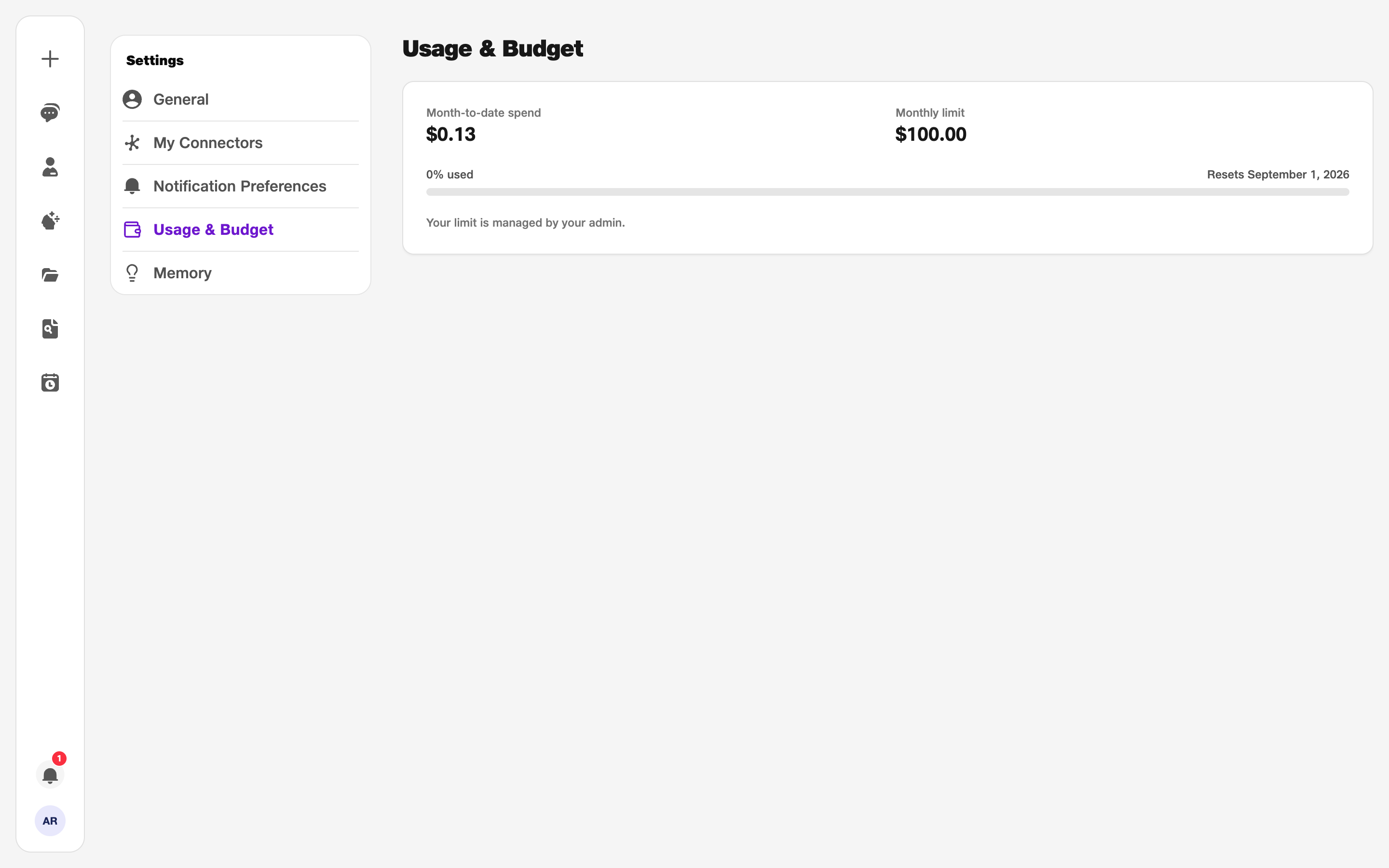
- Usage & Budget: Keep an eye on usage; reach out if you need more.