Login
How to open the portal and sign in with your company account.
Overview
Login is your front door to JioAI Assistant — use company credentials to login to portal. Open the portal, enter your username and password, complete otp verification and continue to the home screen. When sign-in succeeds, chat and the left menu are ready for your work.
End-to-end flow
A simple path to follow:
Open the portal → Enter Username and Password → Choose OTP channel → Enter OTP → Continue to home → Start chatting or open a tool from the sidebar
How it works
Internal organisation employees:
Sign in with your work username and password. For password reset or unlock, reach out to IT Support or use GetIT.
Business partners:
Sign in with your credentials. You can click on Forgot Password to reset your password, or Generate Password to generate one.
After login:
The Workplace Assistant home opens with the chat box, suggested prompts, and left-hand navigation so you can search, upload files, or open tools right away.
Walkthrough
1. Sign-in screen
In your browser, open the portal — you will see the Jio sign-in page with Username, Password, and Submit.
Enter your work username and password, then click Submit. Soft tip: hover the question-mark icons next to Forgot Password and Generate Password to see how password help works for Partners.
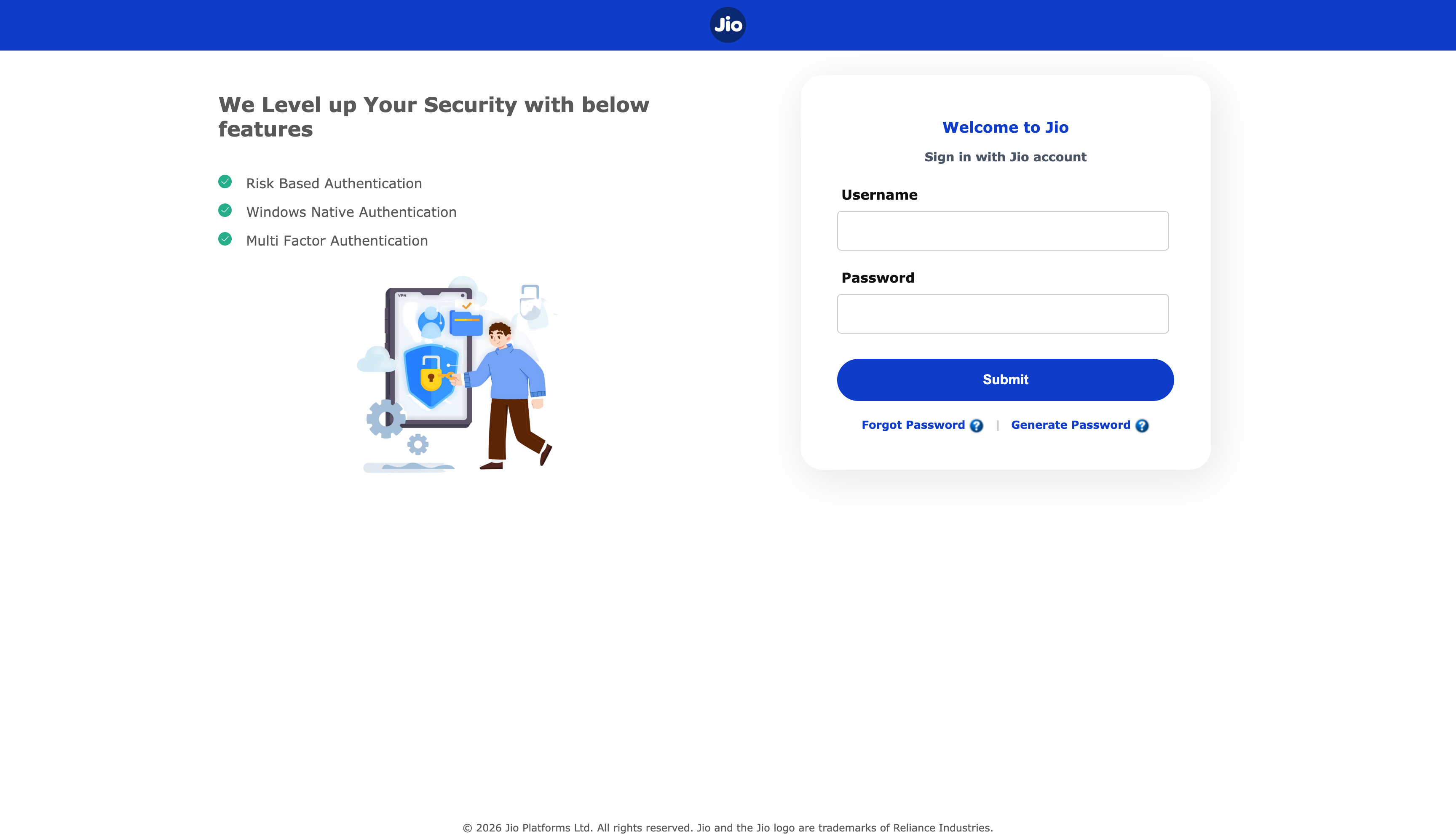
- Welcome to Jio: Sign in with your Jio account.
- Password help: Question marks share soft guidance for employees and partners.
2. Enter username and password
Fill in Username and Password on the sign-in form, then continue.
Double-check spelling and caps lock. Click Submit when both fields are filled.
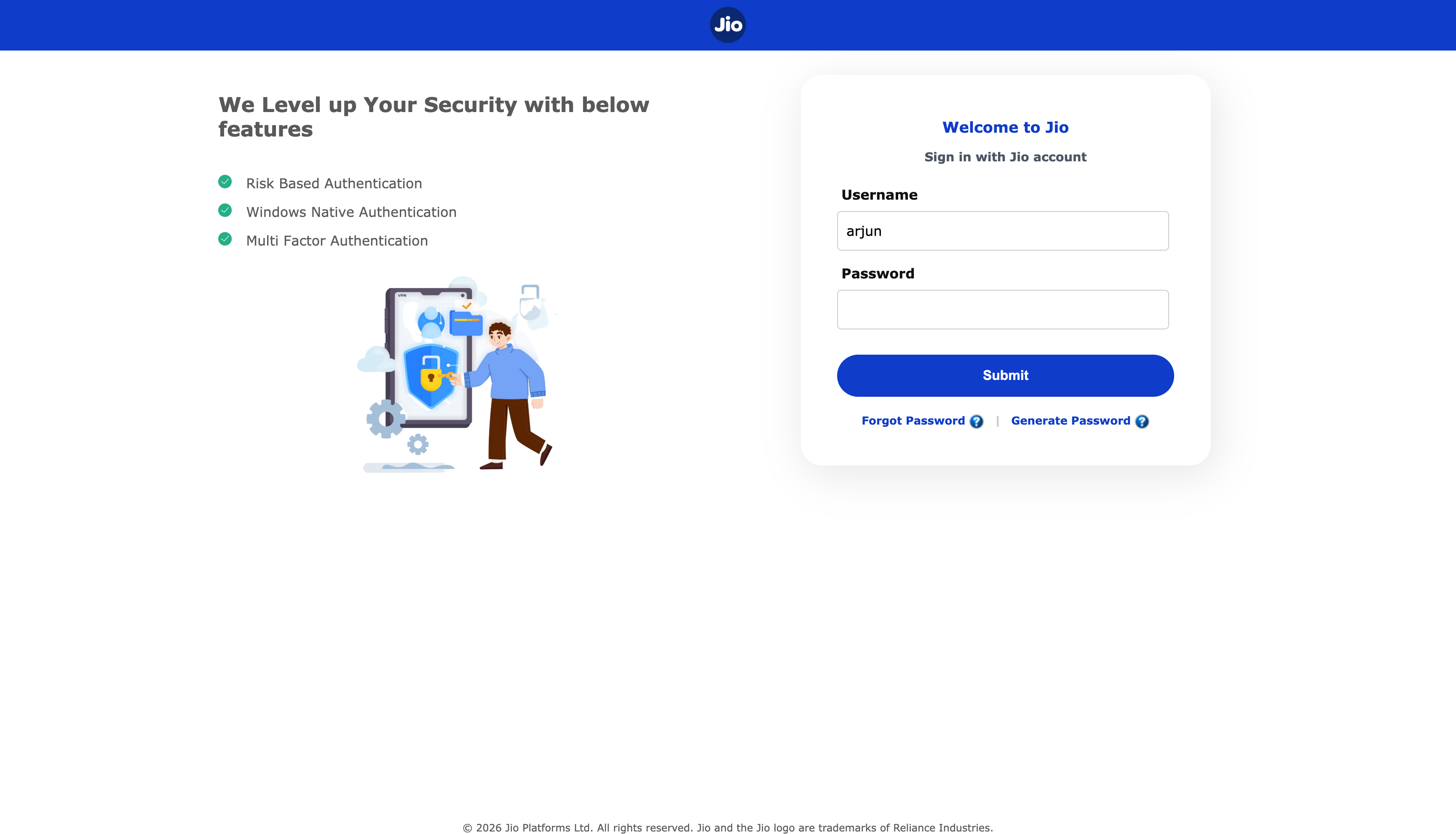
- Username: Your work account.
- Password: Your work password.
3. Choose OTP channel
Select Mobile or Email as your OTP channel, then click Send OTP.
Pick the channel where you can receive the code quickly.
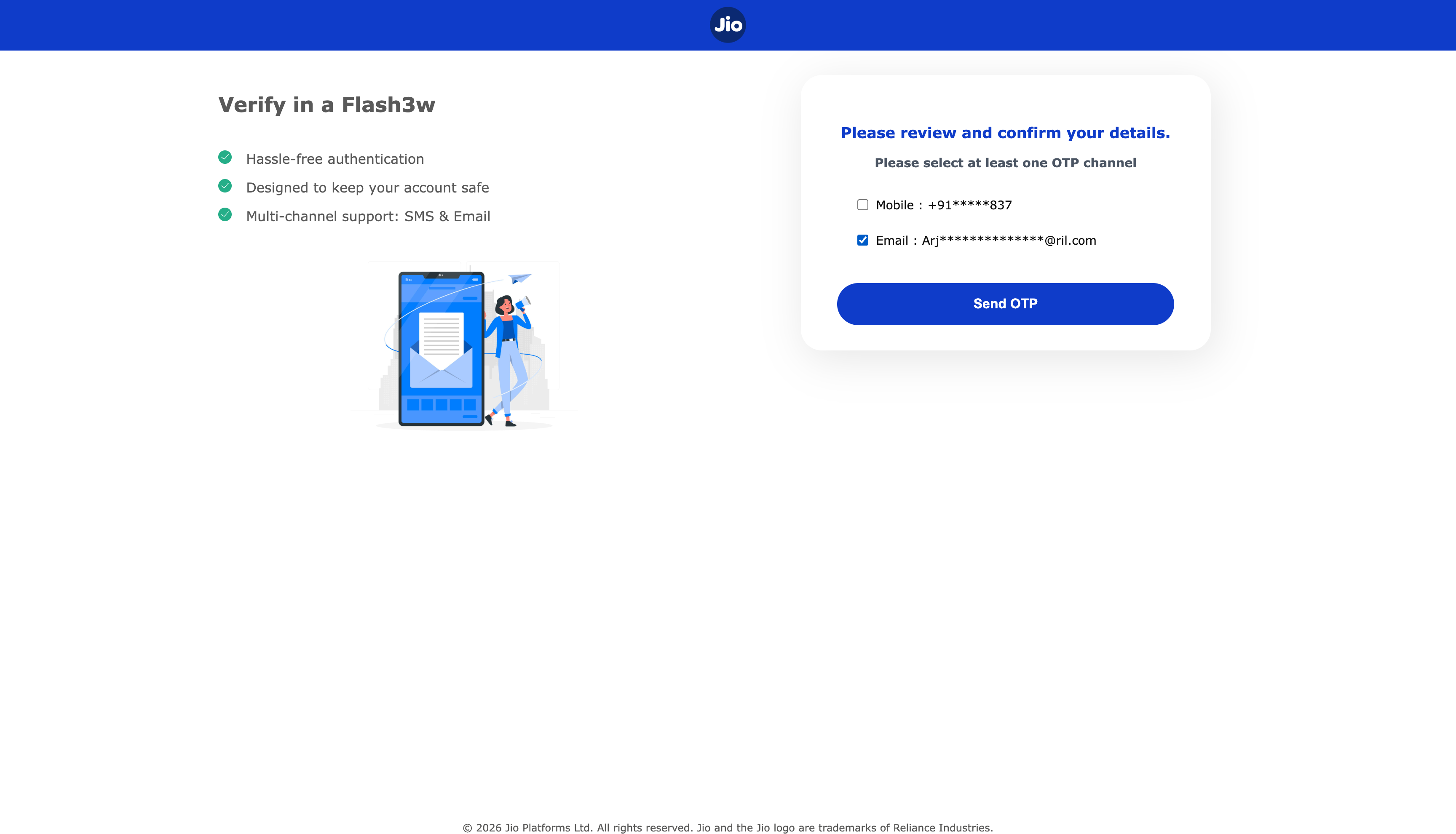
- OTP channel: Choose Mobile or Email.
- Send OTP: Sends the one-time code.
4. Enter OTP
Type the one-time password into the OTP boxes, then click Submit to continue.
Enter the code sent to your selected mobile or email, then submit to finish sign-in smoothly.
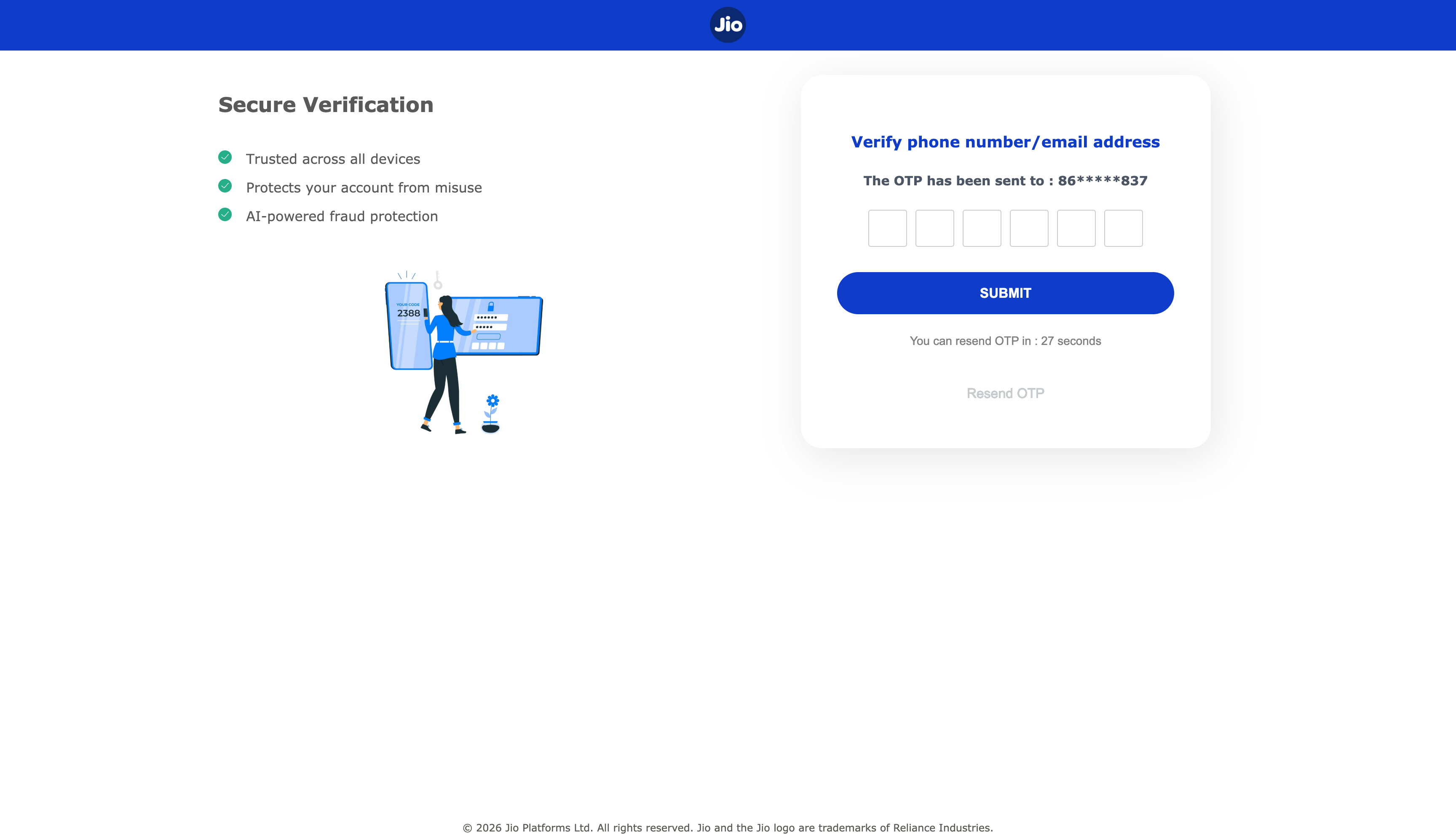
- OTP boxes: Enter the digits from your message.
- Submit: Continue after entering OTP.