Deep Research
Click Deep Research when a short reply is not enough.
Overview
Deep Research is for bigger questions that need more reading, comparison, and a structured write-up — ideal when you want a briefing-style answer. Turn it on from the chat controls before you ask, then describe your topic clearly. The assistant gathers and organises information into a richer response you can use as a starting document.
End-to-end flow
A simple path to follow:
New Chat → Click Deep Research to turn it on → Enter a clear research question (scope, comparison, or briefing need) → Send → Review the structured findings → Ask follow-ups to go deeper on one section
How it works
When to use:
Choose Deep Research for complex topics, option comparisons, market summaries, or “prepare a briefing” requests — when a short chat reply is not enough.
Click to enable:
You must click the Deep Research control so it is active for that chat; a normal message without turning it on will give a shorter answer.
Thorough answers:
Deep Research takes the time needed to organise a fuller write-up — stay with the chat and use the result as a briefing you can refine.
Tip:
Use Deep Research for requests like “Compare these three approaches for our rollout and list pros and cons” rather than “What is today’s date?”
Walkthrough
1. Click Deep Research
Start a new chat and click the Deep Research button or control on the chat bar until it shows as enabled for this conversation.
Then type a detailed question — say what decision you are preparing for and what sections you want. Send once and review the structured answer when it is ready.
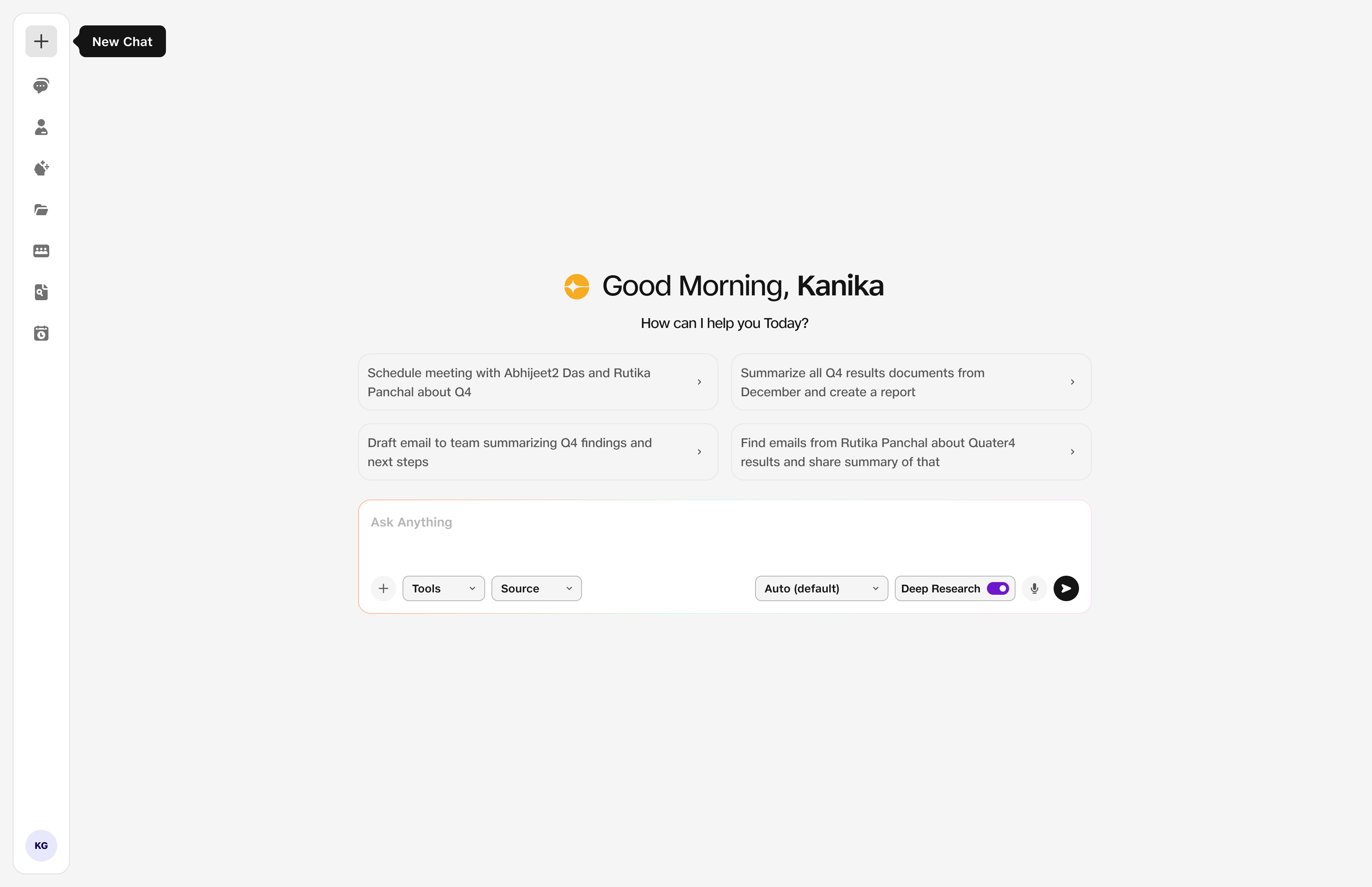
- Deep Research: Enabled for this chat.