Model Selection
Open the Auto / model dropdown and choose a model.
Overview
Model Selection lets you choose which AI model powers your chat — different models may be faster, more detailed, or better suited to certain tasks your team recommends. Most people can leave Auto selected and let the system pick; open the dropdown when your team asks you to use a specific model for coding, long documents, or policy work. Your choice applies to the current chat once selected.
End-to-end flow
A simple path to follow:
Start New Chat → Click Auto or the current model name on the chat bar → Open the dropdown → Pick a model (or leave Auto) → Ask your question → Switch model in a new chat if you want to compare answers
How it works
Auto:
Auto lets the platform choose a suitable default for everyday questions — a good starting point if you are unsure which model to use.
Open the menu:
Click the Auto label or model name on the chat bar to see the full list; the menu must be open before you can change the selection.
Manual pick:
Choose a named model when your team or an admin asks you to for any specific query that requires a particular model to be selected for the best suited answer
Tip:
If you are unsure, leave Auto selected unless your team or an admin has asked you to use a particular model for your work.
Walkthrough
1. Model dropdown open
On the chat bar, click Auto or whatever model name is shown — the dropdown opens with the models available to your account.
Click the model you want; the label on the bar should update. Type your question after selecting so that model handles the reply. Open a new chat if you want to try a different model without earlier context.
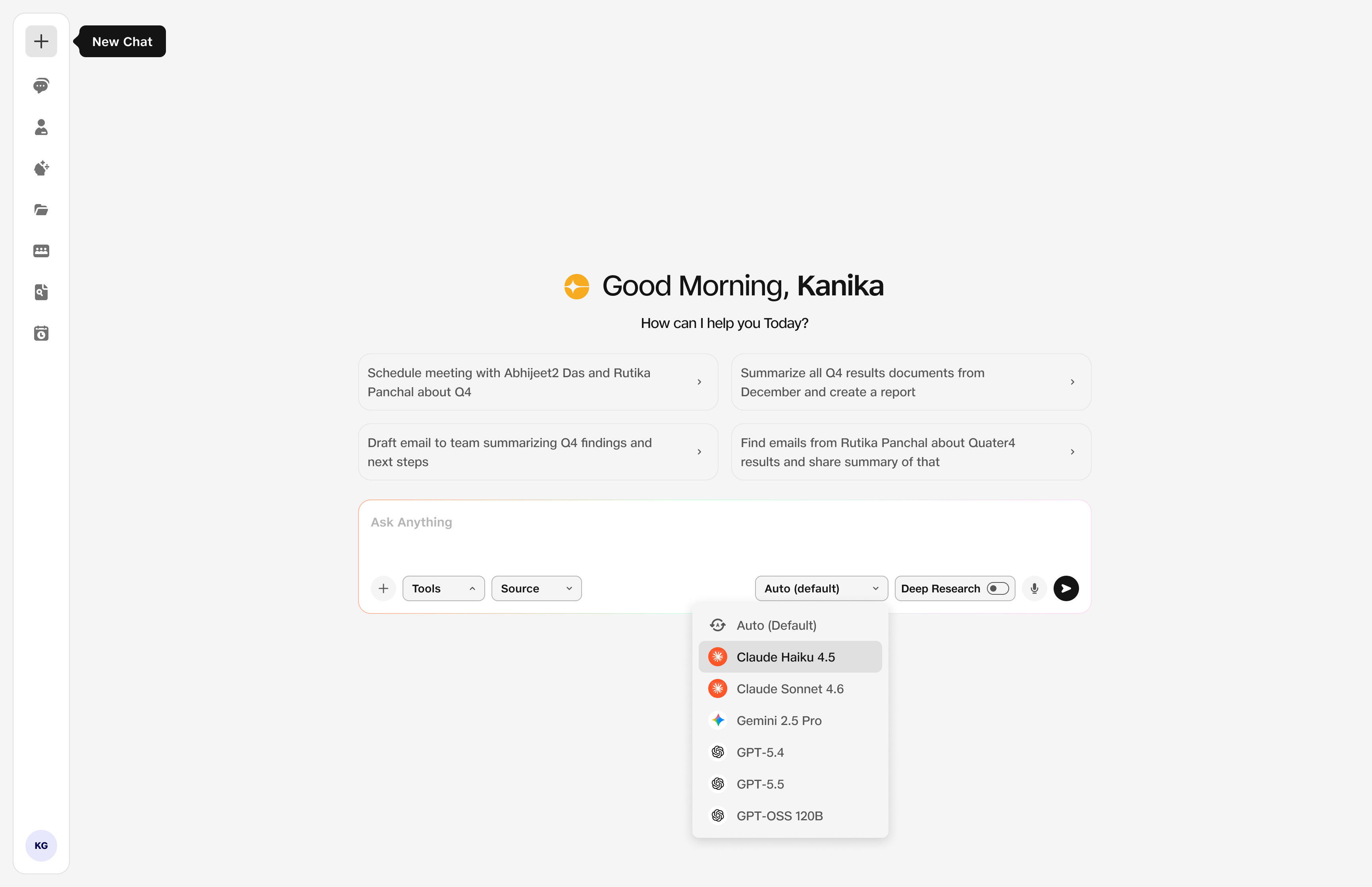
- Dropdown: Available models are listed.