Notifications
Open the bell, then click All to review broadcasts, access updates, and task updates.
Overview
Notifications collect important updates so you do not miss something that needs attention — including broadcasts, access updates, and task updates. Click the bell icon, then click All to see the full list. Review items regularly, open anything that needs action, and clear or dismiss old alerts so the badge stays meaningful.
End-to-end flow
A simple path to follow:
Click the bell icon in the header → Click All to open the full list → Review broadcasts, access updates, and task updates → Open items that need action → Dismiss or act so new alerts stand out
How it works
Bell:
The bell icon opens your alerts panel — a dot or number often means unread items are waiting.
What you will see:
Notifications commonly cover broadcasts, access updates, and task updates — so you stay informed about announcements, access changes, and work that finished or needs attention.
All:
All shows the complete notification history — use it when you think you missed a broadcast, access change, or task update.
Unread tab:
Clicking the Notifications icon opens the unread tab which contains the notifications user hasn't gone through.
CTA:
User can click on the CTA (if present) in a notification to get to further details of the notification.
Mark all as read:
Clicking "Mark all as read" helps clear all notifications from the Unread tab in a single click.
Tip:
Check notifications at the start or end of your work session and clear items you have handled so the bell badge reflects only what is still open.
Walkthrough
1. Open the bell
Find the bell icon in the top bar of the portal and click it — a panel opens with recent notifications.
Scan for broadcasts, access updates, and task updates. If you need the full history, continue to the next step and click All.
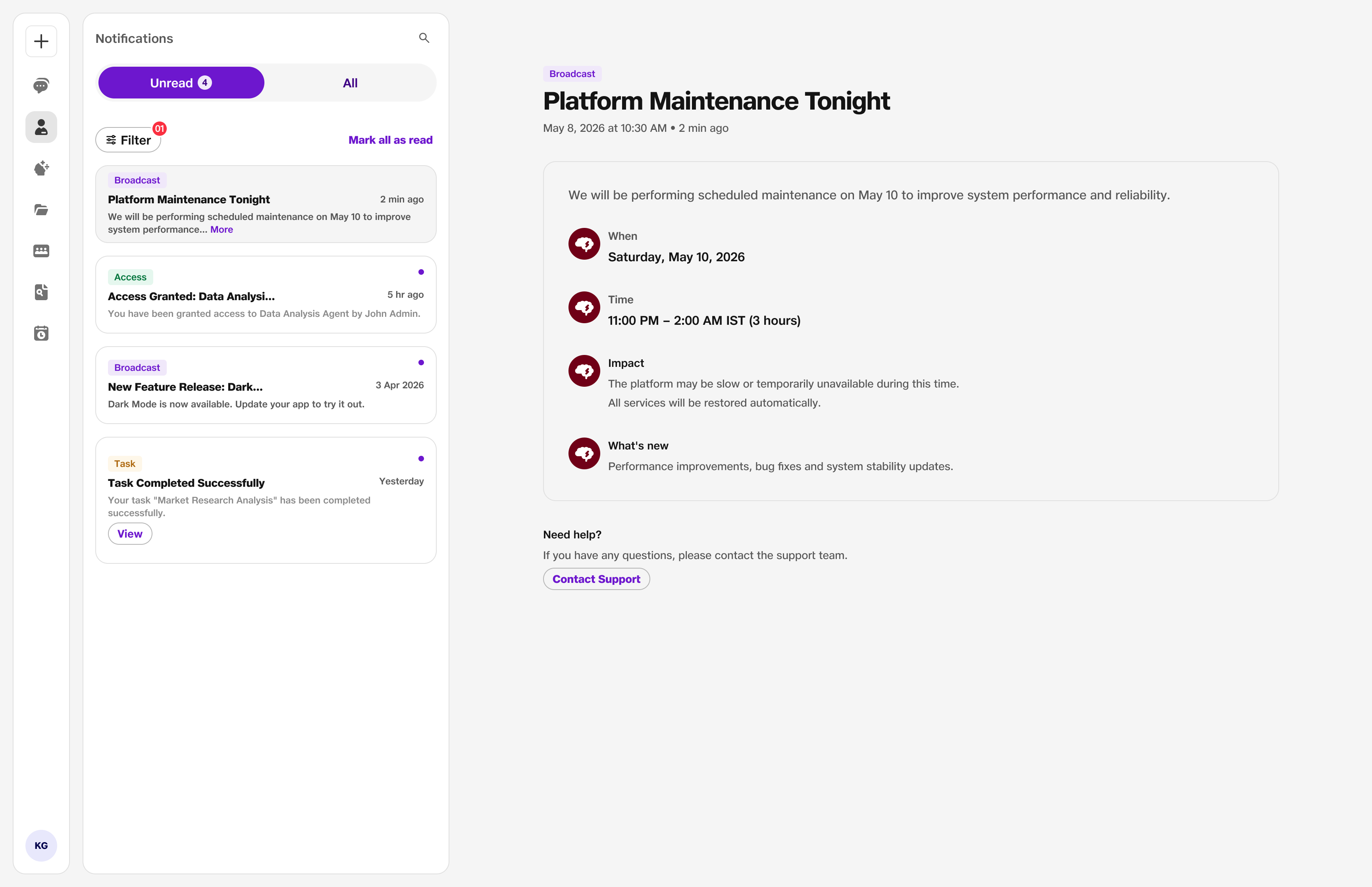
- Bell: Opens alerts.
2. Click All
In the notifications panel, click All to see the complete list of alerts.
Scroll through broadcasts, access updates, and task updates; open links or chats attached to each notification, and dismiss or mark as read when you are done.
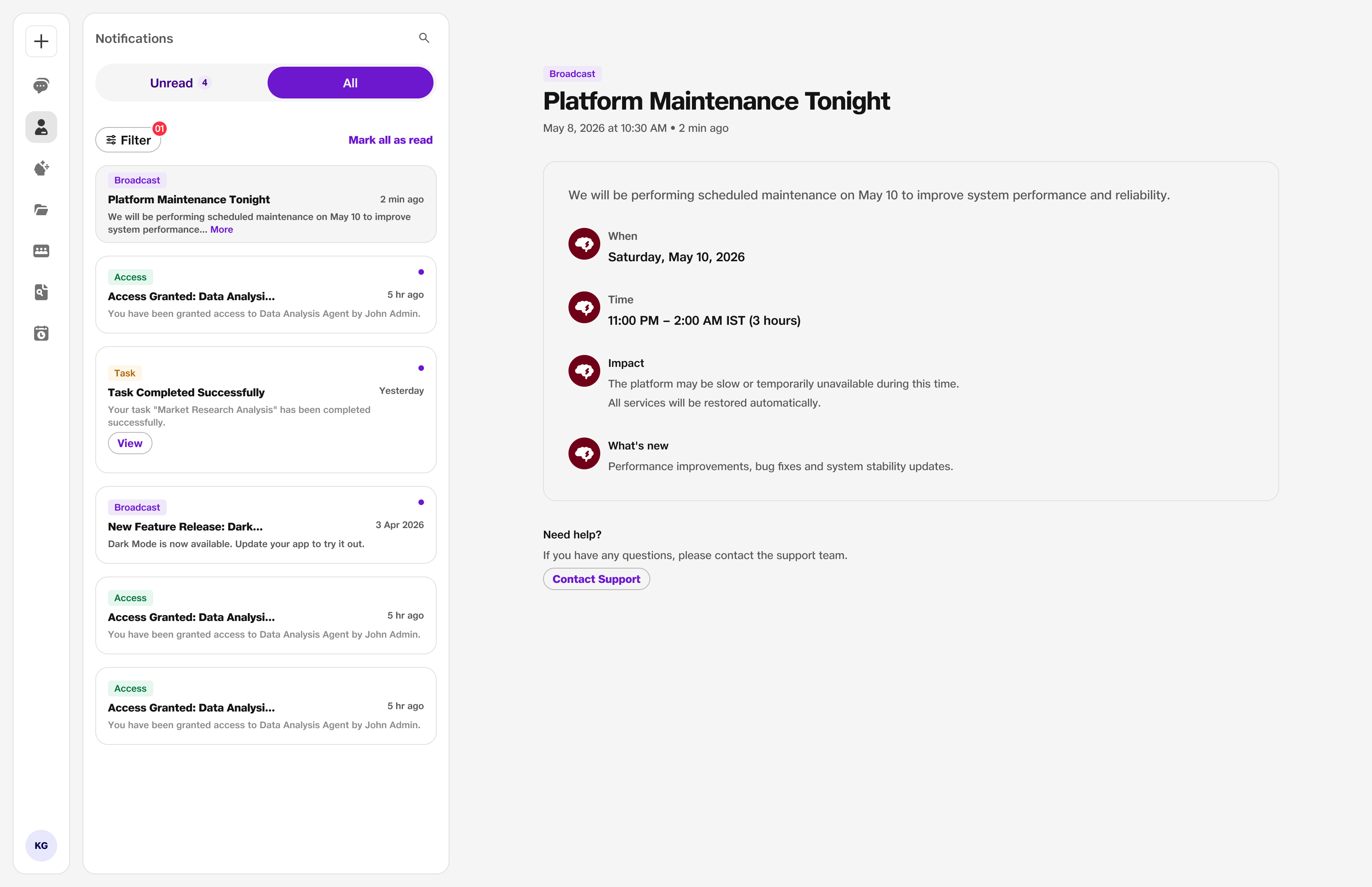
- All: Full list including broadcasts, access, and task updates.