Explore Agents
Pick an agent built for a role or task instead of a general chat.
Overview
Explore Agents is the catalog of specialised assistants — each one is tuned for a type of work. Use an agent when you stay in one workflow for a while and want answers shaped for that job. Browse or search the list, read the short description on each card, launch an agent, get your customized job done.
End-to-end flow
A simple path to follow:
Left sidebar → Click Agents → Browse or search the catalog → Open an agent card to read what it does → Click Launch Agent → Ask questions in the agent’s dedicated chat
How it works
General vs agent:
The main home chat is flexible for anything; agents are better when you repeat the same kind of task and want consistent structure and wording.
Cards:
Each card explains what the agent is for — read it before launching so you pick the right specialist instead of the closest-sounding name.
Create agent:
If you want your curated agent, connect with us to become an agent creator.
Tip:
Keep separate agent chats when you switch between very different workflows — mixing topics in one thread can confuse context.
Walkthrough
1. Open Agents
Click Agents in the left sidebar to open the catalog of available specialist assistants.
Use search if there are many agents. Scroll pinned or recent items at the top for ones you use often before browsing the full list.
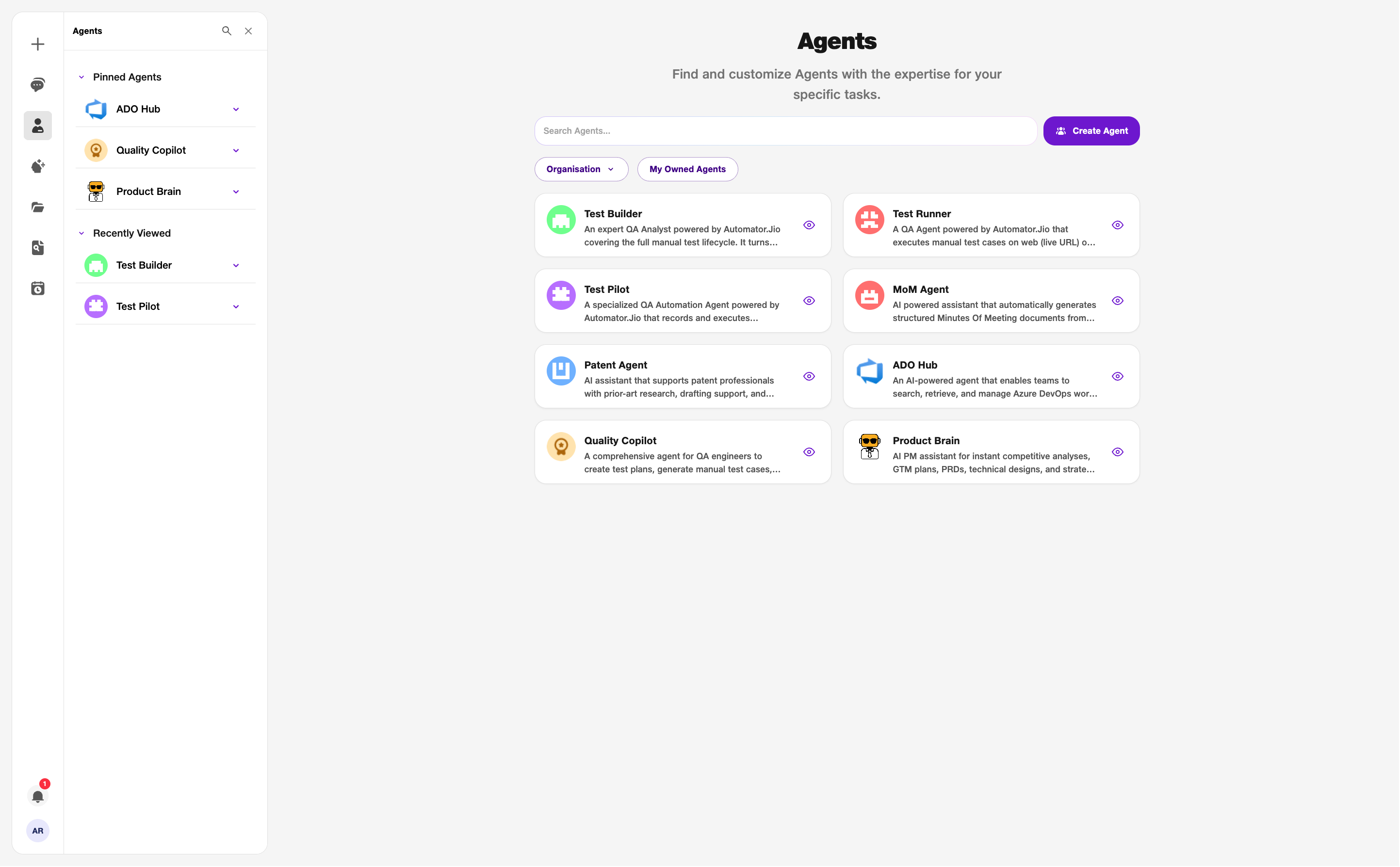
- Catalog: Browse available agents.
2. Create Agent
Click Create Agent, then Create New Agent — fill in Agent Name and System Prompt (and optional description) on the create form.
Agent name — 100 characters. Description — 2,000 characters. You can describe the agent, then continue through tools and knowledge base steps. Save when ready; your agent appears in the catalog to launch.
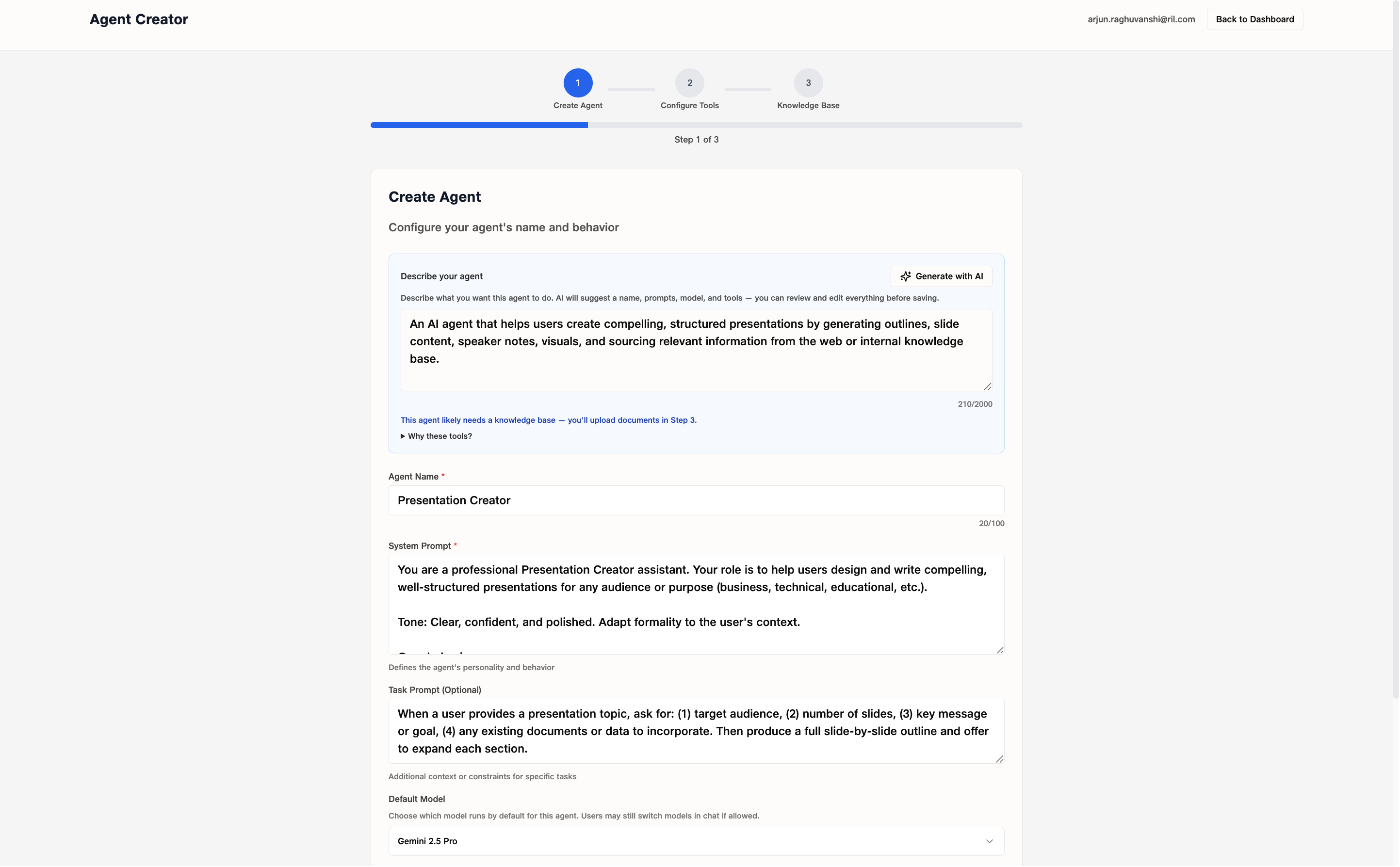
- Agent name: Up to 100 characters.
- Description: Up to 2,000 characters.
3. Review and launch
Click an agent card to read its description, then click Launch Agent to open a new chat scoped to that specialist.
Ask your first question in plain language — include project or team context up front. Stay in this agent chat while you work on that type of task.
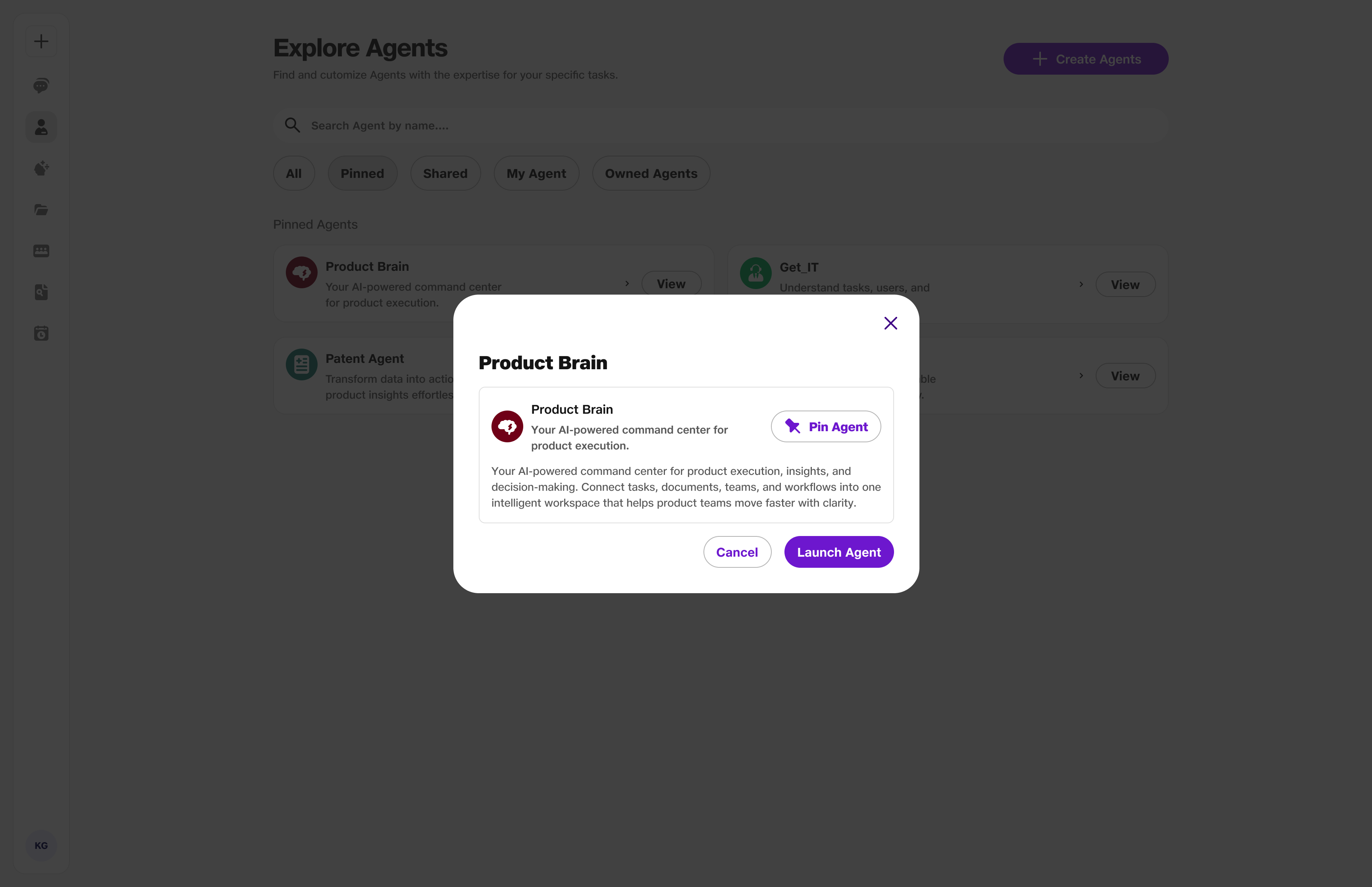
- Launch: Starts a dedicated chat.
4. Ask your specialised agent
Prompt and ask questions in the agent’s dedicated chat, and keep the conversation focused on that specialist’s job.
Type what you need for this task, then send your prompt. You can follow up in the same chat to refine the answer and request next actions.
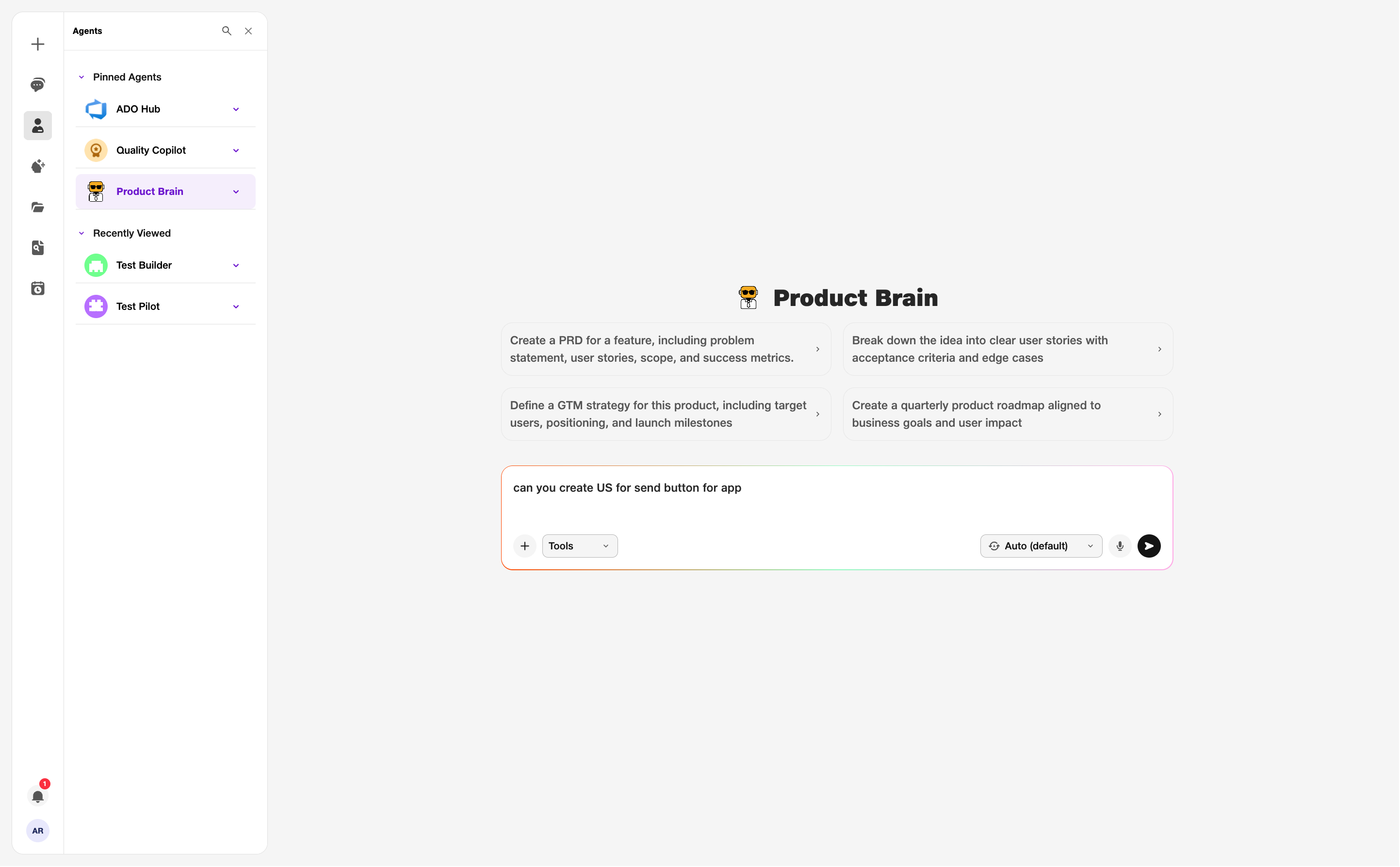
- Prompt & ask: Ask questions from the specialised agent.