Knowledge Graph
Type an @ email or name to look up a person — and use it when drafting or sending mail.
Overview
Knowledge Graph helps you look up people in the organisation and ask about their role, team, or contact details using an @ mention in chat. You can also use @ mentions when drafting or sending emails so the right colleague is included. Type @ followed by a name or email, pick them from the suggestions, then ask a question or ask the assistant to send or draft an email to that person — what you see depends on directory data and your permissions.
End-to-end flow
A simple path to follow:
Click in the chat input → Type @ plus a name or email → Select the person from suggestions → Ask for details, or ask to draft/send an email to them → Review the answer or email draft
How it works
@ mention:
Typing @ in the chat box opens people suggestions as you continue typing — similar to mentioning someone in a teams chat app.
Lookup and email:
Use @ to fetch people details, and also when you want the assistant to draft or send an email to that colleague.
Available fields:
The details returned depend on what your company directory exposes and what your account is allowed to see — not every field exists for every person.
Tip:
Example: type @colleague.name@ril.com, select the right person, then ask “What is their role?” or “Draft / send them an email about the weekly status.”
Walkthrough
1. Type an @ person
Click in the chat box and type @ followed by a colleague’s email or name — suggestions should appear as you type.
Click the correct person in the list. Then ask for details, or ask the assistant to draft or send an email to them in the same conversation.
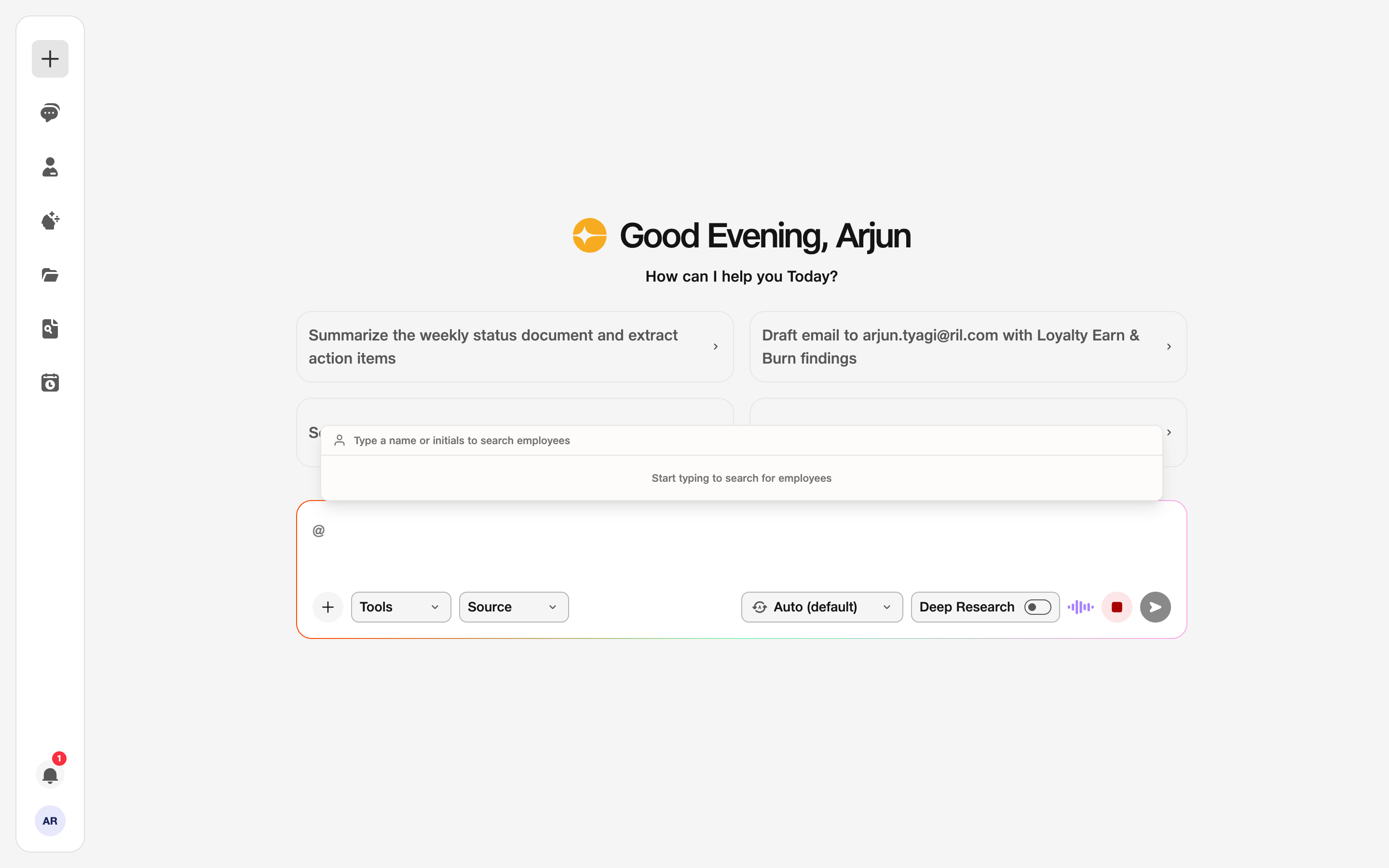
- @ mention: People / directory suggestions appear.
- Email: You can draft an email using the mention.