Internal Search
Find information from your personal / connected knowledge base inside the assistant.
Overview
Internal Search helps you find answers inside your own knowledge base — the notes, files, and connected content that JioAI Assistant can access for your account. Use it when you remember that something exists in your work materials but do not know which folder or file it is in. Ask in everyday language, and the assistant searches your knowledge base and returns a summarised answer with pointers to what it found.
End-to-end flow
A simple path to follow:
Start New Chat → Open Tools → Select Internal Search → Type a clear question about your topic (include names or dates if you can) → Send → Read the answer and any source references → Ask a follow-up if you need more detail
How it works
Your knowledge base:
Results come from content linked to your account — your personal files, team materials, and other connected sources.
Natural language:
You do not need special keywords; ask the same way you would ask a colleague who knows your projects, for example “What did we decide about the Q3 rollout?”
Be specific:
Adding a project name, person, date range, or document type helps the search focus on the right part of your knowledge base and avoids vague answers.
Walkthrough
1. Select Internal Search
Click New Chat if you are not already in a fresh conversation, then open the Tools menu and choose Internal Search — the chat should show that this mode is active.
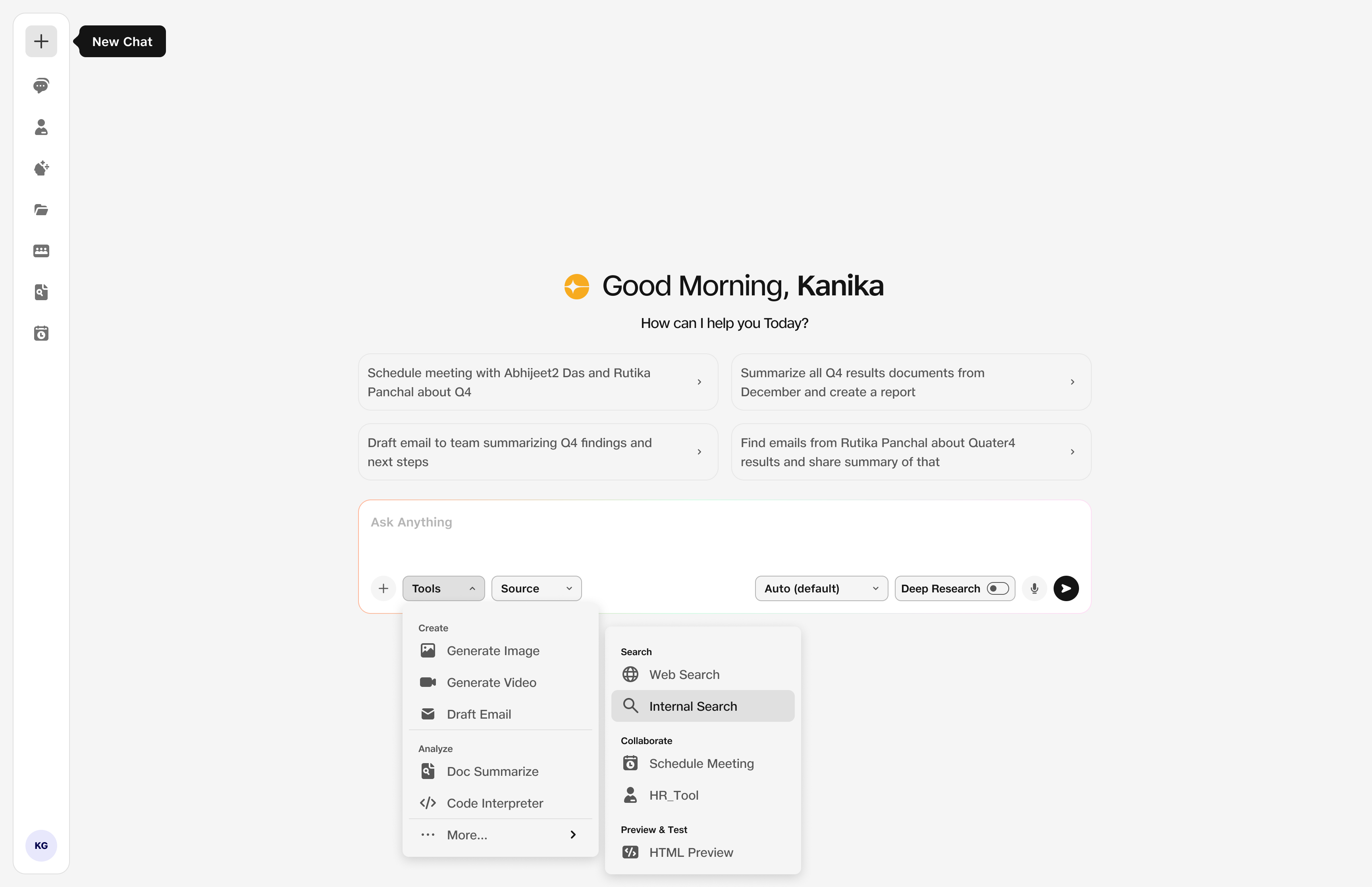
- Internal Search: Searches your knowledge base.
2. Ask about your knowledge base
In the chat box, type a clear question about information you expect to live in your knowledge base — policies, project notes, meeting outcomes, or shared files.
Click Send and wait for the reply. Check any cited sources or file names in the answer.
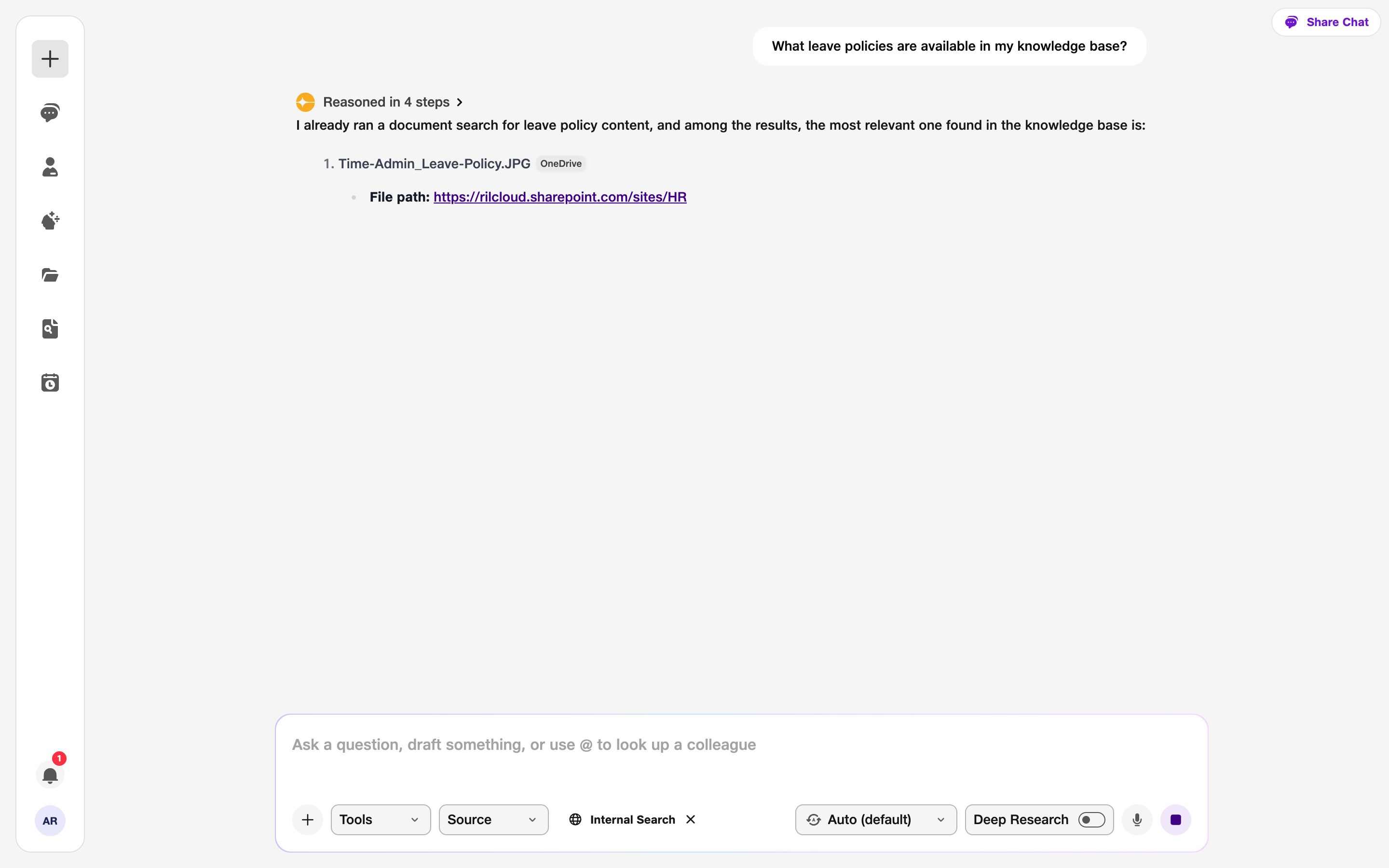
- Query: Topic from your knowledge base.