Chat History
Open Chats in the left panel to manage your conversation list.
Overview
Chat History keeps all your past conversations in one list so you can return to an earlier topic anytime. Open Chats from the left panel to browse, search, reopen, rename, or share chats. Use it when you need to continue work from last week, recover an answer you already got, or organise project conversations with clearer titles.
End-to-end flow
A simple path to follow:
Left sidebar → Open Chats → Browse the list or use search inside the panel → Click a chat to reopen → Read or continue the thread → Rename or share from the chat options if needed
How it works
Chats panel:
Open Chats from the left panel to see your full conversation list — a clear place to manage all past threads.
Reopen:
Clicking a chat loads the entire message thread so you can scroll up to old answers or type a new message at the bottom with all prior context still there.
Share / rename:
Use the chat option buttons (for example Share or Rename) to organise a conversation. Generate a share link and send it to others.
Move to project:
Move a chat into a project when you want that conversation grouped with ongoing project work and context.
Delete:
Delete a chat when you no longer need it, to keep your chat list tidy.
Tip:
Rename chats after important milestones — for example “Q3 rollout — decisions 12 Aug” — so history search finds them fast later.
Walkthrough
1. Open chat history
In the left sidebar, open Chats to see your conversation list.
Scroll through recent chats or use any search box in that panel to filter by title. This list is the main place to manage all past threads in one view.
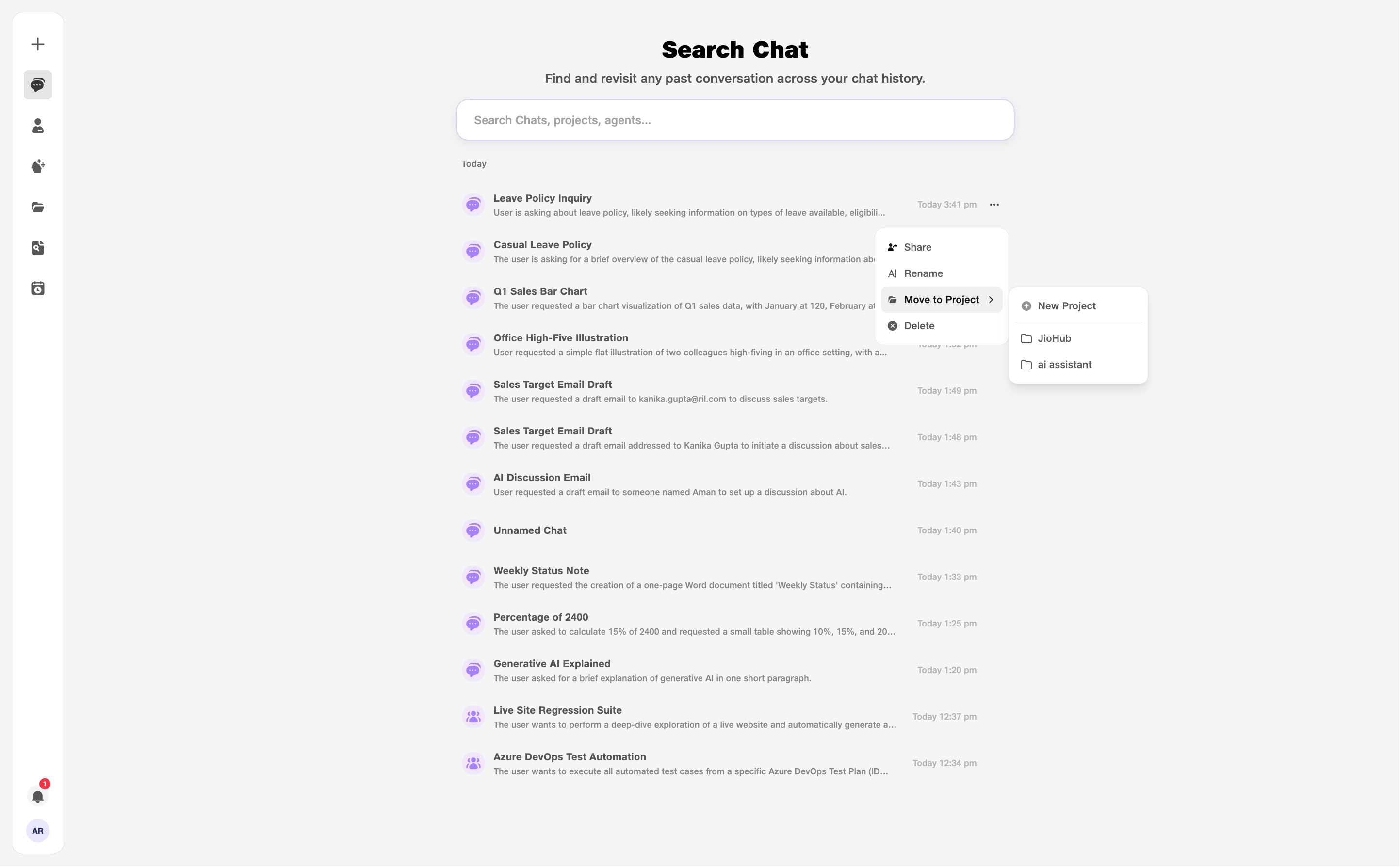
- Chats: Opens your conversation list.
2. Reopen a chat
Click the conversation you want — the full thread opens in the main area with all previous messages visible.
Scroll to find the message you need or continue typing at the bottom.
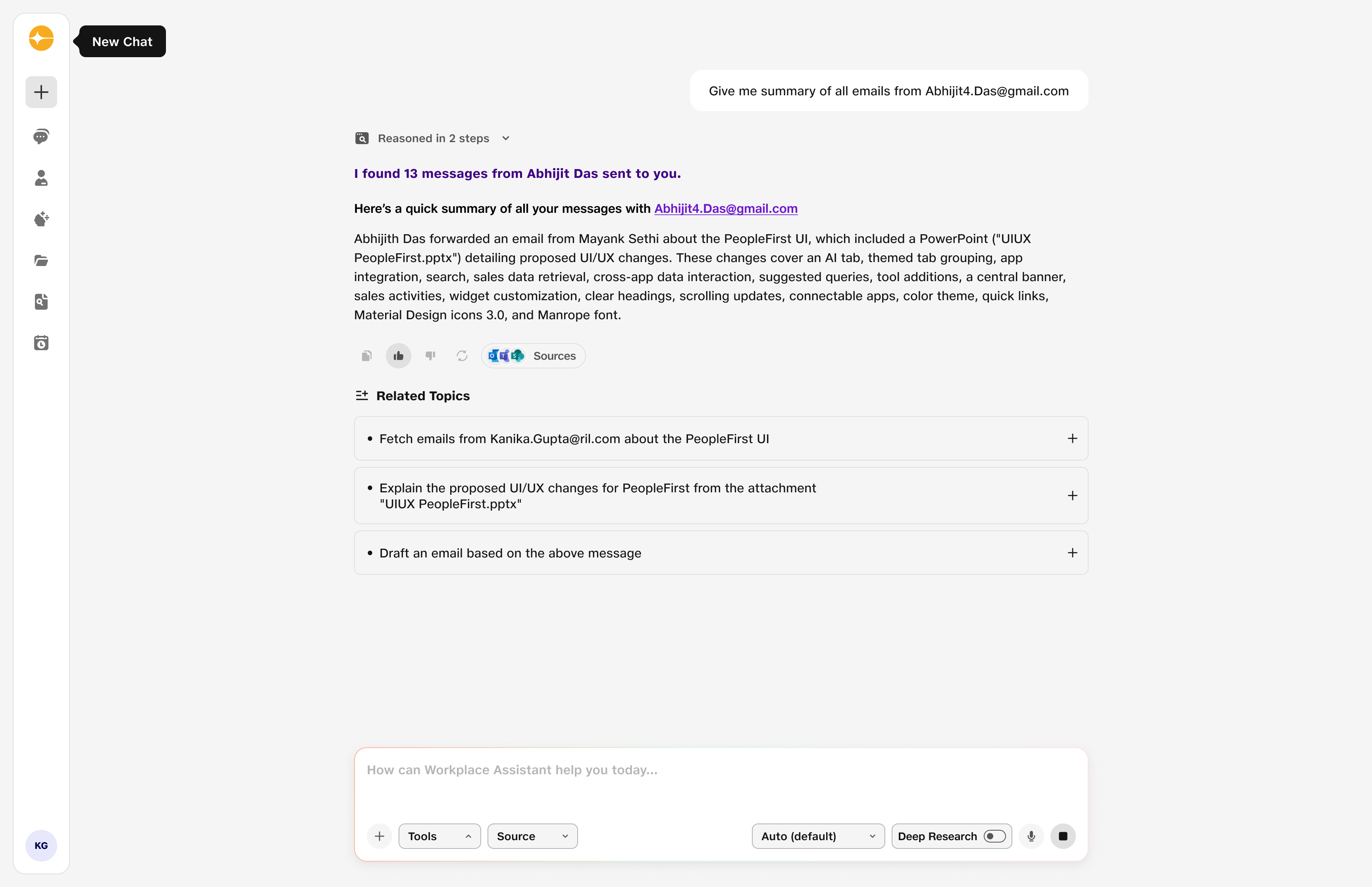
- Open: Full conversation loads.
3. Share a chat
Generate a share link and send it to others so they can open the conversation.
Open Share on the chat, generate the link, and copy it from the popup to send to your team.
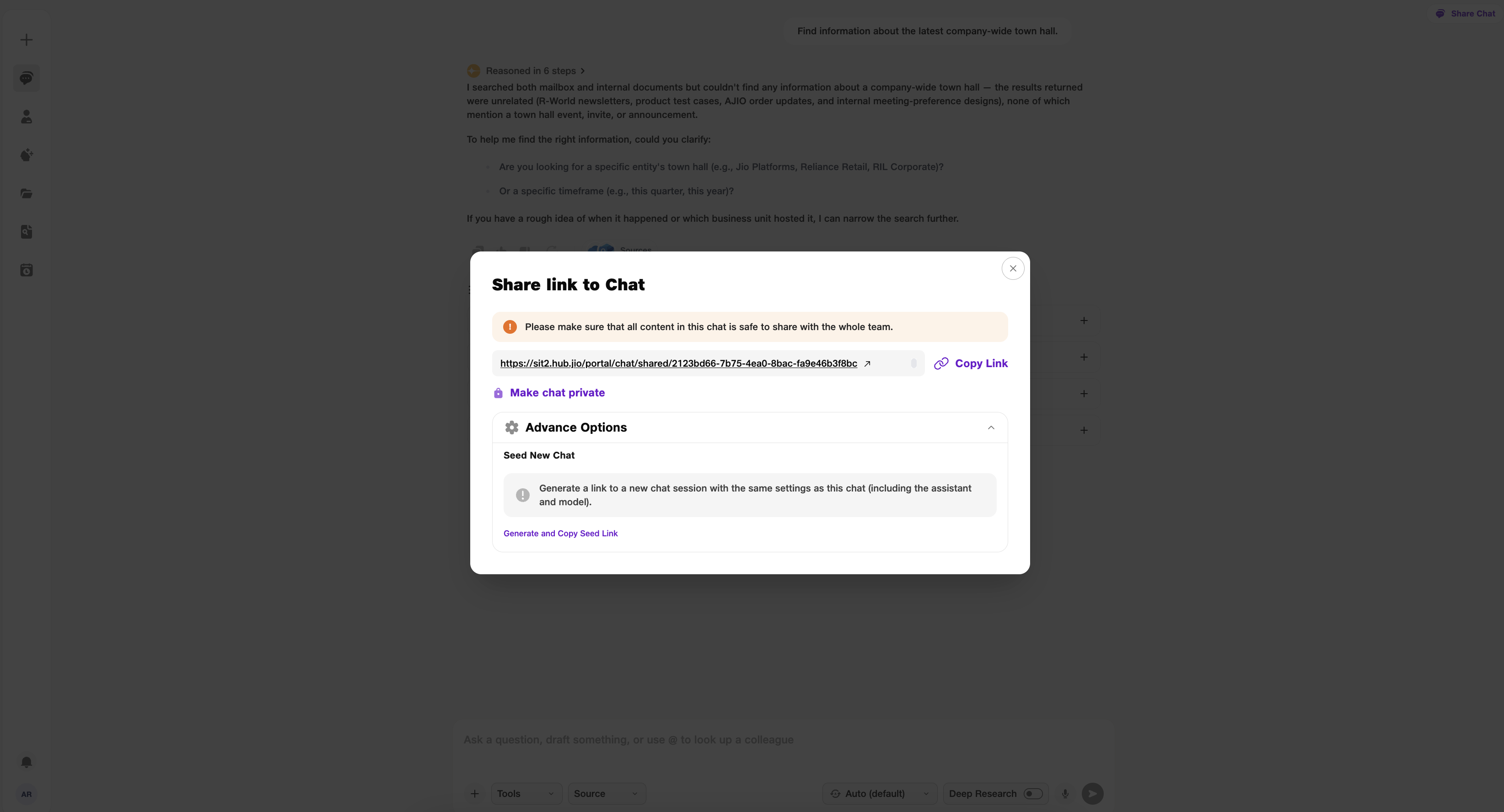
- Share: Opens the share popup.
- Link: Copy the link and send it to others.