STT (Speech to Text)
Click the microphone to dictate into the chat box.
Overview
STT (Speech to Text) lets you speak your question instead of typing it — your words appear as text in the chat box so you can polish them before sending. Use it when you are on the move or find speaking easier. The browser may ask for microphone permission the first time; after that, click the mic, speak clearly, glance at the text, then send as usual.
End-to-end flow
A simple path to follow:
Click the microphone icon on the chat bar → Allow microphone access if the browser asks → Speak your message clearly → Pause so text can appear → Give the text a quick check → Click Send
How it works
Mic button:
The microphone icon on the chat bar starts listening — click on it to begin and then a stop button will appear for you to select in case you want to stop.
Permissions:
Your browser may show a popup to allow the microphone; choose Allow for the JioAI site so dictation can work.
Quick check:
A quick look at names, acronyms, and numbers before sending helps the assistant get exactly what you meant.
Tip:
After dictating, a quick glance at people’s names or project codes keeps your message clear before you hit Send.
Walkthrough
1. Click the mic
Find the microphone icon on the chat bar — usually beside the text box — and click it to start speech input.
If prompted, allow microphone access. Speak at a normal pace toward your device. When the text looks complete, click the stop button that appears in your chat box if needed to stop, make any small edits, and send your message.
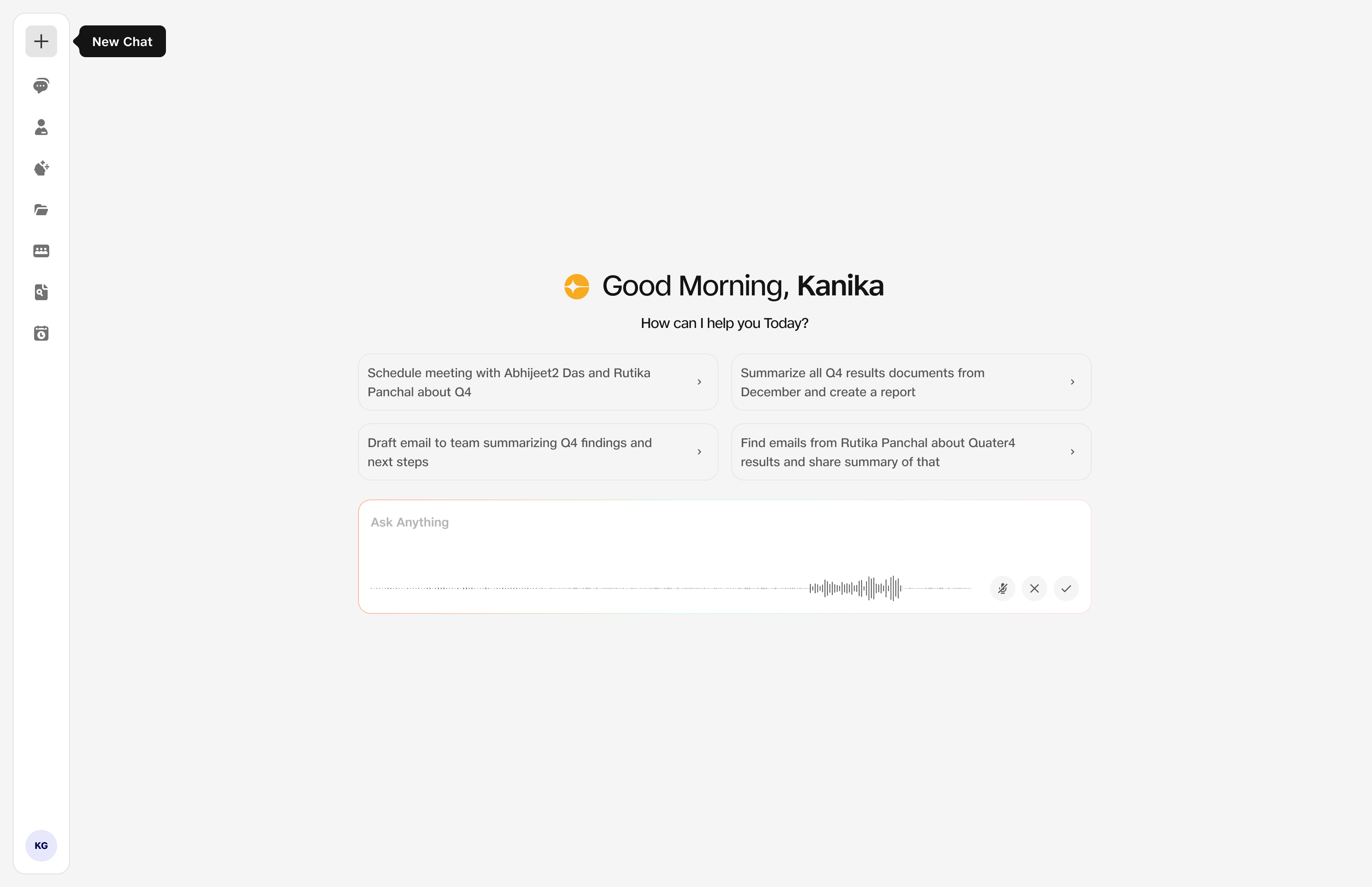
- Mic: Speech to text is active.