File Upload
Click + to add a file, then ask a question about it.
Overview
File upload lets you share a document or image with the assistant so it can read the content for you — no need to copy and paste long pages. Use it when you want a summary, answers about what is inside a file, or help drafting something based on an attachment. After the file is uploaded, you can ask questions related to that uploaded file in the same chat.
End-to-end flow
A simple path to follow:
Open a chat (home or New Chat) → Click the + button in the chat bar → Choose Upload or attach from your device → Wait until the file name appears on the chat bar → Ask a question related to the uploaded file → Send
How it works
Plus button:
The + icon beside the chat box opens your attach and upload options — click it before you type your question so the file is included.
Supported files:
Supported formats: PDF, Word (.doc/.docx), PowerPoint (.ppt/.pptx), Excel (.xls/.xlsx), CSV, TXT, and images (PNG, JPG, JPEG, GIF, WEBP). Limits today: max 7 files per upload and up to 100 MB per file (unlimited total files where the feature allows, such as Projects).
Ask about the file:
Once the file is attached (and indexed, when shown), you can ask anything related to that uploaded file — a summary, key points, comparisons, or answers from the content.
Tip:
After the file is attached, write one clear sentence about what you want — for example “Summarise this in five bullet points for my manager” — instead of only saying “look at this file.”
Walkthrough
1. Click the + button
In the chat bar at the bottom of the screen, find and click the + button — it sits near the text box where you type messages.
A menu opens with options to upload from your computer or pick from connected storage if your account has that set up. Choose the option that matches where your file lives.
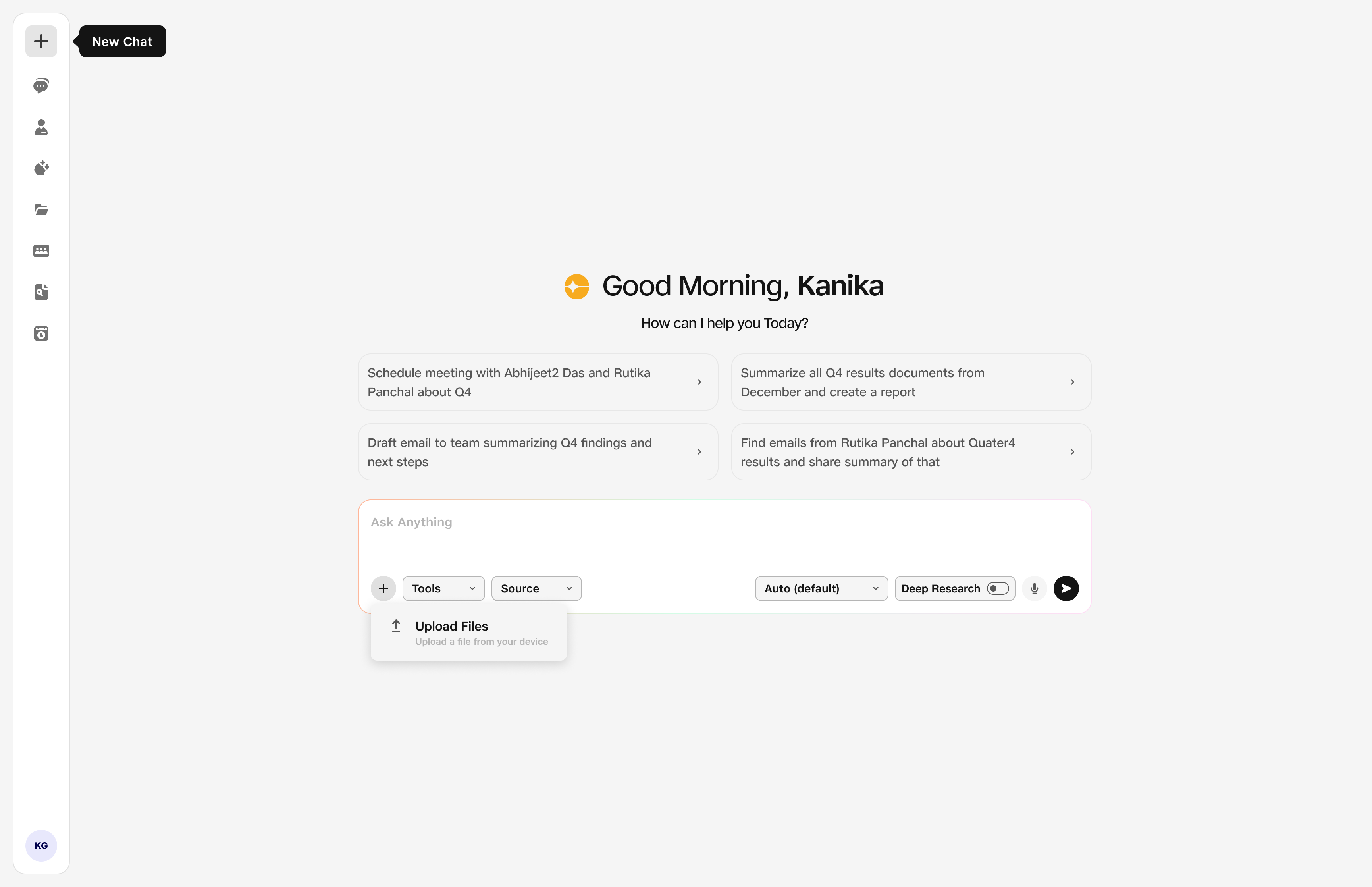
- + button: Opens file options.
2. Attach your file
Select your file and wait until its name or a small preview appears on the chat bar — that means the assistant can see it.
Wait until the file shows as attached (and Indexed, when that label appears) before you send your question.
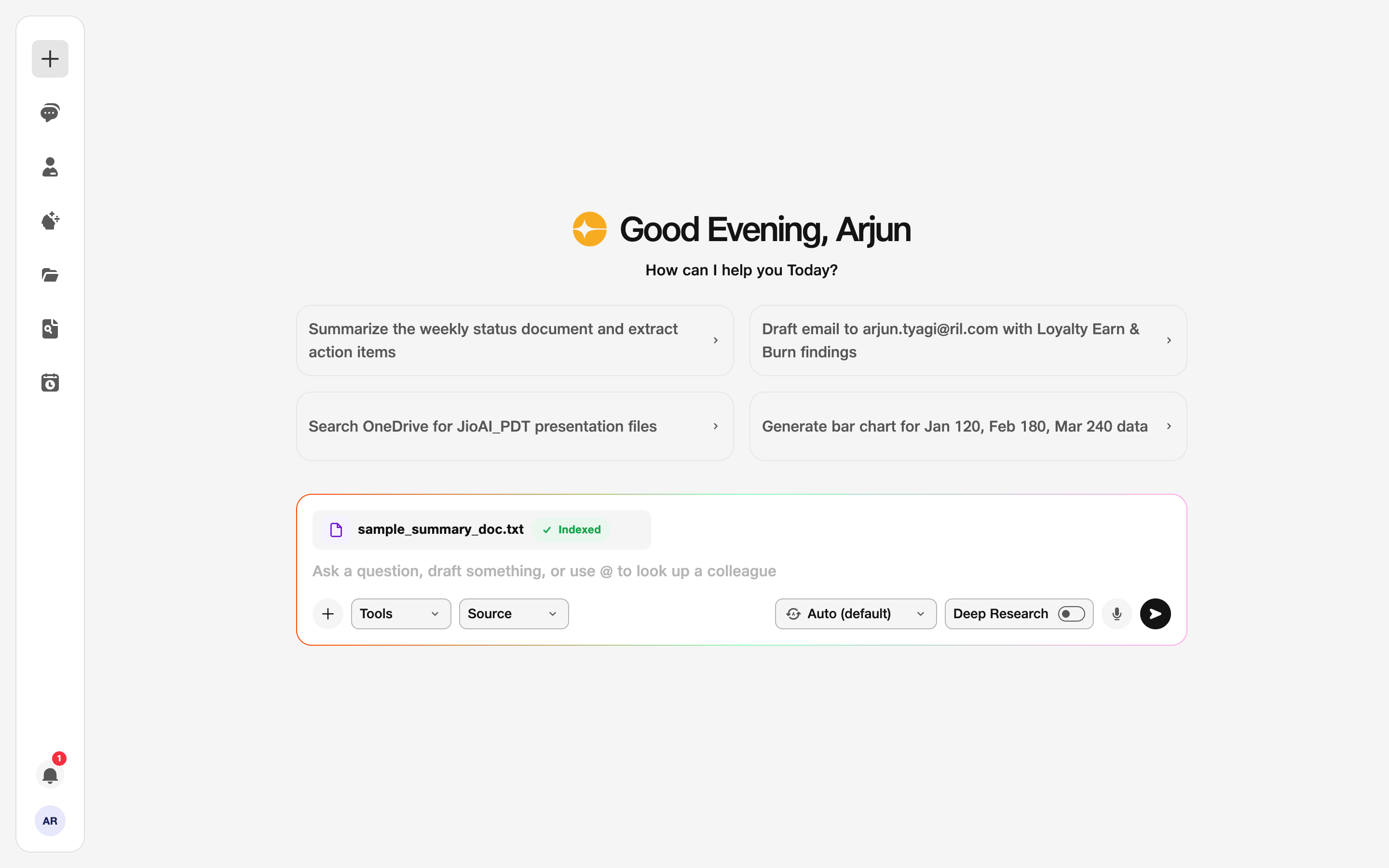
- File: Attachment appears on the chat bar.
3. Ask about the uploaded file
You can ask questions related to the uploaded file in the same chat — for example a summary, key points, or answers from the content — then click Send.
Type in plain language what you need from that file. Stay in this conversation if you want follow-up questions about the same attachment.
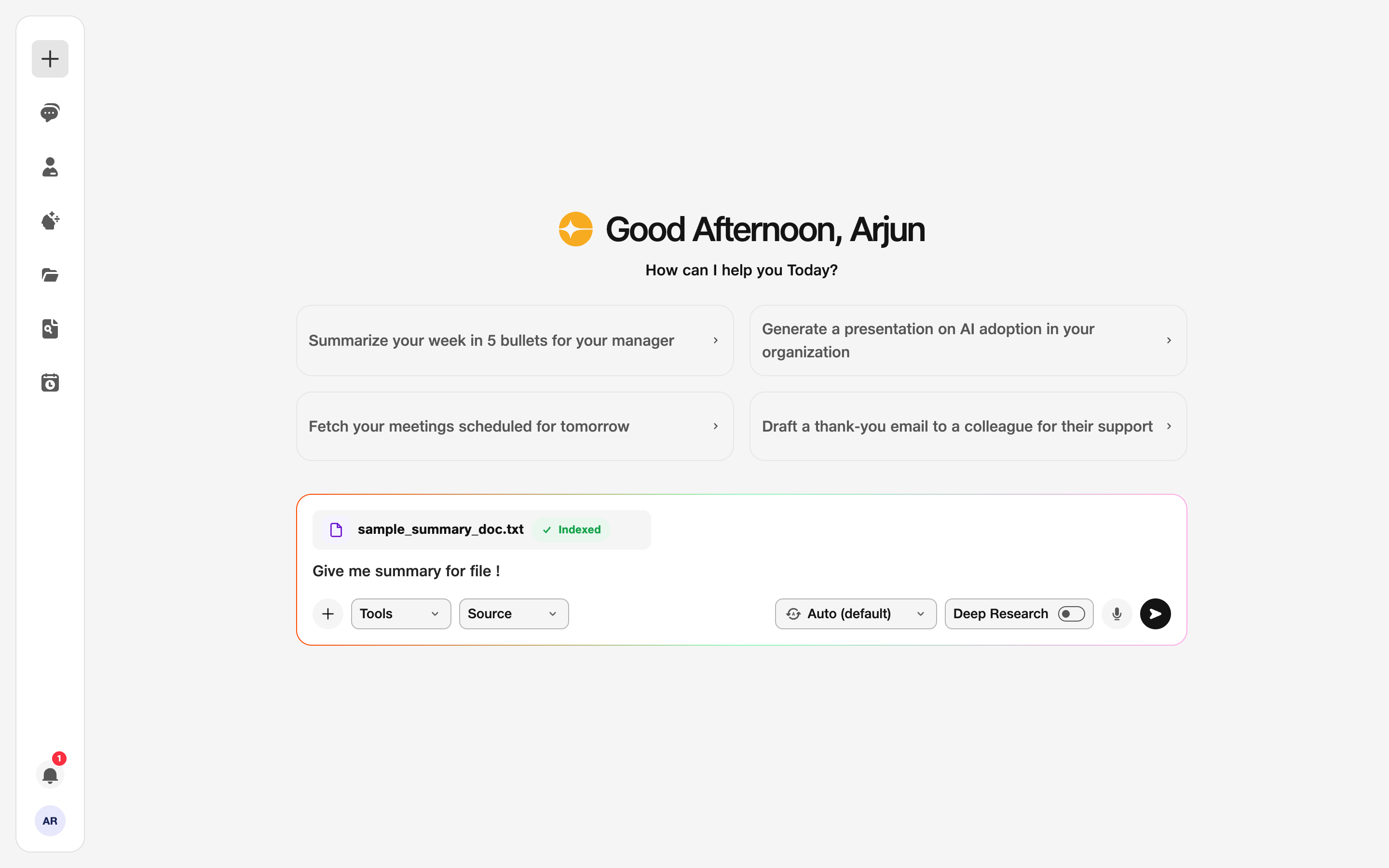
- File + prompt: Ask anything related to the uploaded file.