Scheduled Tasks
Click New Task to create a timed workflow, then track when it runs.
Overview
Scheduled Tasks let you run certain assistant workflows automatically on a timetable — for example a weekly summary every Monday morning. Use them for repeat work that does not need you at the keyboard each time. Open Scheduled Tasks from the sidebar, click New Task, fill in what should run and when, then save. When the schedule is due, the task executes on its own — check the run result or output after execution to confirm it looks right.
End-to-end flow
A simple path to follow:
Sidebar → Scheduled Tasks → Review existing schedules → Click New Task → Enter name, prompt, timing, and frequency → Save → Task executes at the scheduled time → Review the execution result → Edit or pause if priorities change
How it works
New Task:
The New Task button starts the form where you define what the assistant should do and how often. Task name — 50 characters. Brief description — 200 characters.
Execution:
At the scheduled date and time, the task runs automatically — you do not need to be in the chat. Open Scheduled Tasks (or related notifications) to see execution status and review the output.
Morning digest:
Your daily digest arrives at the time you set (default 7:30 AM local) by email and as an in-app card. Choose sections: today's calendar, overdue / at-risk items, team signals, and suggested top-3 focus. Empty sections are hidden. Every digest includes thumbs-up / thumbs-down and a short comment box. Content is limited to the last 6 hours.
Inbox summary:
Your inbox summary appears as a chat session at the time you set (default 8:30 AM local). Unread mail is grouped by sender or thread with a one-line summary, sorted into Needs reply, FYI, and Auto-decline. JioAI Assistant suggests replies based on your preferences.
Edit or pause:
When projects shift, edit the schedule or pause it so old prompts do not keep running with outdated context.
Tip:
Start with one simple weekly task — such as a Friday recap prompt — before creating many schedules you will not monitor.
Walkthrough
1. Open Scheduled Tasks
Click Scheduled Tasks in the left sidebar to see timed workflows already on your account and the button to create new ones.
Read any existing tasks so you do not duplicate the same schedule. For a task that is scheduled to run in the future, you can see the next time that will be run as shown on the screen.
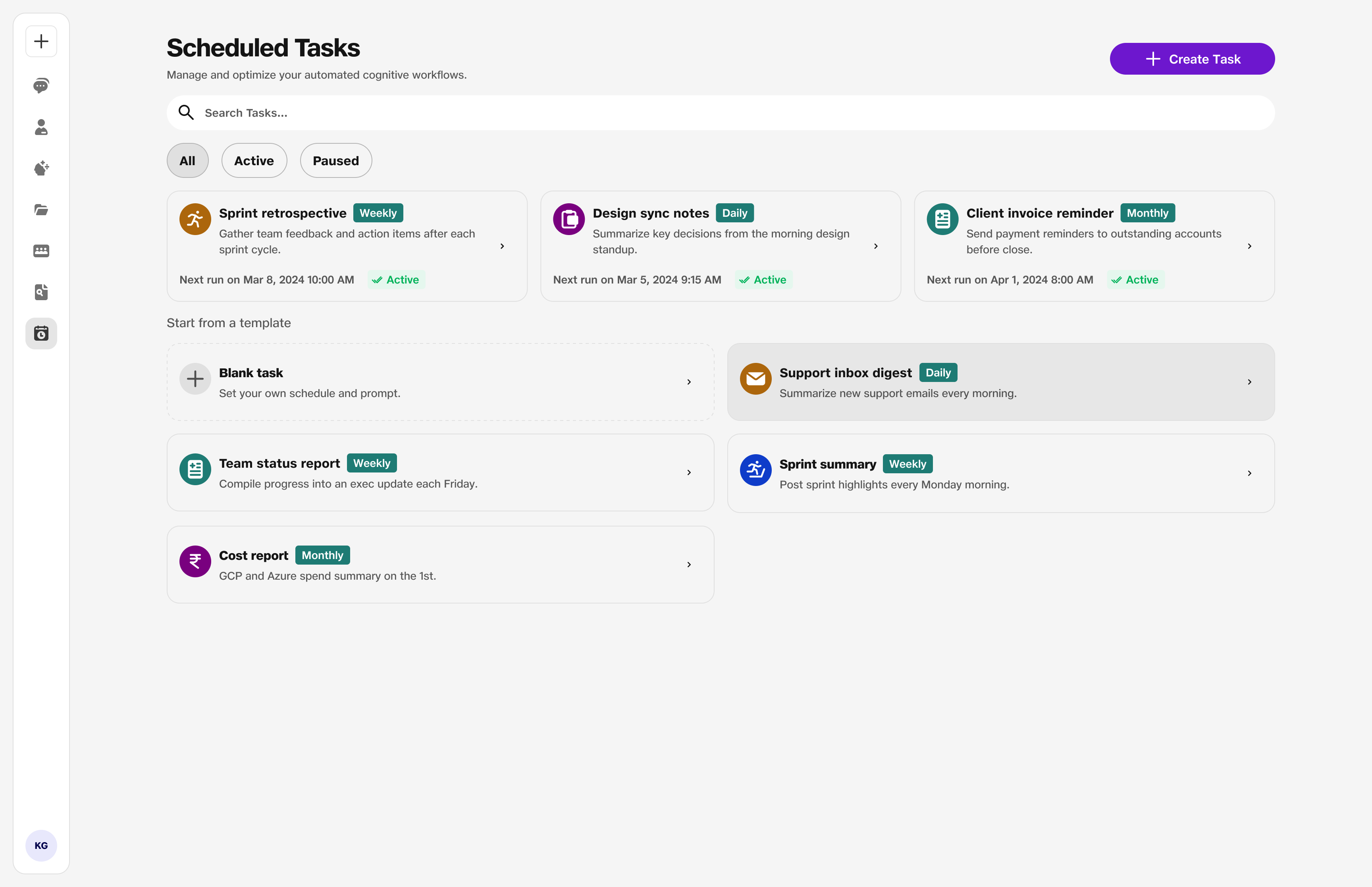
- Schedules: Timed workflows.
2. Click New Task
Click New Task to open the creation form — give the task a clear name and write the prompt as if you were asking in chat that day.
Task name — 50 characters. Brief description — 200 characters. Pick date, time, and repeat pattern carefully. Save the task — it will execute on schedule. After the first execution, review the output and tweak the prompt if the result is not as expected.
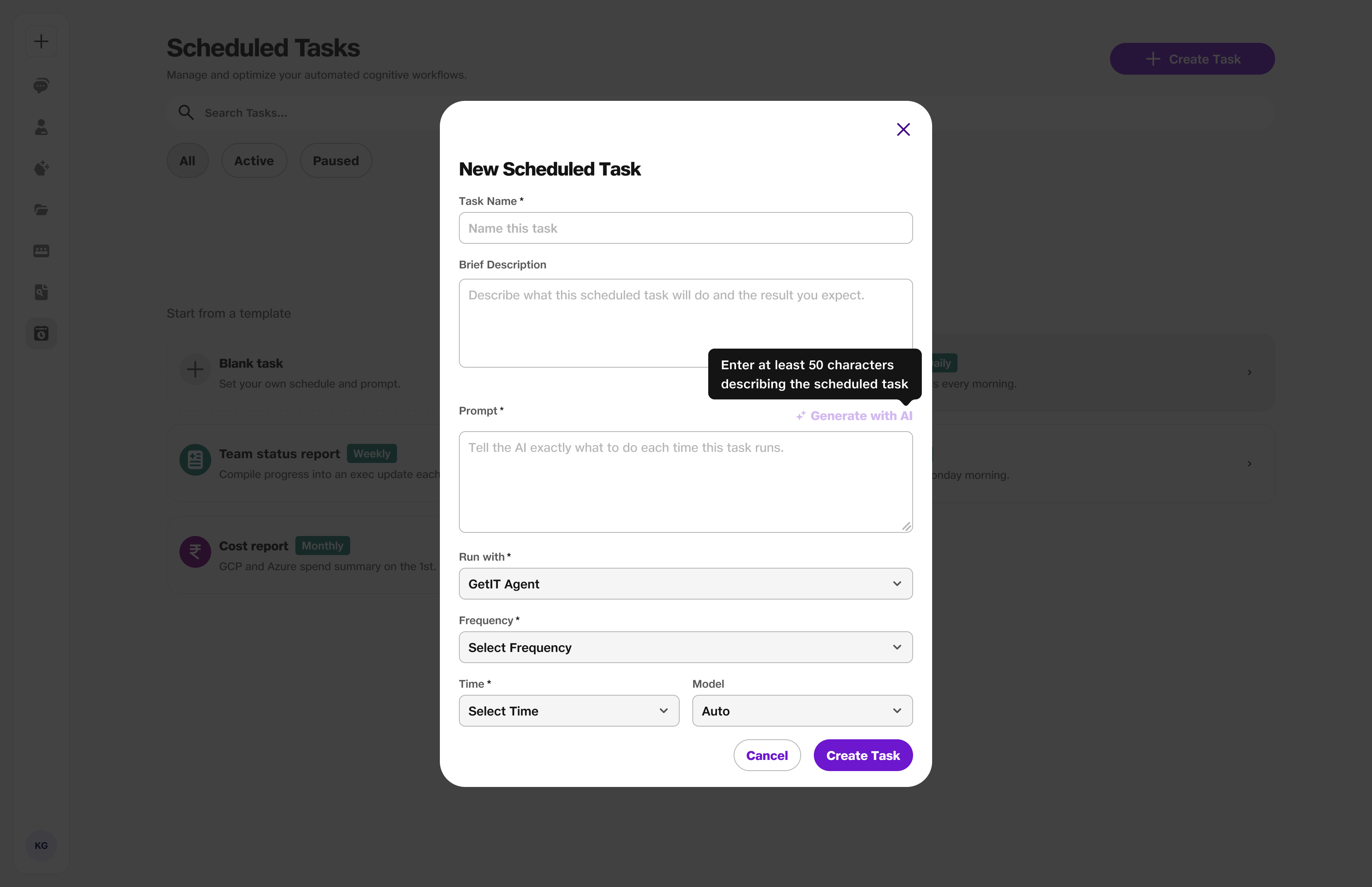
- New Task: Create form opens.
- Execution: Runs automatically at the set time.
3. Morning digest
Set up a morning digest to receive a daily summary by email and as an in-app card at the time you choose (default 7:30 AM local).
Choose which sections to include: today's calendar, overdue / at-risk items, team signals, and suggested top-3 focus. Empty sections are hidden. Rate each digest with thumbs-up / thumbs-down and leave a short comment. Content is limited to the last 6 hours; older items show when they were last updated.
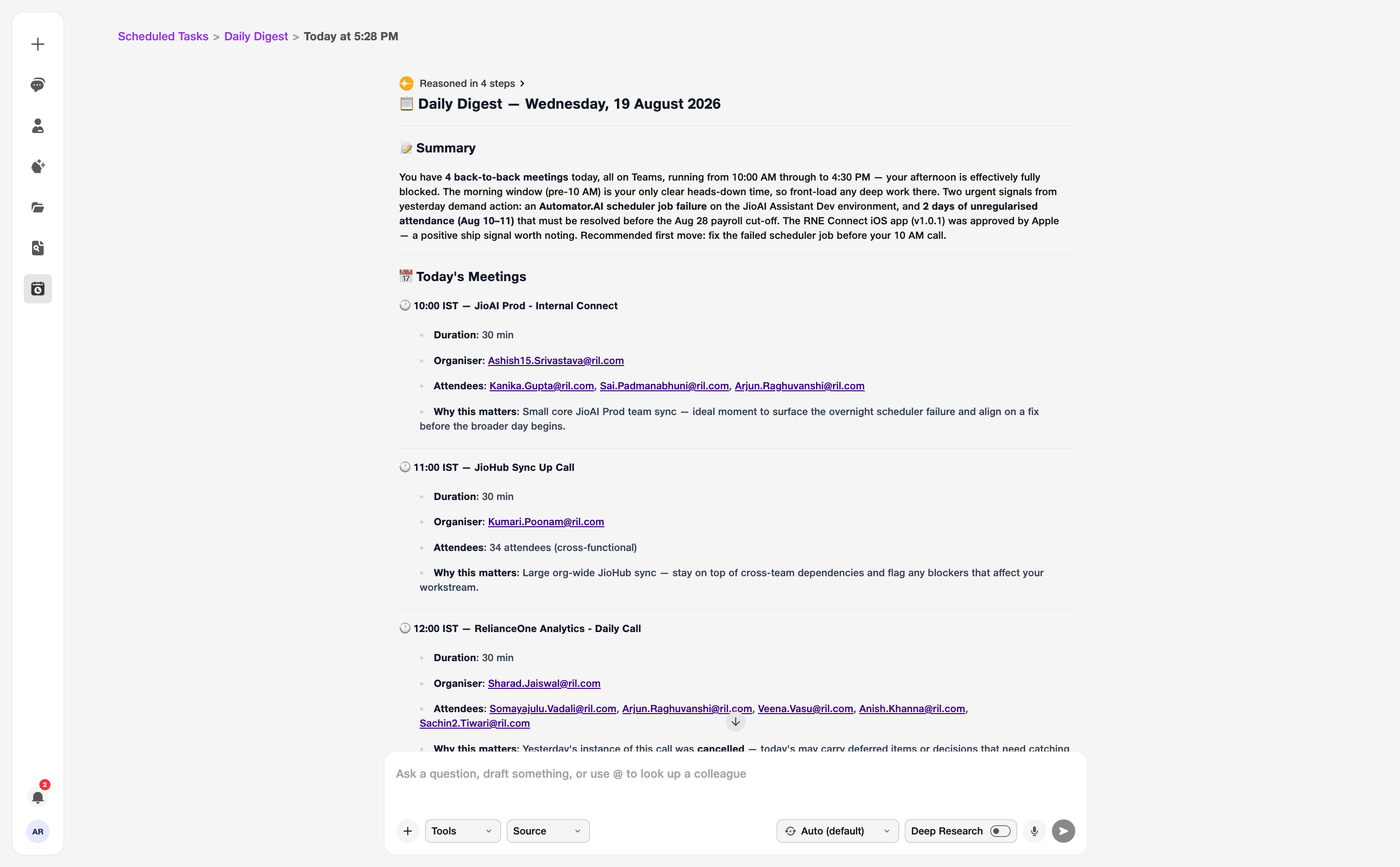
- 7:30 AM: Default delivery time (you can change it).
- Feedback: Thumbs and a comment on every digest.
4. Inbox summary and replies
Set up an inbox summary to open as a chat session at the time you choose (default 8:30 AM local).
Unread mail is grouped by sender or thread with a one-line summary. Mail is sorted into Needs reply, FYI, and Auto-decline. JioAI Assistant suggests replies based on your preferences so you can respond quickly.
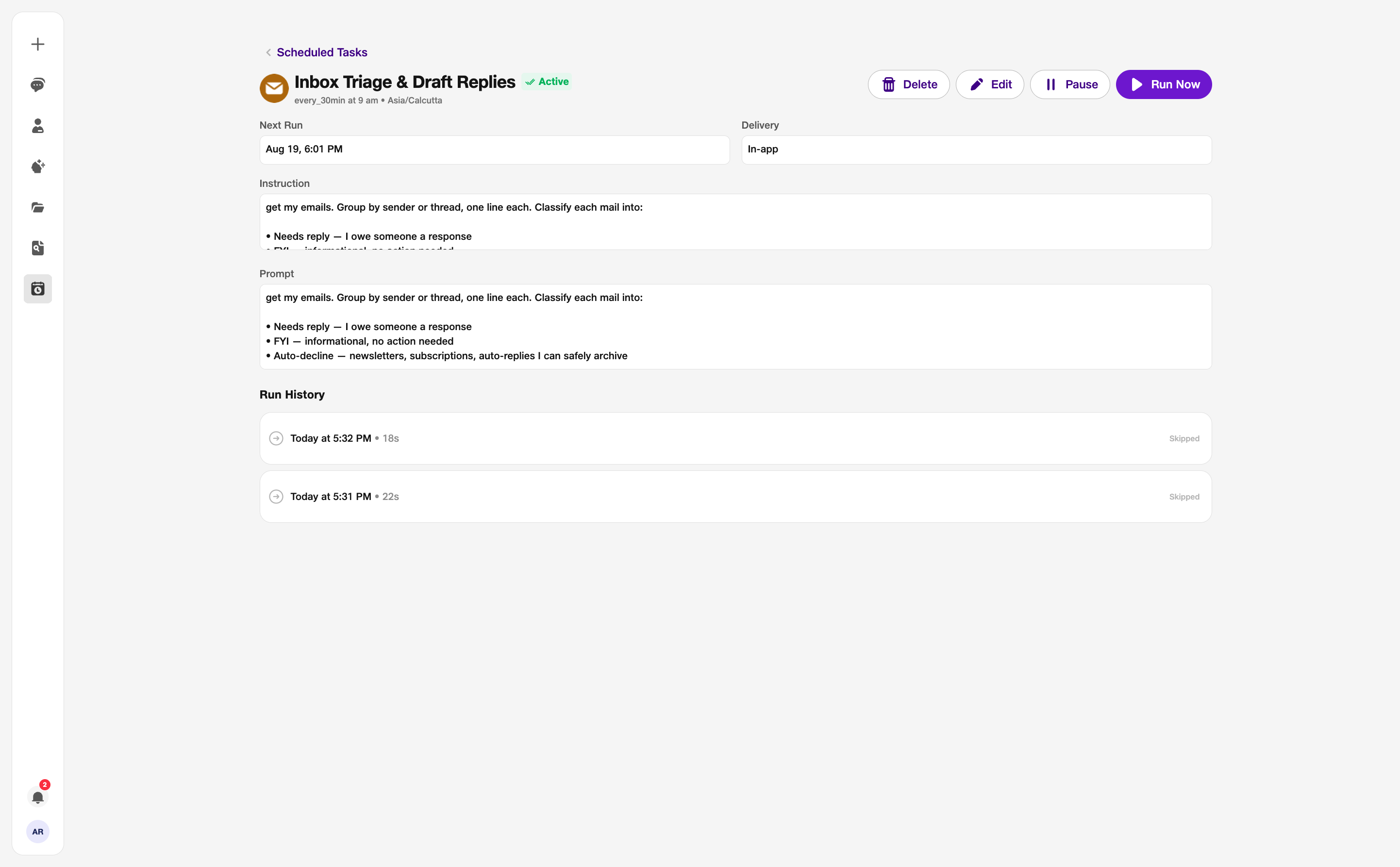
- 8:30 AM: Default session time (you can change it).
- Needs reply: Mail that needs your response first.