Documents
Browse or open documents stored or used with JioAI Assistant.
Overview
Documents is a central place to find files linked to your assistant usage — generated drafts, and other materials — so you can reopen them without hunting through old chats. Use it when you remember creating a file in JioAI but not which conversation it was in. Browse or search the list, open the file you need, and follow your company’s rules for handling sensitive data. You can even search & quickly fetch files stored in your connected data sources
End-to-end flow
A simple path to follow:
Sidebar → Documents → Browse the list from side panel or search by name → Select a file → Open → Review
How it works
Central place:
Documents saves time compared to scrolling every chat thread looking for the created documents from weeks ago.
Open carefully:
Confirm the title and date match what you expect before you open to edit — especially if several versions exist.
Tip:
When you download a file to your computer, rename it clearly with project and date so you can find it outside JioAI too.
Walkthrough
1. Open Documents
Click Documents in the left sidebar to open the file area — you should see a list of documents associated with your assistant activity.
Use search or scroll until you find the file name you remember from chat or email.
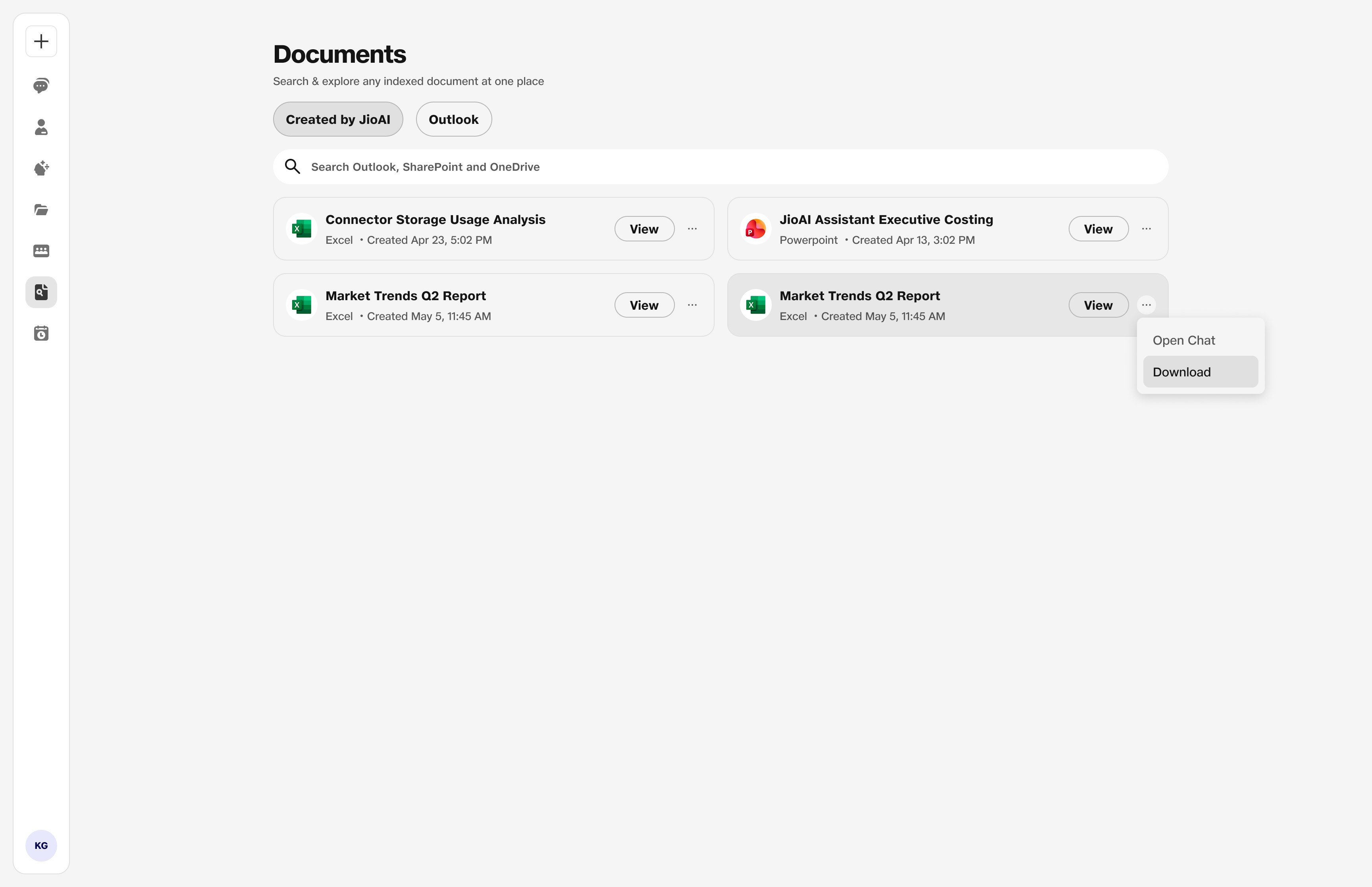
- Documents: File area.
2. Open a document
Hover over or click the file row, then choose Open to view or download the document.
Check that it is the right version before you open/edit or download. Return to Documents anytime you need that file again without reopening the original chat.
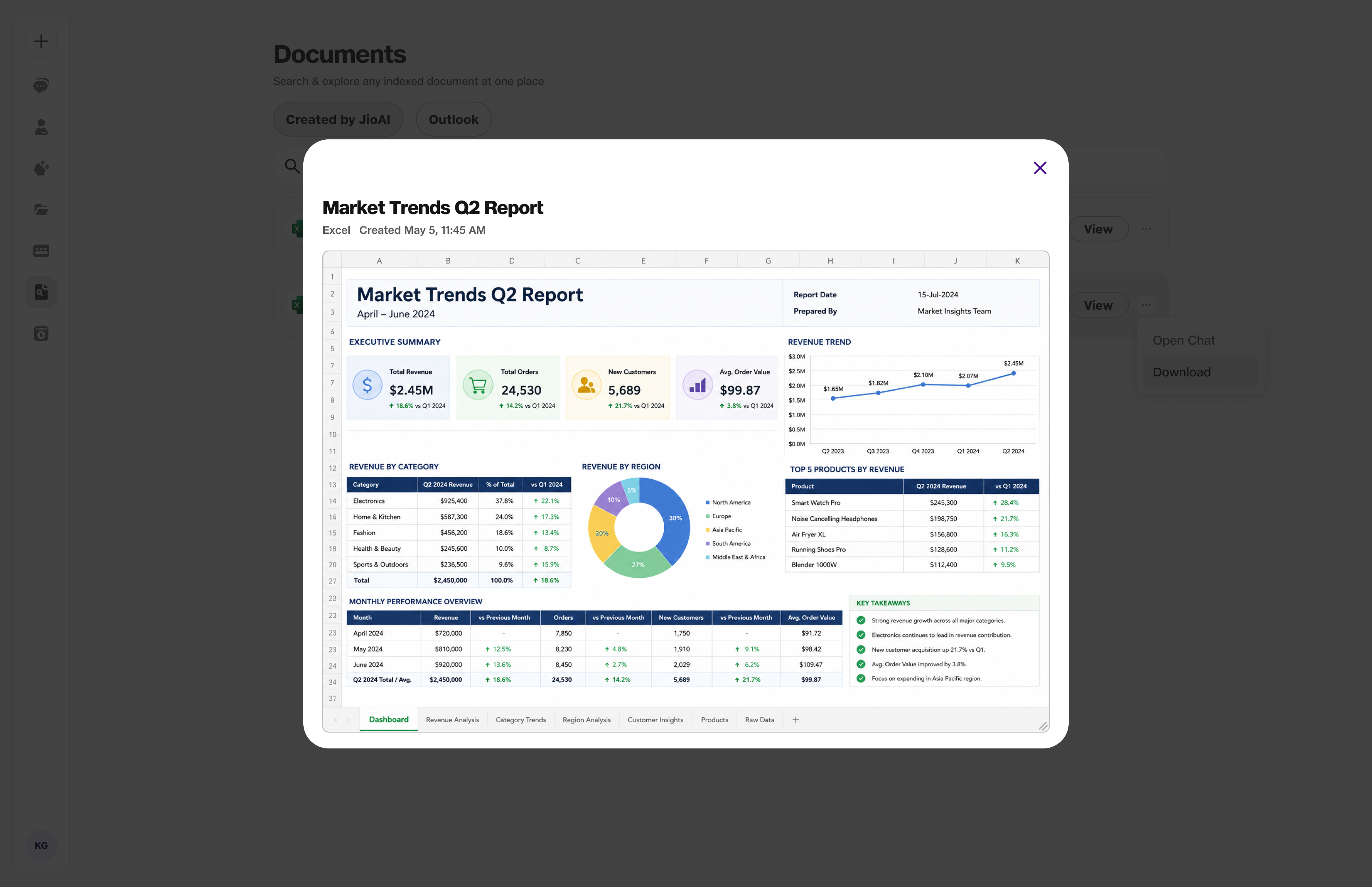
- Open: Opens the selected document.