Meetings
Connect your calendar, let the meeting bot join Teams calls, get a short pre-read before important meetings, then revisit transcript, summary, and Q&A anytime.
Overview
Meetings keeps every conversation useful before and after it happens. Connect your Outlook calendar so Upcoming fills in automatically, or upload a recording yourself (MP3, MP4, WAV, M4A, WebM, VTT — max 2 GB). JioAI can join Microsoft Teams meetings as a muted bot, capture the session, and turn it into a transcript and a clear summary. Before the meeting, Meeting Pre-read prepares a short brief (about 60–90 seconds to read) so you walk in informed — purpose, attendees, open items, and relevant docs. Open any finished meeting to replay, read key topics, and ask questions. After the meeting ends, the summary is shared to the Teams meeting chat.
You can also add JioAI Assistant directly from a Teams meeting chat or group chat. When someone adds the bot there, it can join that call even if auto-join was not turned on for that meeting in the JioAI Assistant portal.
End-to-end flow
A simple path to follow:
Sidebar → Meetings → Connect Calendar → Set Preferences (Meeting Bot + Meeting Pre-read) → Upcoming (toggle bot / pre-read per meeting) — or Add bot from Teams chat → Meeting runs → Open finished meeting → Transcript + Summary → Ask anything about this meeting
Pre-read can also start from: Sidebar → Scheduled Tasks → Meeting Pre-Read template → save preferences when prompted. Pre-read output also appears under Chats → Tasks.
How it works
Get started (before calendar):
Open Meetings from the sidebar. Use Connect Calendar so Upcoming fills in automatically, or Upload Recording to process a file right away. Until a calendar is connected, Settings stays unavailable — hover the gear to see: “Connect your calendar to configure meeting preferences.”
After calendar connection:
Settings becomes available. Upcoming shows the next week of meetings. Each row has Meeting Bot and Pre-read toggles. Use Settings (or Manage join preference) to open Choose Preferences with two tabs: Meeting Bot and Meeting Pre-read. Defaults start as disabled until you choose and Save.
Meeting Bot preferences:
Choose when the bot auto-joins: Join all meetings, Join all accepted meetings, Join meetings I organize, or Disable auto-join. Save applies the default to Upcoming; you can still override per meeting when allowed. If another person already enabled the bot for a meeting, you cannot turn that toggle off — only the first person who enabled it can disable it. Once enabled, the bot still joins even if that enabler does not attend the call.
What is Meeting Pre-read:
A short prep brief for an upcoming meeting (about 60–90 seconds to read). It typically covers meeting purpose, attendee context, open items from the last related meeting, and a few relevant docs or mails. Pre-reads are prepared ahead of the meeting (about 15–20 minutes before). You can schedule this from Meetings Settings or from Scheduled Tasks; results also show under Chats → Tasks.
Meeting Pre-read preferences:
Choose when JioAI prepares a pre-read: All meetings, All accepted meetings, Meetings I organize, or Disable pre-read. Optionally exclude recurring standups you already know. Use Always Generate overrides (for example when leadership attends, or when specific people are invited). Saving pre-read preferences can enable the related scheduled task automatically.
Pre-read from Scheduled Tasks:
Open Scheduled Tasks → Start from a template → Meeting Pre-Read. Enabling the template can redirect you to meeting preferences; once saved, both the task and meeting preferences stay in sync. You can run this so you get a pre-read for every meeting that matches your rules.
Add bot from Teams:
In a Teams meeting chat or group chat, add JioAI Assistant. The system message shows that the bot was added. The bot can then join that group call even if that meeting was not enabled for auto-join in the JioAI Assistant portal. The bot joins muted and stays muted.
Ongoing meetings:
The bot cannot be added into a meeting that is already in progress. Add it from Teams chat or enable it on Upcoming before the call starts so it can join when the meeting begins (including early starts).
Upload:
Optional title (filename used if empty). Progress shows while uploading. Errors for unsupported type, over 2 GB, or failed upload. Processing: Understanding → Transcribing → Summarizing.
Detail — transcript, summary, Q&A:
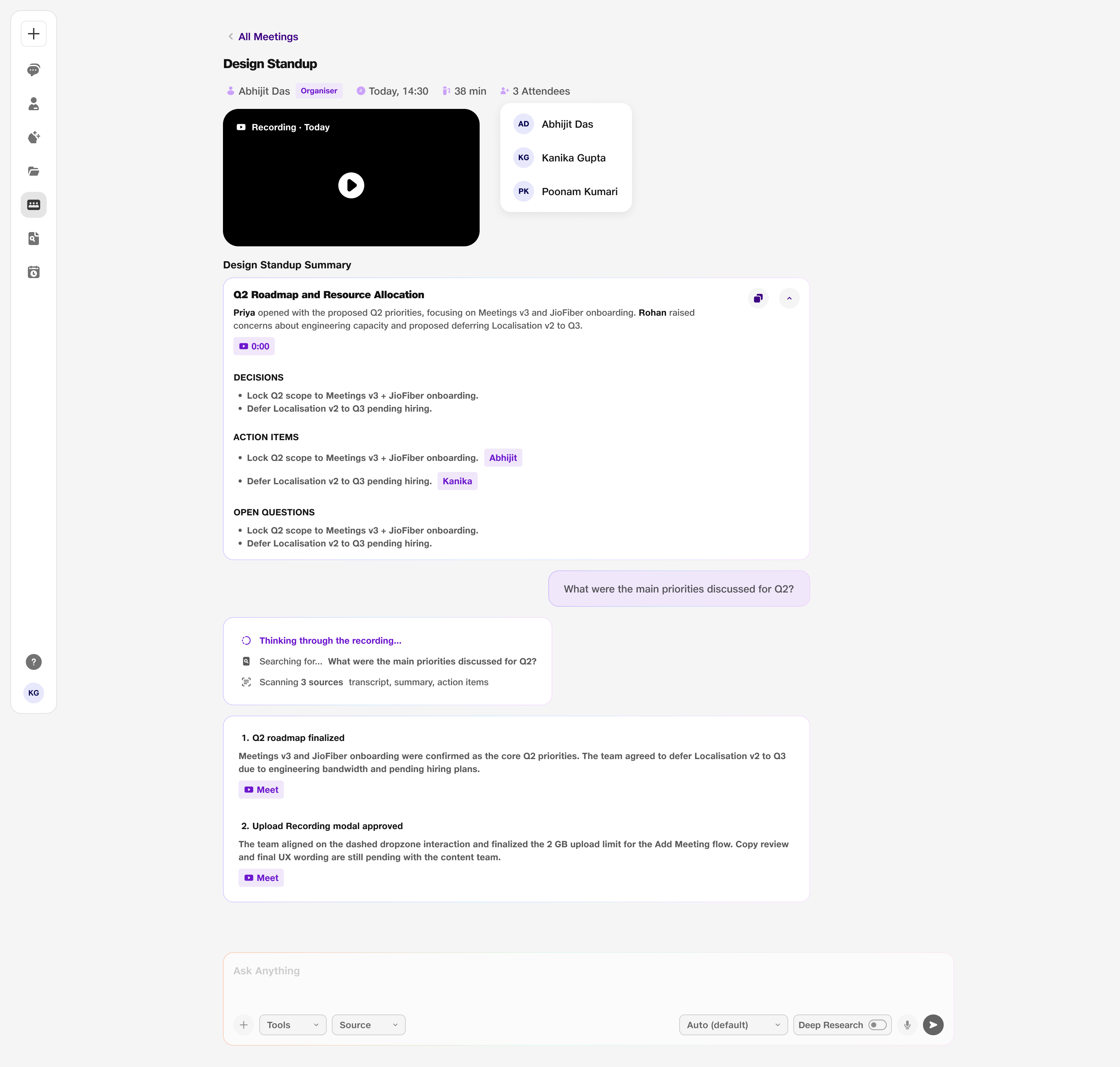
Open a finished meeting. Below the meeting name you see organiser, date/time, duration, Invitees, and Attendees. Expand or view the transcript, read the AI summary (topics, decisions, actions), and use Ask anything about this meeting… for follow-ups. Tools include Document Creation and Draft Email. Copy, thumbs, and regenerate on answers. After the meeting ends, summary is also posted to the Teams meeting chat and emailed.
Bot behaviour:
Bot joins when the meeting starts (including early). If everyone leaves, it waits 5 minutes. Short reconnects under 2 minutes do not create extra summaries.
Tip:
Connect Outlook under Settings → My Connectors first — Upcoming, Settings, bot join, and pre-read all depend on calendar connection.
Walkthrough
1. Open Meetings and connect your calendar
Open Meetings from the sidebar. Connect your calendar so upcoming meetings appear, or upload a recording to get started.
Until a calendar is connected, Settings stays unavailable — hover the gear to see why. You can still upload a recording anytime.
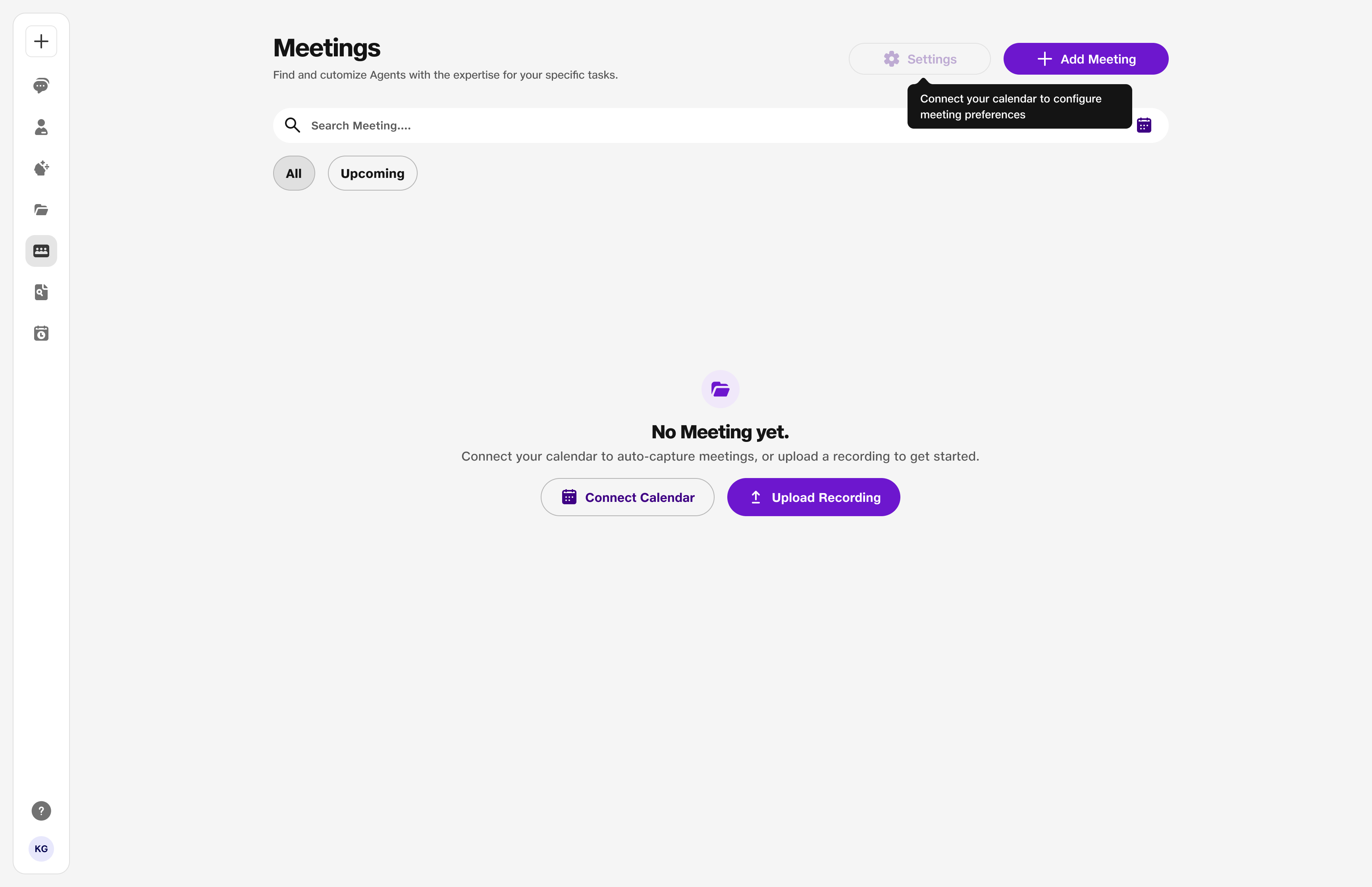
- Connect Calendar: Opens My Connectors.
- Settings: Available only after calendar is connected.
2. After calendar connection — Settings and Upcoming
Once Outlook is connected, Settings is enabled and the page shows Calendar connected. You can still upload a recording anytime. Open Upcoming to see meetings for the next week, then use Settings or each meeting’s Meeting Bot and Pre-read toggles.
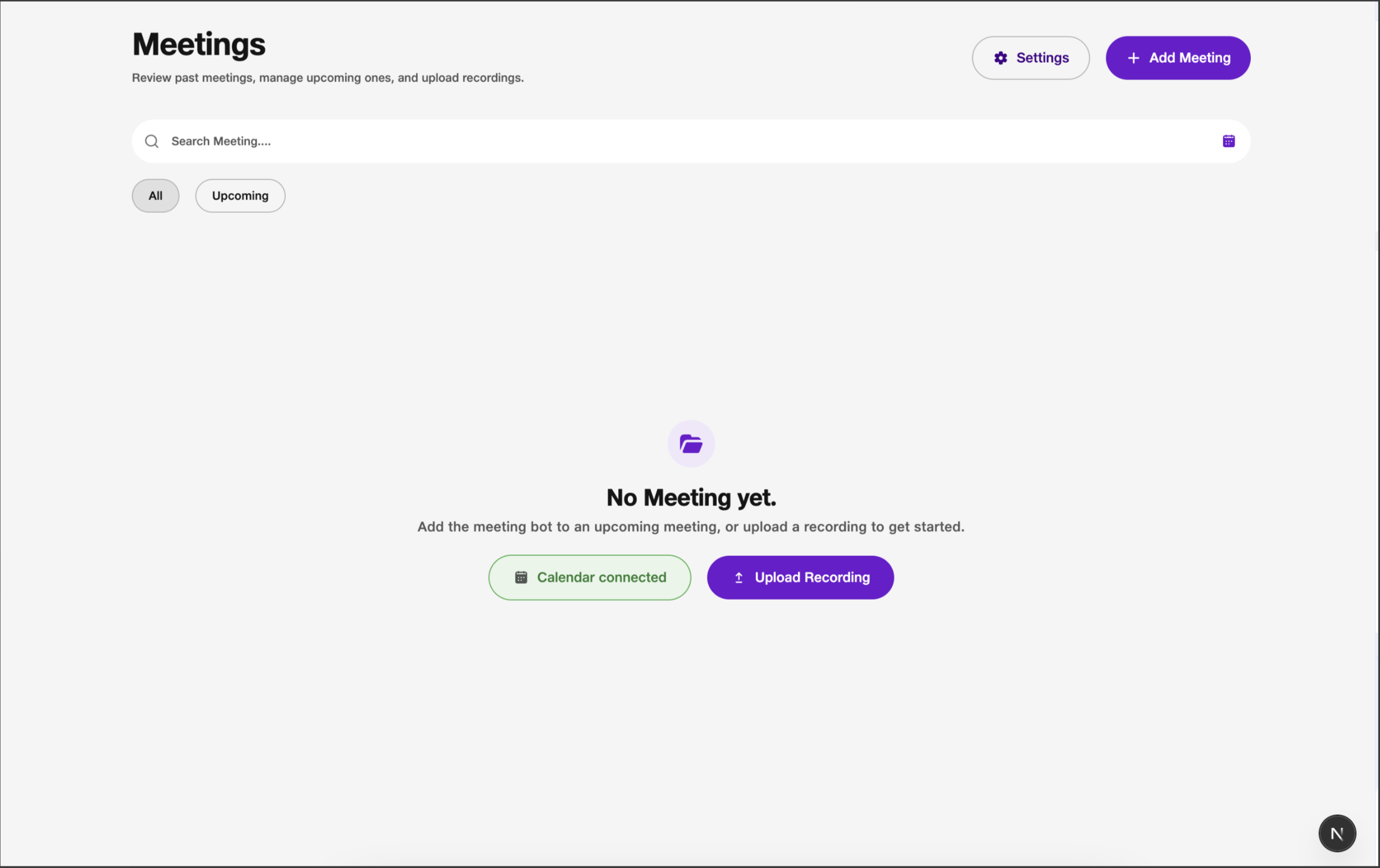
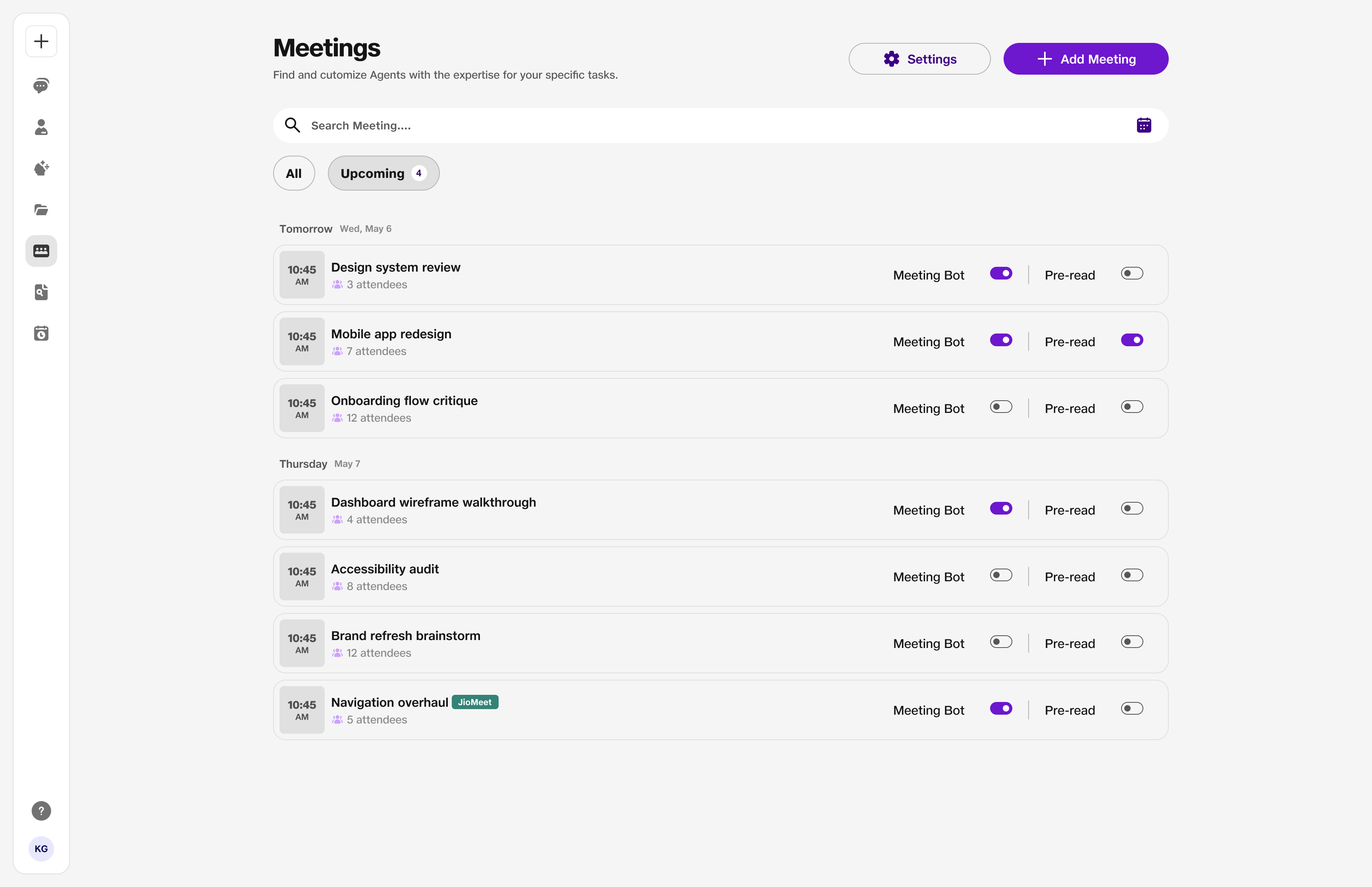
- Calendar connected: Confirms Outlook is linked; Settings is available.
- Settings: Opens Choose Preferences (Meeting Bot + Meeting Pre-read tabs).
- Meeting Bot toggle: Bot will join / won’t join this meeting (hover for tip).
- Pre-read toggle: Turn pre-read on or off for that meeting.
3. Upload a recording
Upload an audio or video file (MP3, MP4, WAV, M4A, WebM, VTT — max 2 GB). Meeting title is optional.
Upload stays disabled until a valid file finishes uploading. On success you see Recording uploaded successfully; the card processes Understanding → Transcribing → Summarizing.
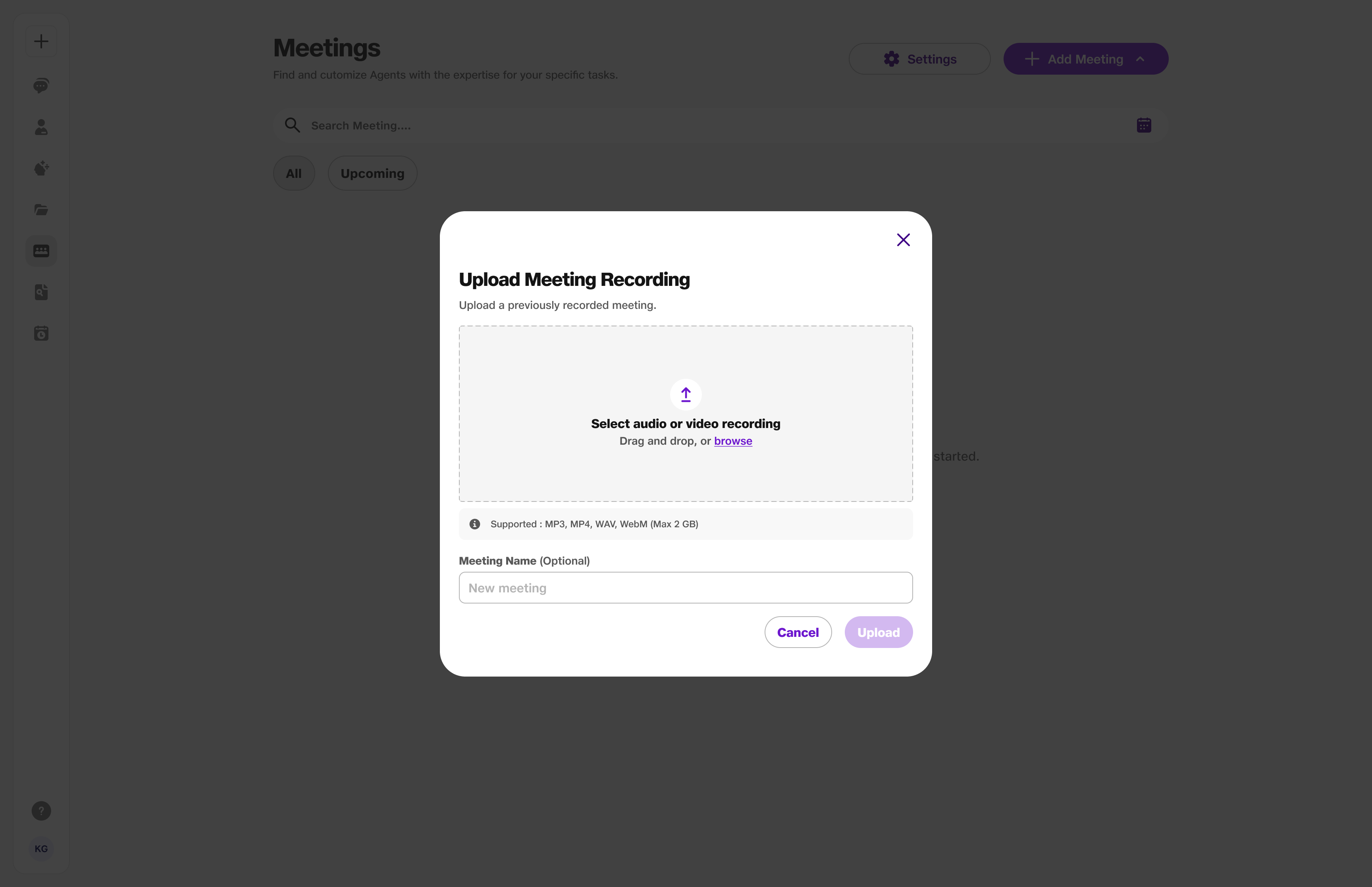
- Supported files: Max 2 GB.
- Title: Optional — filename used if empty.
4. Set Meeting Bot preferences
Click Settings (gear) or Manage join preference. On the Meeting Bot tab, pick when the bot should auto-join, then Save.
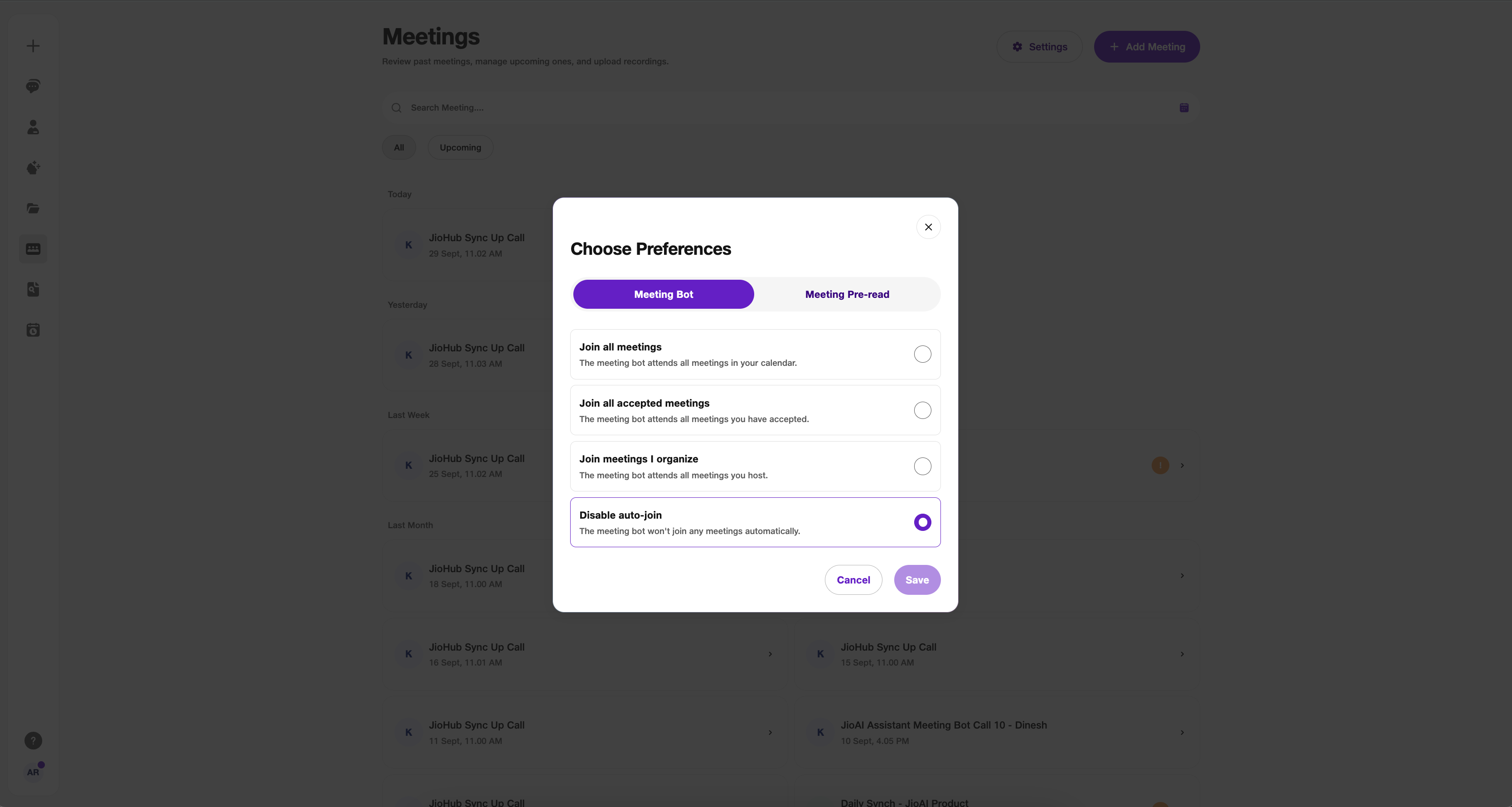
- Join all meetings: The meeting bot attends every meeting in your calendar.
- Join all accepted meetings: The meeting bot attends only meetings you have accepted.
- Join meetings I organize: The meeting bot attends only meetings you host.
- Disable auto-join: The meeting bot will not join any meetings automatically (you can still add it from Teams for a specific chat).
- Who can turn the toggle off: If someone else already enabled the bot for a meeting, you cannot disable that toggle — only the first person who enabled it can turn it off. The bot still joins even if that enabler does not attend the meeting.
5. Set Meeting Pre-read preferences
What is pre-read? A concise brief prepared before an upcoming meeting so you walk in ready — typically purpose (from title/description/related threads), attendee context, open action items from the last meeting with the same group, and 2–3 relevant docs or mails. Target read time is about 60–90 seconds. Pre-reads are generated ahead of the meeting (about 15–20 minutes before). You can schedule this as a recurring task so you get a pre-read for every meeting that matches your rules; output also appears under Chats → Tasks.
In Choose Preferences, open the Meeting Pre-read tab. Set generation rules, exclude recurring meetings if needed, and configure Always Generate overrides. Save.
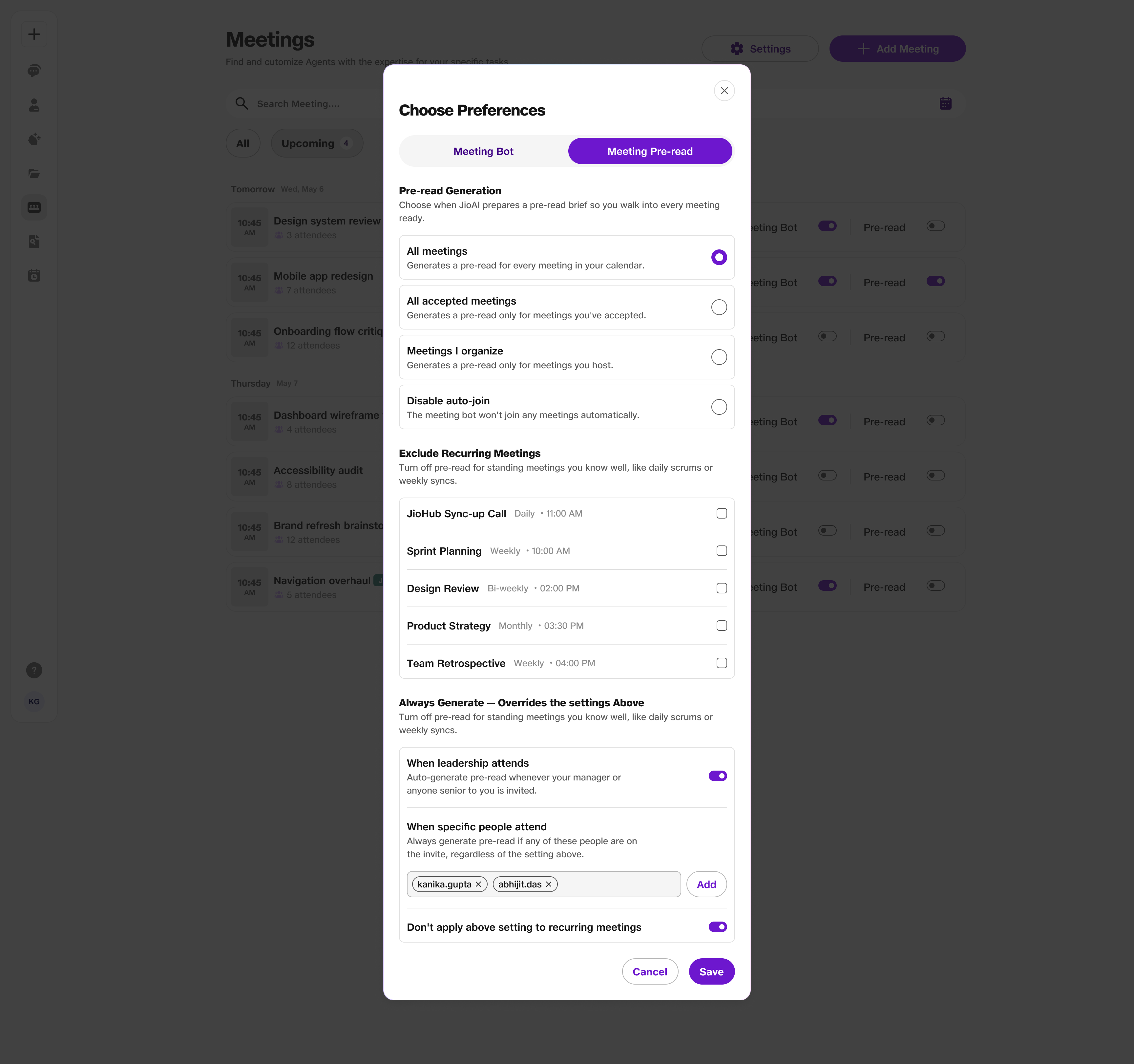
- All meetings: Generates a pre-read for every meeting in your calendar.
- All accepted meetings: Generates a pre-read only for meetings you have accepted.
- Meetings I organize: Generates a pre-read only for meetings you host.
- Disable pre-read: No pre-reads are generated automatically.
- Exclude Recurring Meetings: Turn off pre-read for standing meetings you already know (for example daily standups or weekly syncs) — listed with name, cadence, and time.
- Always Generate — overrides: Still create a pre-read when leadership attends, and/or when specific people you list are on the invite; optionally don’t apply these overrides to recurring meetings.
6. Turn on Meeting Pre-Read from Scheduled Tasks
You can also start pre-read from Scheduled Tasks. Open Scheduled Tasks → Start from a template → Meeting Pre-Read. Completing setup can send you to meeting preferences; after Save, the scheduled task and meeting preferences stay aligned. Pre-read runs and results also show under Chats → Tasks.
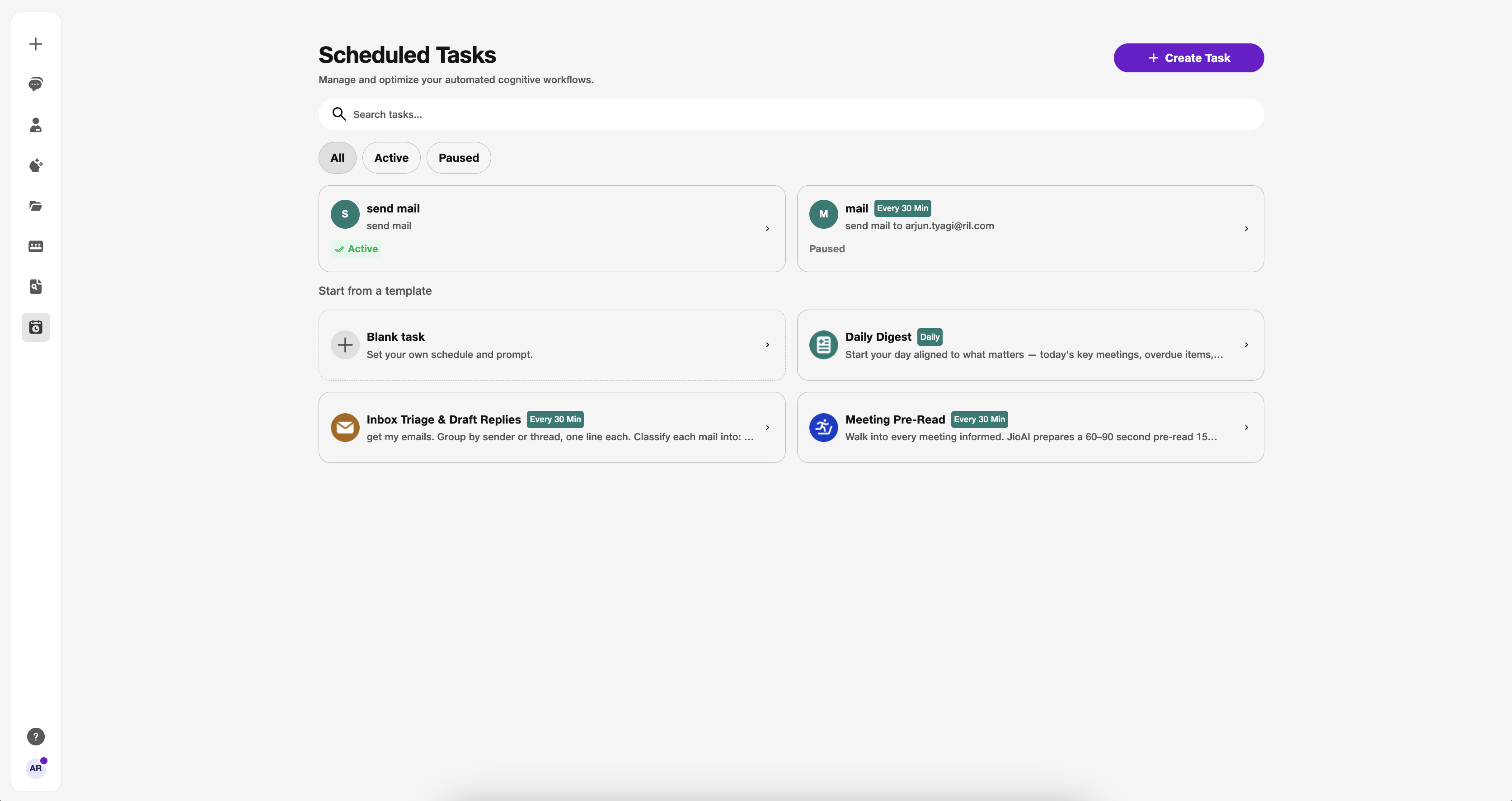
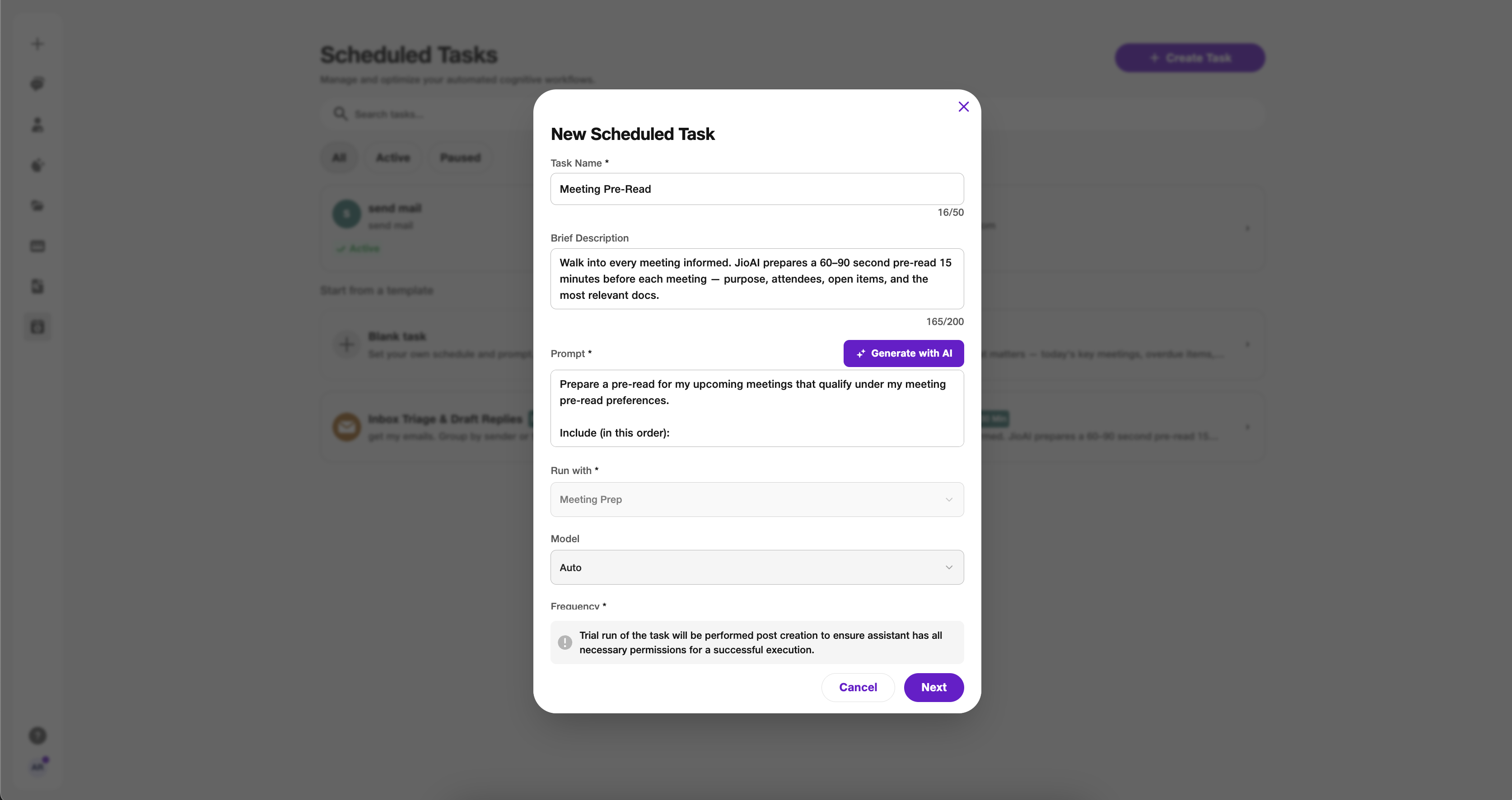
- Template: Walk into every meeting informed — short pre-read before each meeting.
- Sync: Enabling from Scheduled Tasks updates meeting preferences (and the reverse).
- Where to find results: Chats → Tasks, plus in-app / email delivery when configured.
7. Add the bot from Teams (before the call starts)
In Microsoft Teams, open the meeting chat or group chat and add JioAI Assistant. You will see that the bot was added in the chat. It can join that group call even if auto-join was not enabled for that meeting in the JioAI Assistant portal.
The bot cannot be added to a meeting that is already ongoing — add it from Teams or enable the Upcoming toggle before the meeting starts.
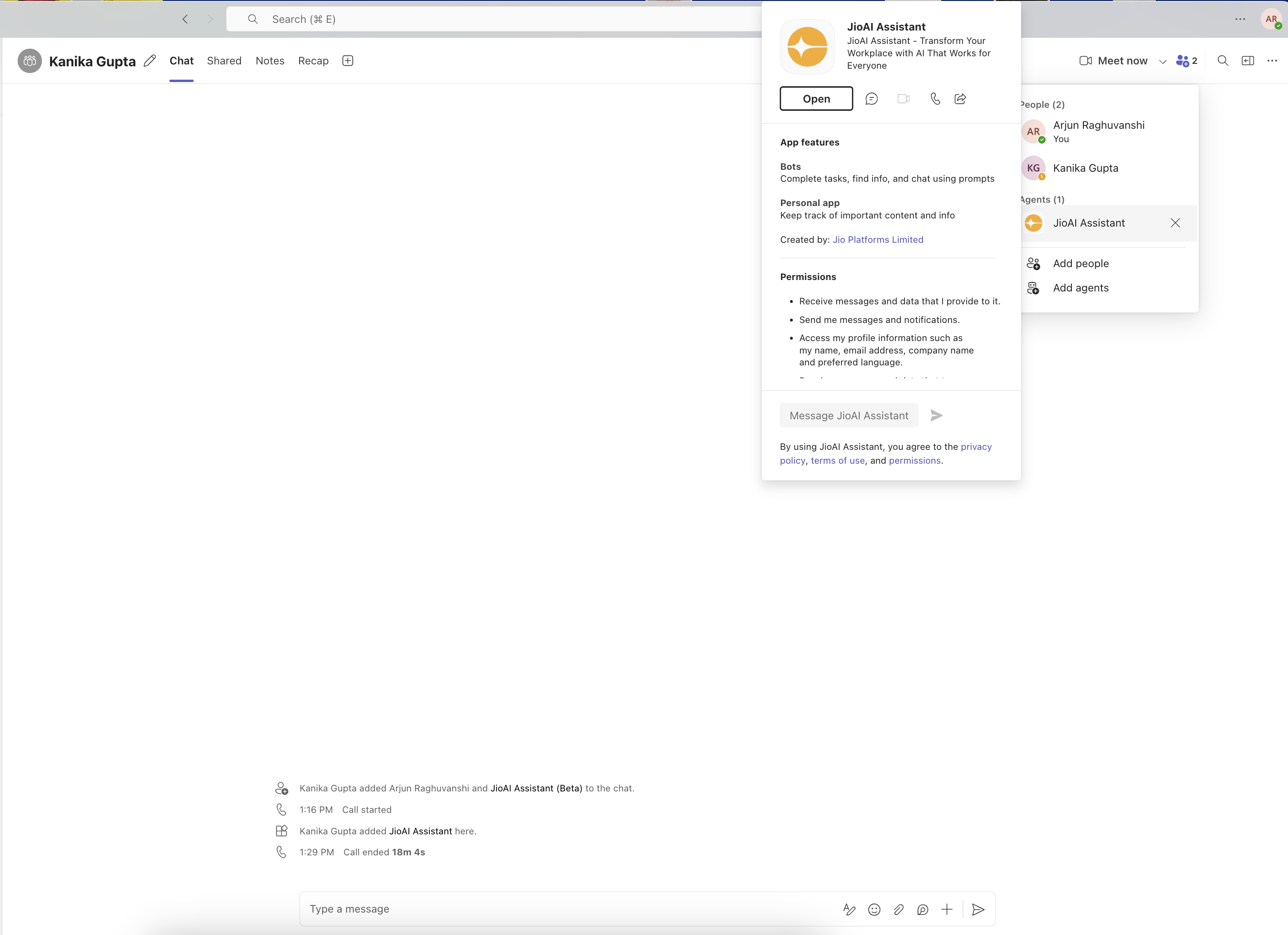
- Add from Teams: Works from meeting / group chat.
- Portal toggle not required: Teams add can still let the bot join that call.
- Not mid-call: Cannot add the bot after the meeting has already started.
8. Review past meetings (All)
On the All tab, open finished meetings grouped by Today, Yesterday, Last Week, and so on. Use search to find a title. Hover a card for Delete when you need it.
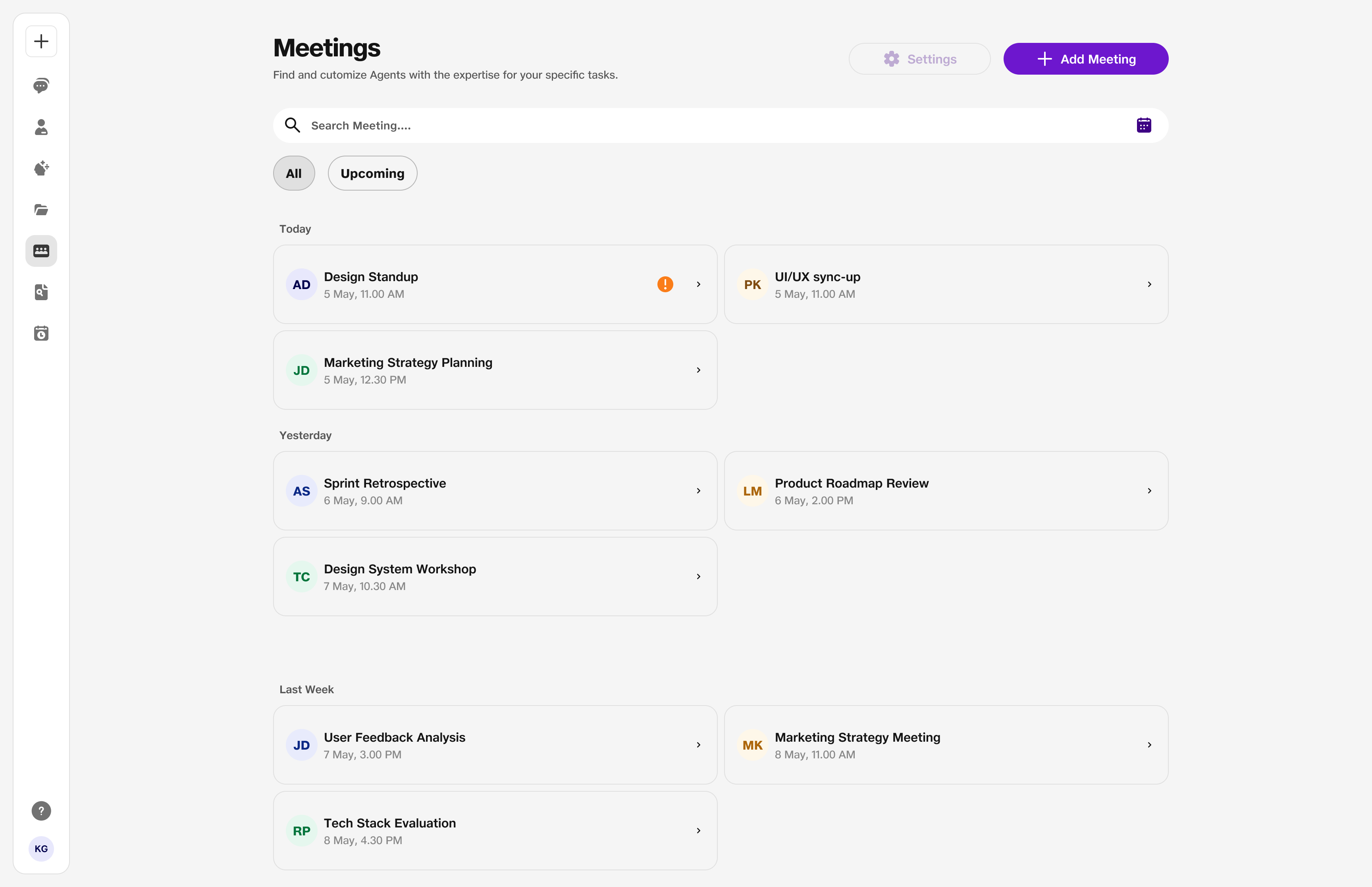
- All: Past and processed meetings.
- Upcoming: Next week with bot and pre-read toggles.
9. Transcript, summary, and ask questions
Open a finished meeting. Directly under the meeting name you see the meeting metadata: organiser (with an Organiser tag), date and time, duration, and Invitees / Attendees (invitees are people invited; attendees are people who actually joined — open the count to see names). Then review the summary, open View Transcript or Expand for the full transcript, and use Ask anything for follow-ups. Use Document Creation or Draft Email from Tools when you want a follow-up document or email.
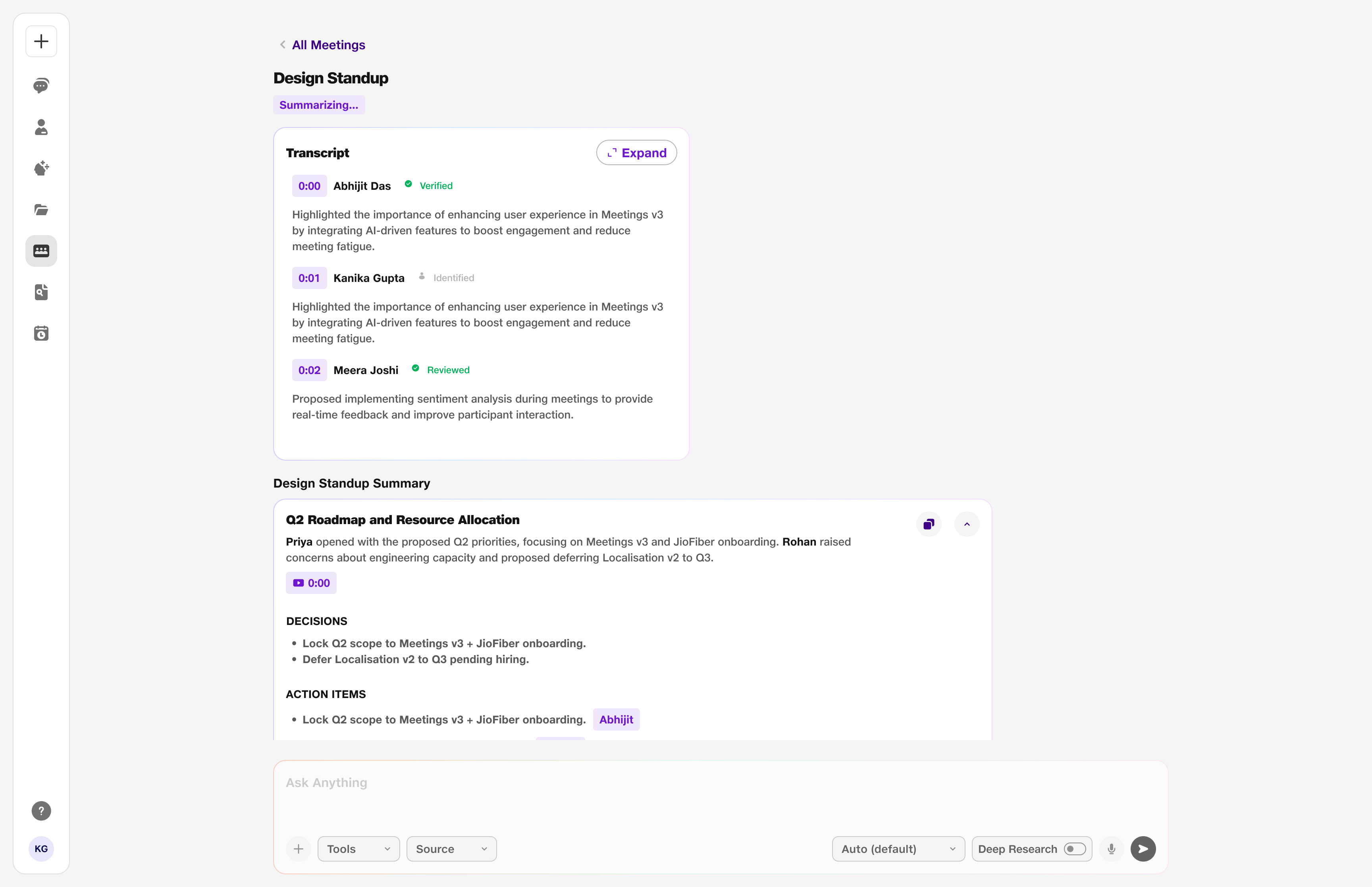
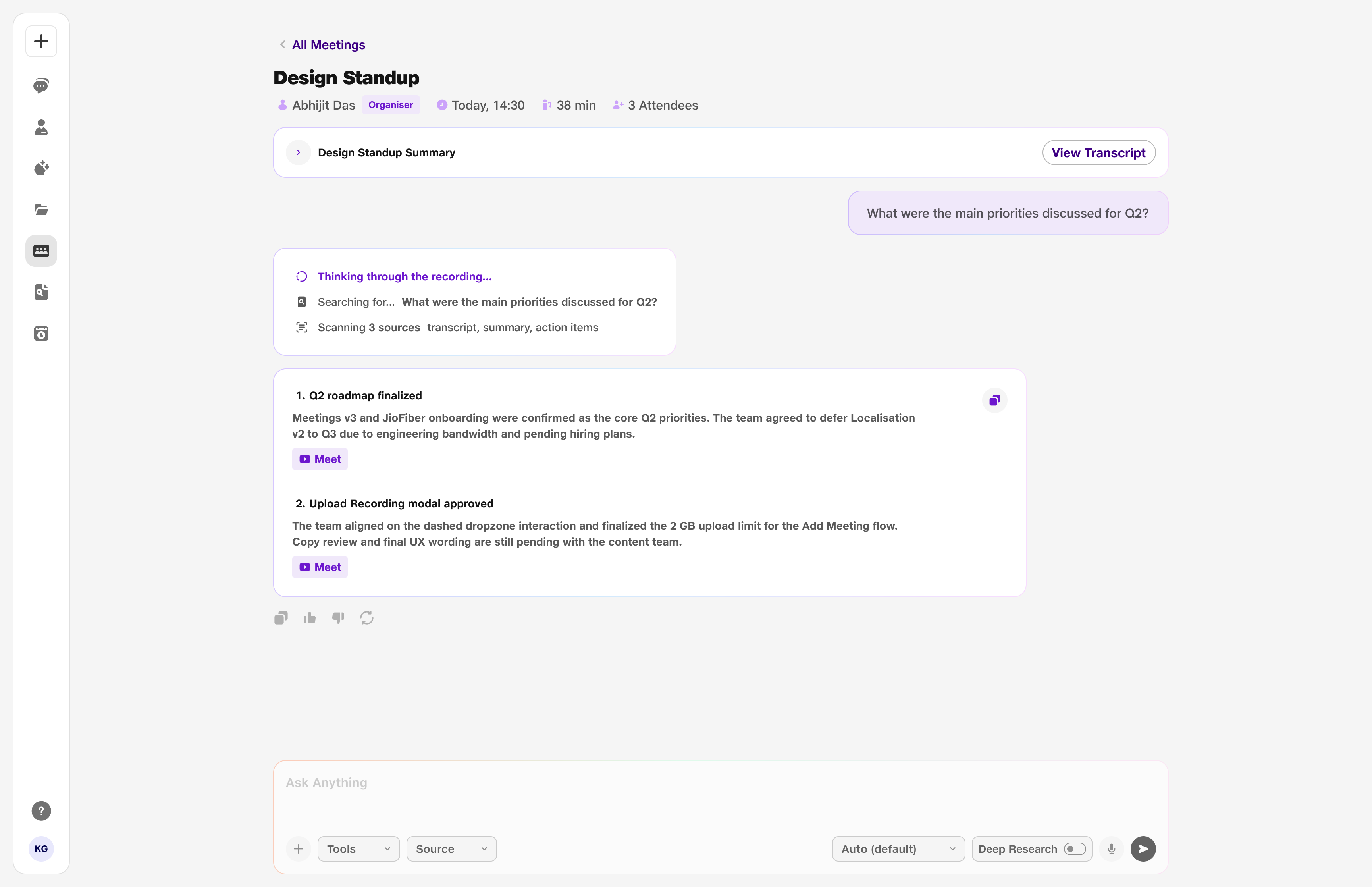
- Under the title: Organiser, date/time, duration, Invitees, Attendees.
- Transcript: Continuous transcript with timestamps and speakers; Expand or View Transcript for the full panel.
- Summary: Topic blocks, decisions, and action items; AI-generated content may be incorrect.
- Ask anything…: Questions about this meeting; Tools, Source, and model picker available. Answers can include Meet source tags to jump back into the recording.