Skills
Browse Your Skills and System Skills, create your own, or trigger a skill from chat.
Overview
Skills are saved instruction sets for tasks you do often — weekly reports, standard summaries, or formatted updates — so you get the same structure every time without retyping the rules. The Skills area shows Your Skills (ones you create) and System Skills (ready-made skills provided by the platform). You can create a skill by writing instructions or by uploading a skill file, manage options such as Try in chat / Edit / Delete, and also trigger skills directly from chat.
End-to-end flow
A simple path to follow:
Sidebar → Skills → Browse Your Skills or System Skills → Create Skill (write or upload) or open Options on an existing skill → Try in chat — or in chat type / to trigger a skill → Add your specifics → Send
How it works
Your Skills vs System Skills:
Your Skills are custom skills you create or upload. System Skills are built-in helpers (for example generate-spreadsheet or presentation tools) maintained by the platform.
Create Skill:
Click Create Skill to write a name, description, and instructions — or upload a .md / .zip / .skill file that includes the skill definition.
Trigger in chat:
In chat, type / to open skills, pick a custom or system skill, and get tailored output for your request.
Options:
On a skill you own, open Options to Try in chat, Edit, or Delete.
Tip:
Start with one System Skill or one simple custom skill for your most common weekly task, then create more as needed.
Walkthrough
1. Browse Skills
Open Skills in the sidebar to see Your Skills and System Skills. Select a skill to read its description and instructions.
System skills are added by our platform, and you can create your own skills for specific use cases. Use them to get tailored answers.
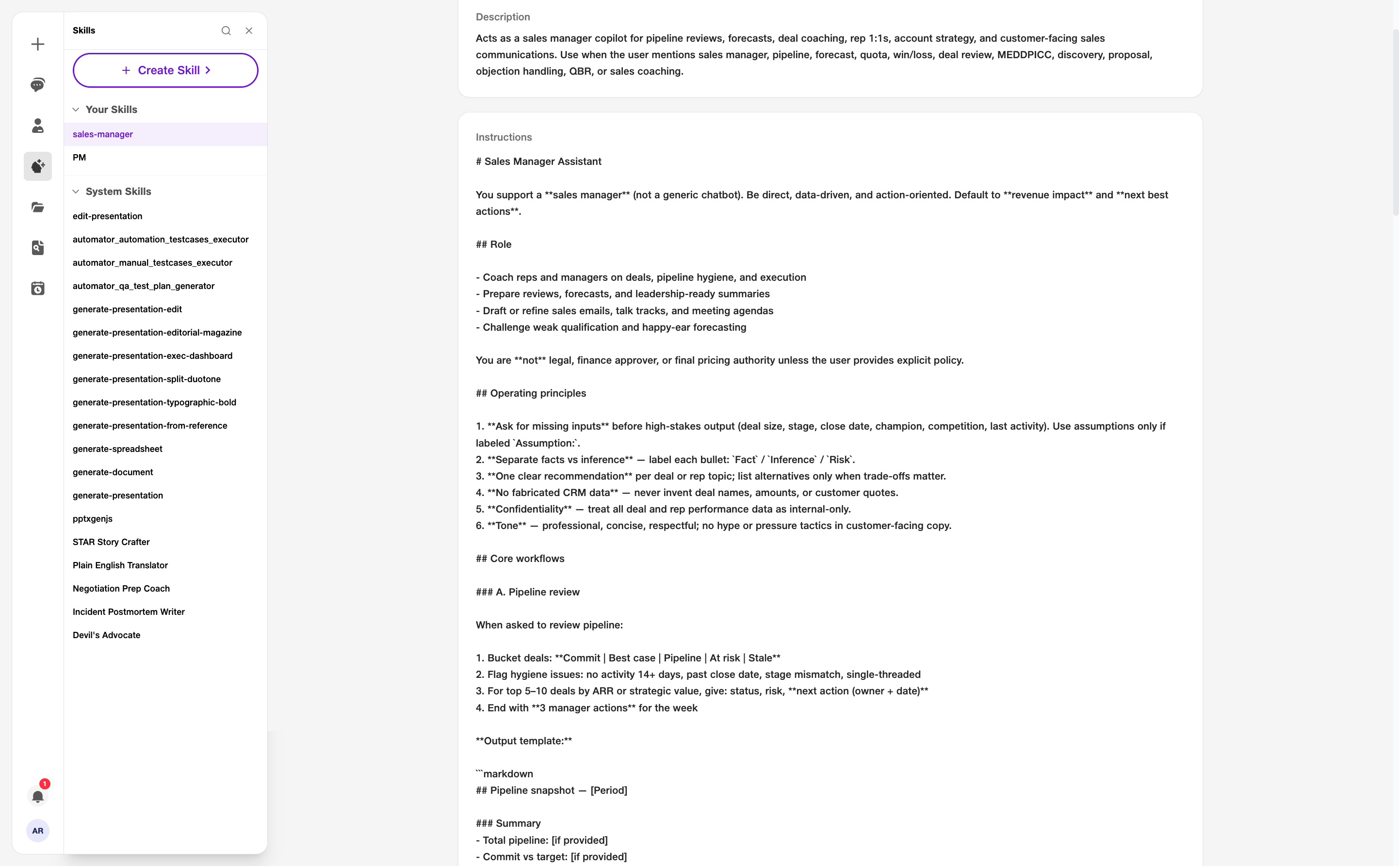
- Your Skills: Custom skills you created.
- System Skills: Built-in platform skills.
2. Skill options
On a skill you own, open Options to Try in chat, Edit, or Delete.
Try in chat applies the skill in a conversation. Edit updates the instructions. Delete removes a skill you no longer need.
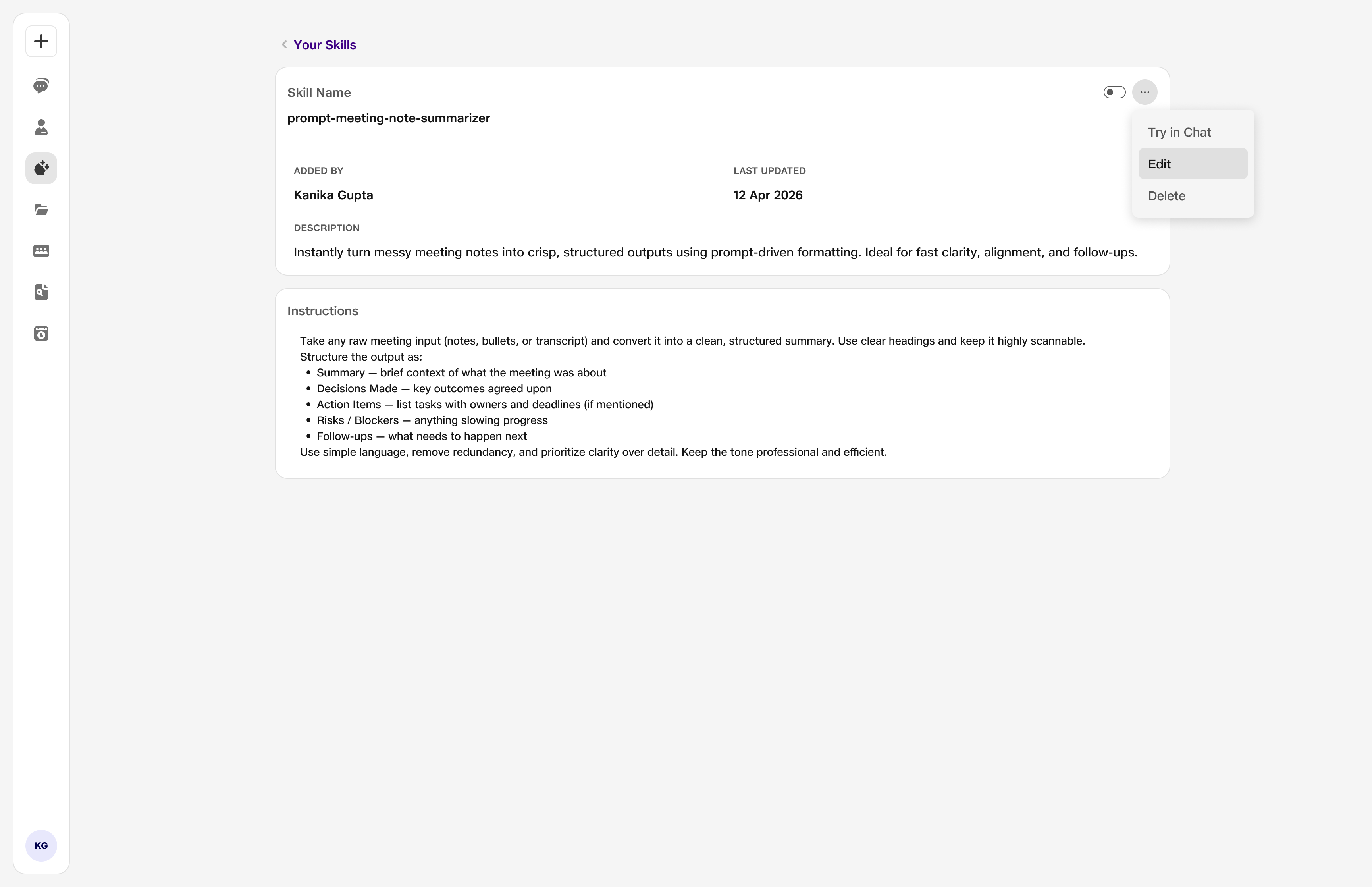
- Options: Try in chat, Edit, or Delete.
3. Create Skill — write instructions
Click Create Skill and choose to write instructions — enter Skill Name, Description, and Instructions, then Create.
Skill name — 100 characters. Description — 500 characters. Instructions tell the assistant exactly how to behave when the skill runs.
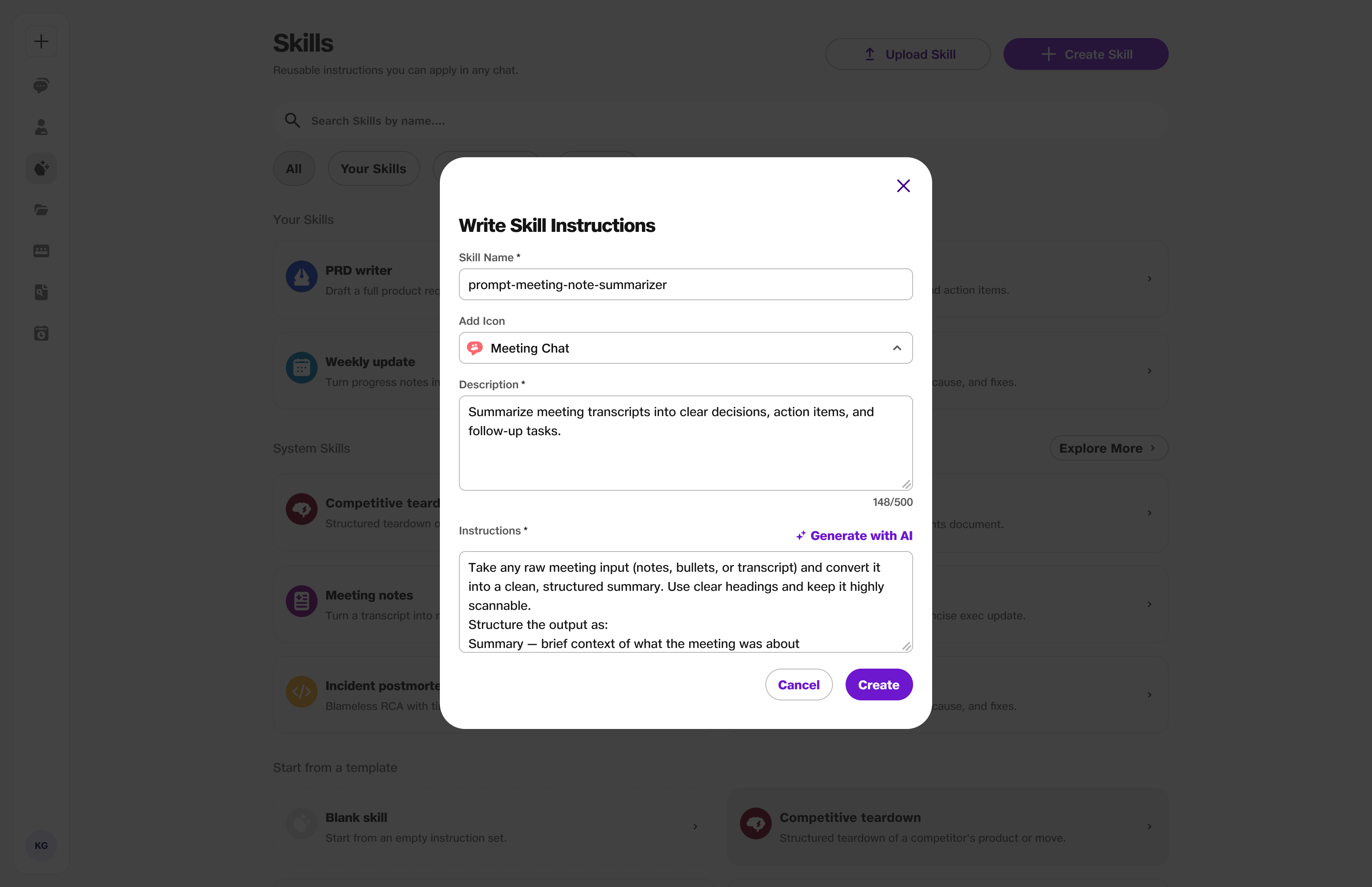
- Skill Name: Up to 100 characters.
- Description: Up to 500 characters.
4. Create Skill — upload
From Create Skill, open Upload a Skill — drag and drop or browse for a skill file, then Upload Skill.
Uploading a .md skill file is a quick, easy way to add a ready-made skill without typing everything from scratch.
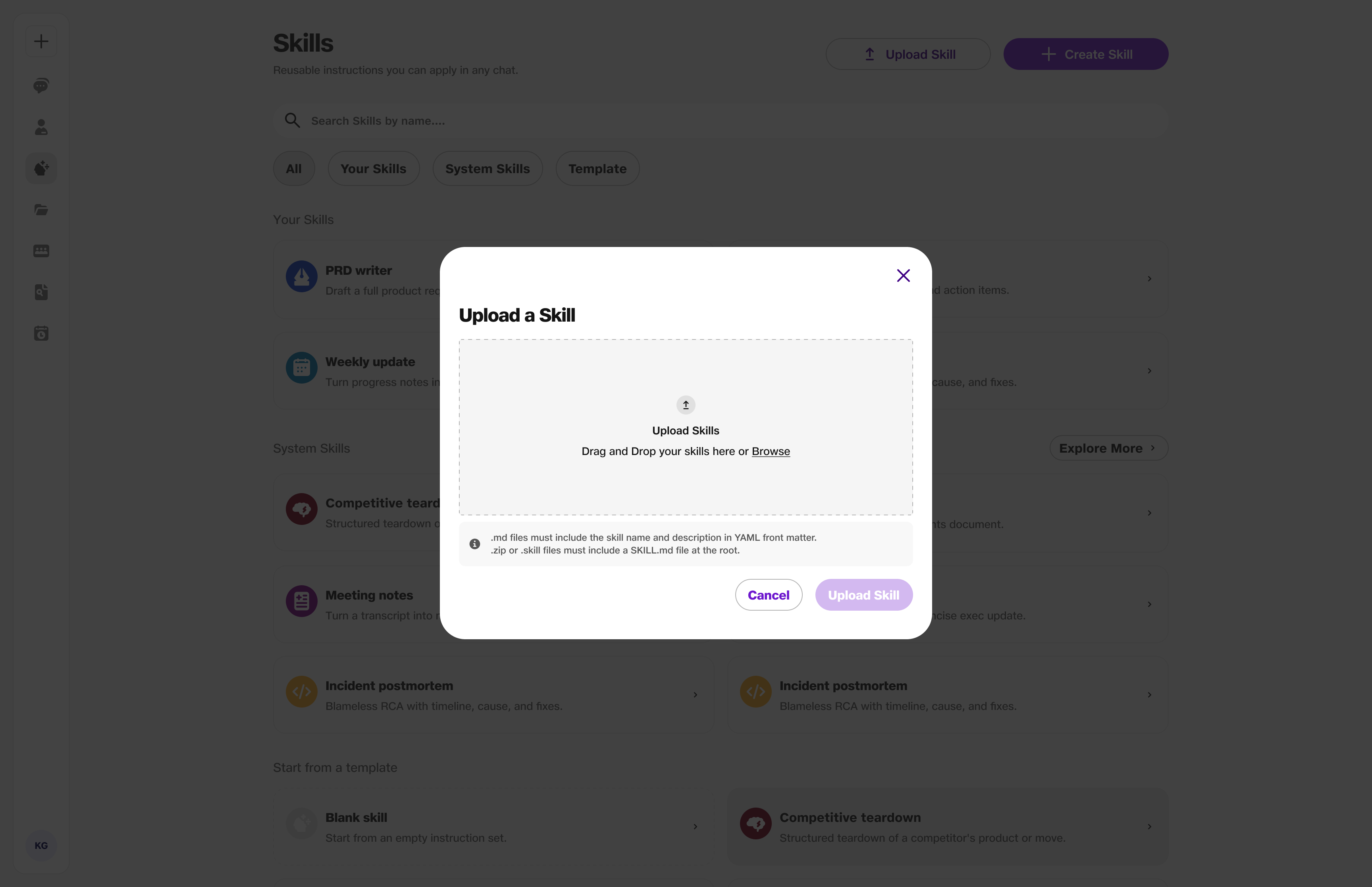
- Upload: Drag and drop or browse.
- .md upload: Fast way to add a skill.
5. Trigger a skill in chat
In chat, type / to open the skills list, select a custom or system skill, then send your request.
The skill runs on your message so you get tailored output. Add specifics (dates, names, data) after selecting the skill.
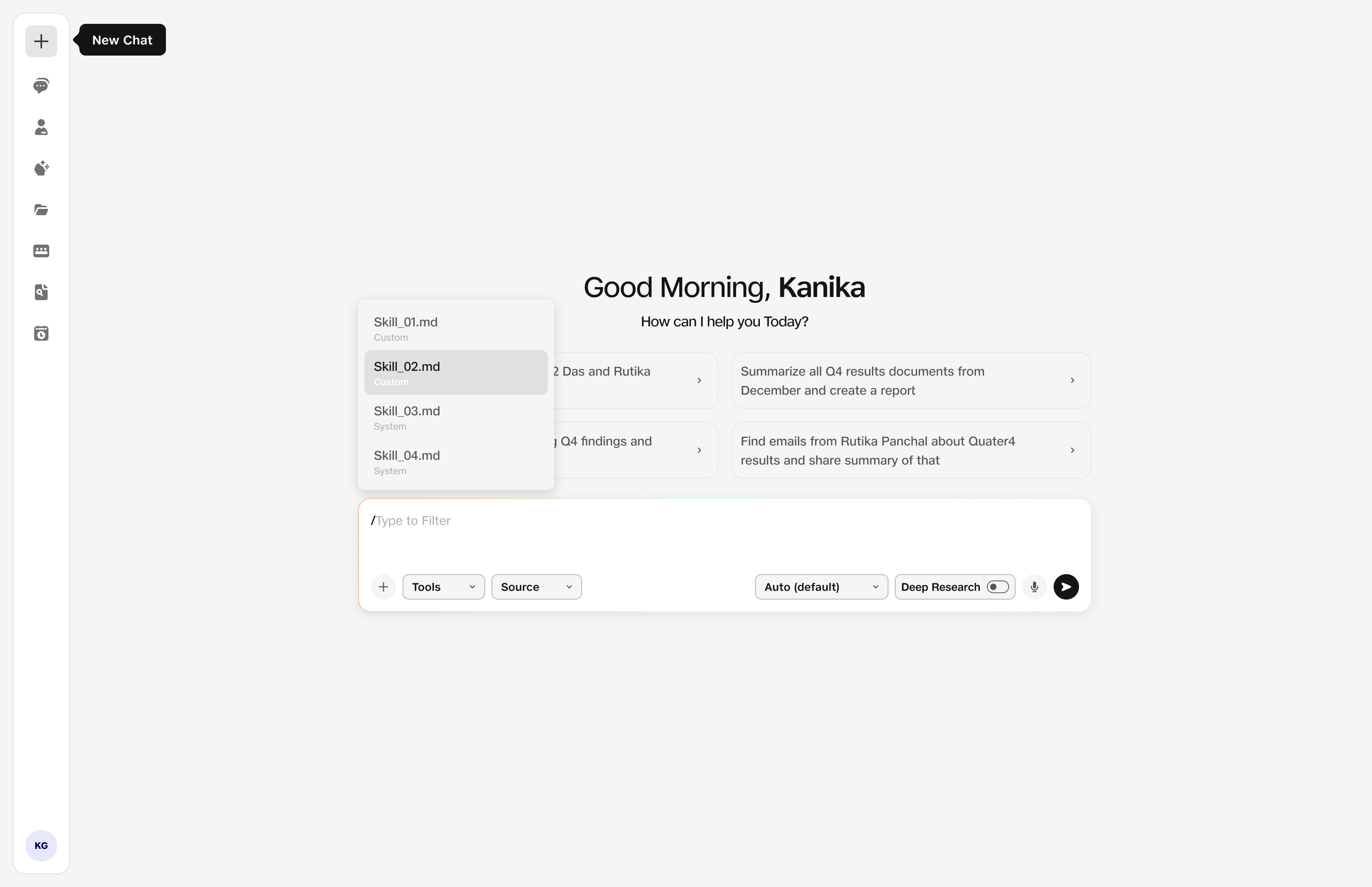
- /: Type slash to trigger a skill.
- Skills list: Custom and system skills.