JioWorkspace Assistant Bot
Open the bot from the bottom-right after login; it uses the same sign-in as JioWorkspace.
Overview
JioWorkspace Assistant Bot brings JioAI into JioWorkspace so you can act on Launchpad, JioFiles, and Mail without leaving that app. The bot sits at the bottom-right after you sign in. JioWorkspace and JioAI share the same login, so you do not sign in twice. On first use you may be asked for consent to access data. In JioFiles you can open the assistant from the home icon or from a file’s actions — Ask Anything, Find Similar, Summarise, Rewrite, Convert to PPT, or Convert to Docx.
End-to-end flow
A simple path to follow:
Sign in to JioWorkspace → Open the JioAI bot (bottom-right) → Allow access if asked → Work on Launchpad, JioFiles, or Mail → In JioFiles, use file actions or attach/reference files → Preview or save outputs to JioFiles
How it works
Same login:
JioWorkspace and JioAI Assistant use the same sign-in. You do not need a second password.
Surfaces:
The bot works with Launchpad, JioFiles, and Mail context. JioMeet support is planned for later.
JioFiles actions:
From a file’s menu you can Ask Anything, Find Similar, Summarise, Rewrite, Convert to PPT, or Convert to Docx — without uploading the file again.
Save:
New documents save under the JioAI Assistant folder in JioFiles by default. You can preview, open in JioSuites, override, or save as new.
Tip:
Grant JioFiles access when asked so the bot can attach and reference your files. If you decline, file tools stay unavailable until you allow access in the assistant.
Walkthrough
1. Open the bot in JioWorkspace
After login, open the JioAI Assistant bot from the bottom-right of the screen. It opens inside JioWorkspace — you stay in the same app.
On first use, allow access if prompted. Declining twice still lets you chat, but JioFiles file tools stay greyed out until you grant access.
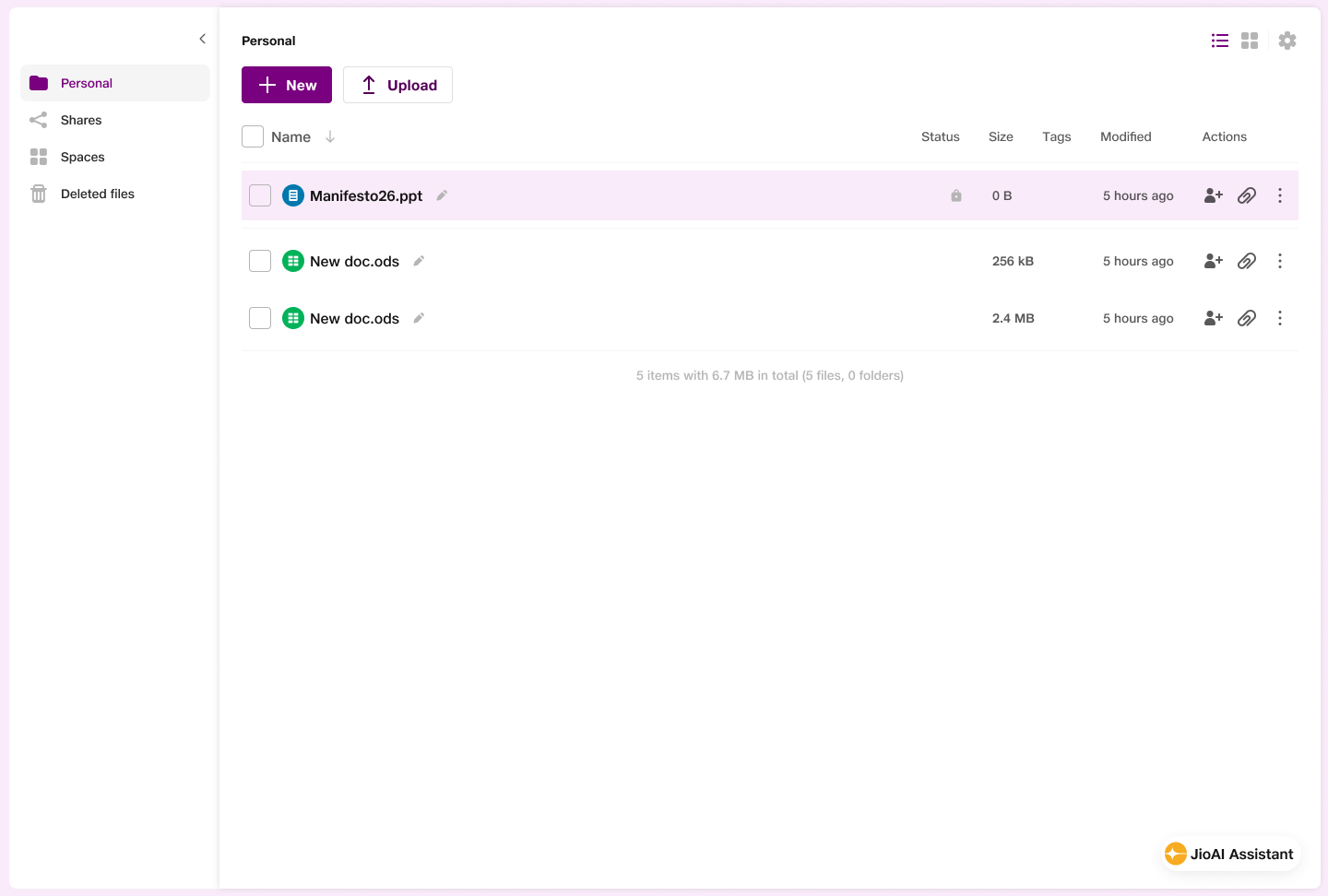
- Bot: Bottom-right entry after login.
- Consent: Allow access to use file features.
2. Act on a file in JioFiles
In JioFiles, open a file’s AI actions — Ask Anything, Find Similar, Summarise, or Rewrite — or convert to PPT or Docx.
Ask Anything opens the panel with the file attached. Summarise and Rewrite stay in chat; Convert saves to the JioAI Assistant folder with a from JioAI tag. Preview or open in Decks / Collabora when shown.
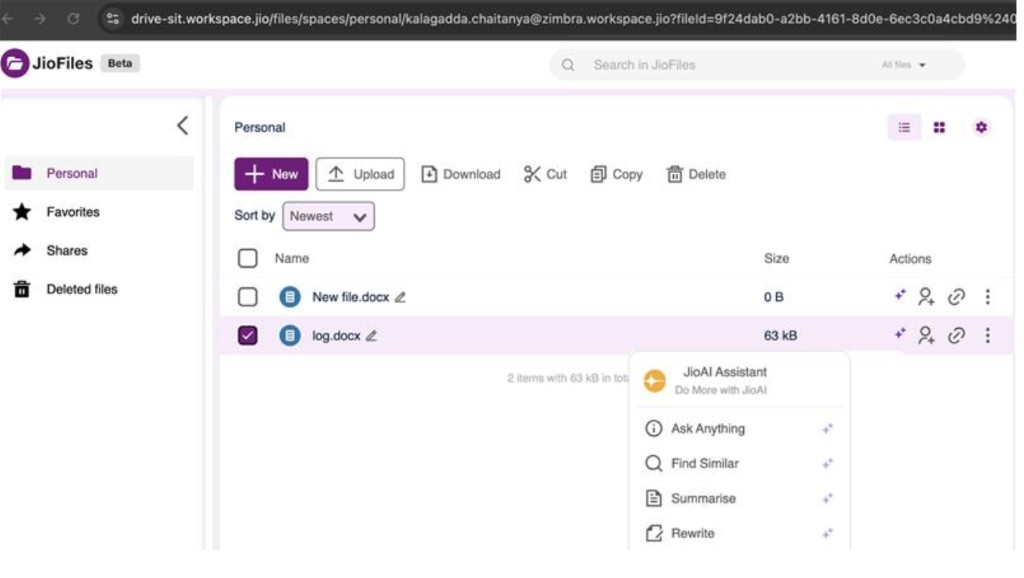
- Ask Anything: File attached; type any question.
- Summarise / Rewrite: Act on the file in place.