ADO Agent
Your Azure DevOps specialist for searching work items, browsing repositories, and understanding project artefacts.
Overview
ADO Agent is a specialist assistant built for Azure DevOps. Use it when you need to look up work items, search Epics, Features, User Stories, Tasks, or Bugs, browse repositories, or understand backlog structure — instead of asking in general chat or switching to the Azure DevOps portal. The agent only answers Azure DevOps-related questions and returns data directly from your connected organisation and project. It does not guess IDs, infer missing details, or answer questions outside the ADO scope.
End-to-end flow
A simple path to follow:
Left sidebar → Click Agents → Find ADO Agent → Launch agent → Connect Azure DevOps if prompted → Ask about a work item, backlog, or repository → Review the structured response → Ask follow-ups or request the next batch if results are paginated
How it works
Work items:
Look up or list Epics, Features, User Stories, Tasks, and Bugs. When details are available, the agent returns ID, Title, Type, Status, and Assigned To for each item. Priority is included only when relevant. Responses are limited to 50 work items at a time — ask for the next batch or visit the Azure DevOps portal for the full list.
Repositories:
Browse repositories in your connected project. The agent returns repo name and URL for each repo, listing up to 20 at a time. If 20 items are shown, it notes that more are available on request or in the portal.
Backlogs:
Ask about backlogs to get backlog names from your project — useful when you need to orient yourself before drilling into work items.
Azure DevOps only:
The agent responds only to Azure DevOps questions. If you ask about something else, it politely redirects you to what it can help with — work items, repositories, and backlogs.
Connection required:
The agent needs an active Azure DevOps connection to fetch live data. If you are not connected, it guides you to click Connect Azure DevOps, create a connection, and select your organisation and project before trying again.
Project scope:
The agent works within your currently selected Azure DevOps project. If you ask about a different project, it prompts you to switch projects first.
Accurate, grounded answers:
All data comes directly from Azure DevOps — the agent never guesses work item IDs, invents results, or fills in missing fields. If a lookup fails or returns no data, it reports that clearly. If a work item belongs to a different organisation or project, or you lack permission, it tells you instead of showing incorrect details.
Structured output:
Work item and repository lists appear as formatted Markdown tables with bold headings and column names. Each response ends with a concise summary based on work item type and status.
Follow-up questions:
When your query is ambiguous — for example, multiple teams or backlog categories match — the agent asks a clarifying question before fetching data. Always provide a work item ID when asking about a specific item; the agent will not infer one for you.
Tip:
Connect Azure DevOps and confirm the correct project is selected before you search. Include work item IDs, filters, or keywords in your question so the agent can return precise results on the first try.
Walkthrough
1. Launch ADO Agent
Click Agents in the left sidebar, then find ADO Agent in the catalog. Read the card description to confirm it matches your Azure DevOps task, then Launch agent to open a dedicated chat scoped to ADO work. On first open, the agent greets you and summarises what it can help with — work items, repositories, and backlogs.
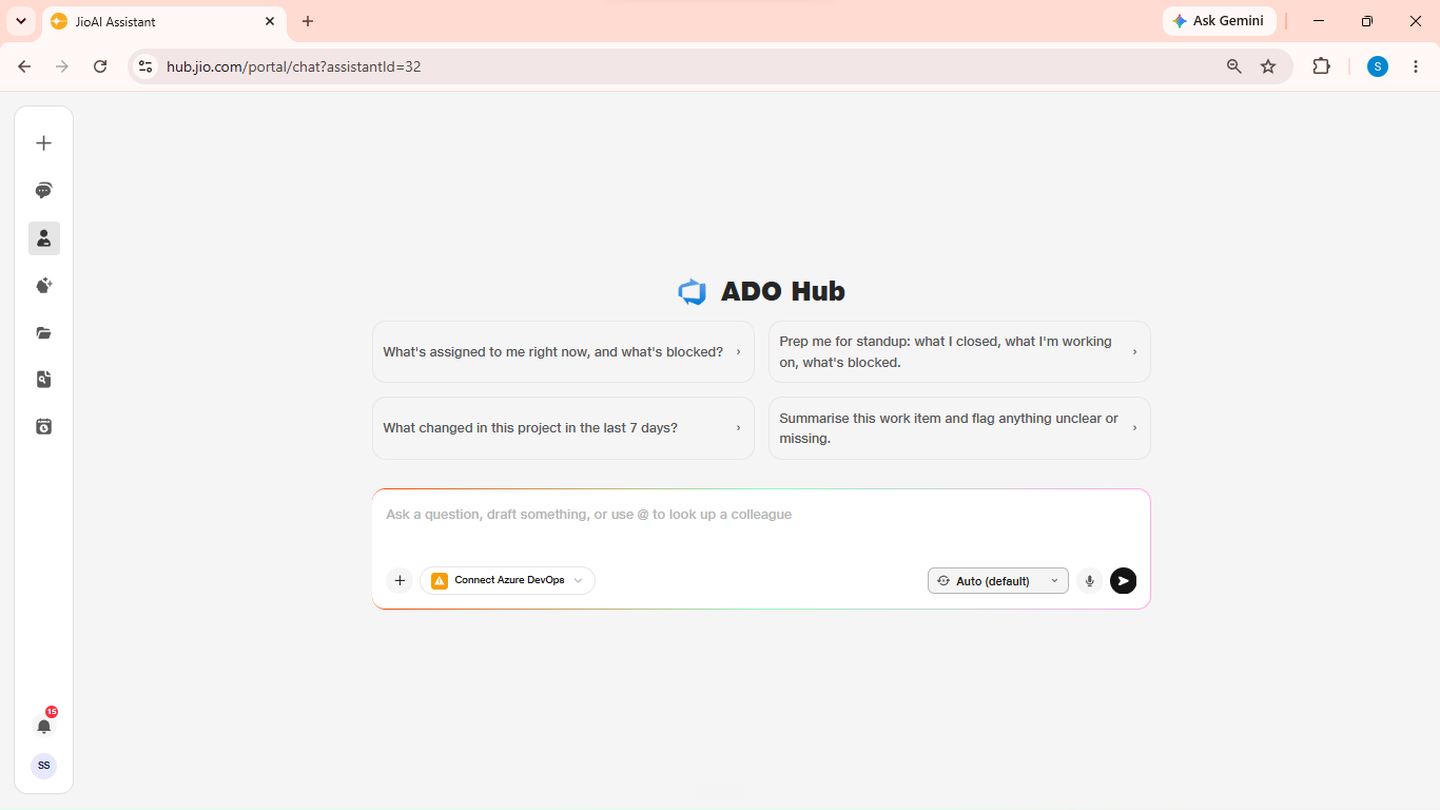
- Catalog: Browse available agents.
- Launch agent: Opens a dedicated Azure DevOps chat.
2. Connect Azure DevOps
If you are not yet connected, ask any ADO question and the agent prompts you to set up access. Click Connect Azure DevOps, create a connection with your credentials, then select your organisation and project. Once connected, return to the same chat and ask your question again — the agent can now fetch live data from your project.
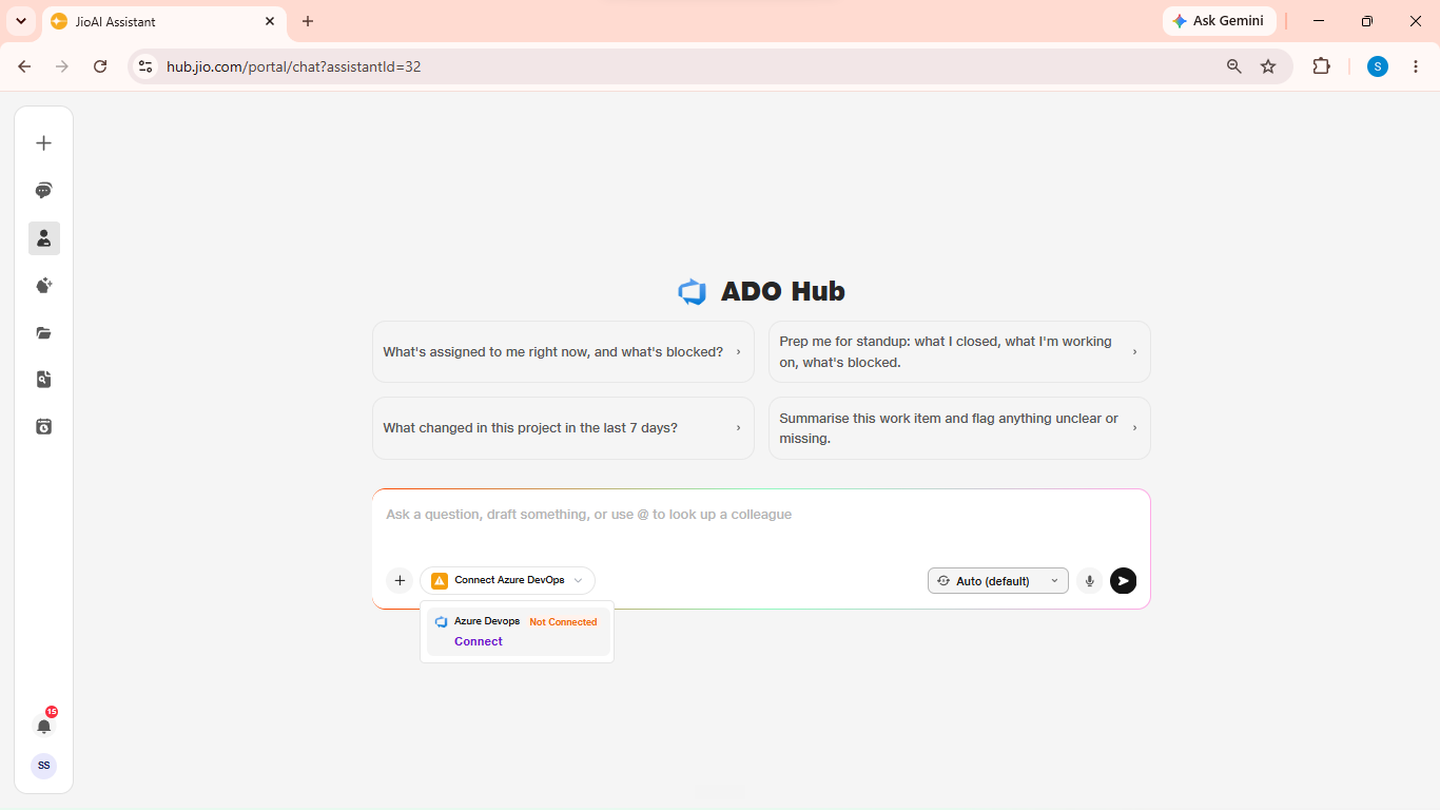
- Connect Azure DevOps: Link your organisation and project.
- Retry: Ask the same question after connecting.
3. Look up a work item
Ask about a specific work item by including its ID — for example, "Show me work item #12345" or "What is the status of bug 67890?" The agent returns ID, Title, Type, Status, and Assigned To when available. If the item does not exist in your project, you lack permission, or it belongs to a different organisation, the agent explains that clearly instead of showing incorrect details.
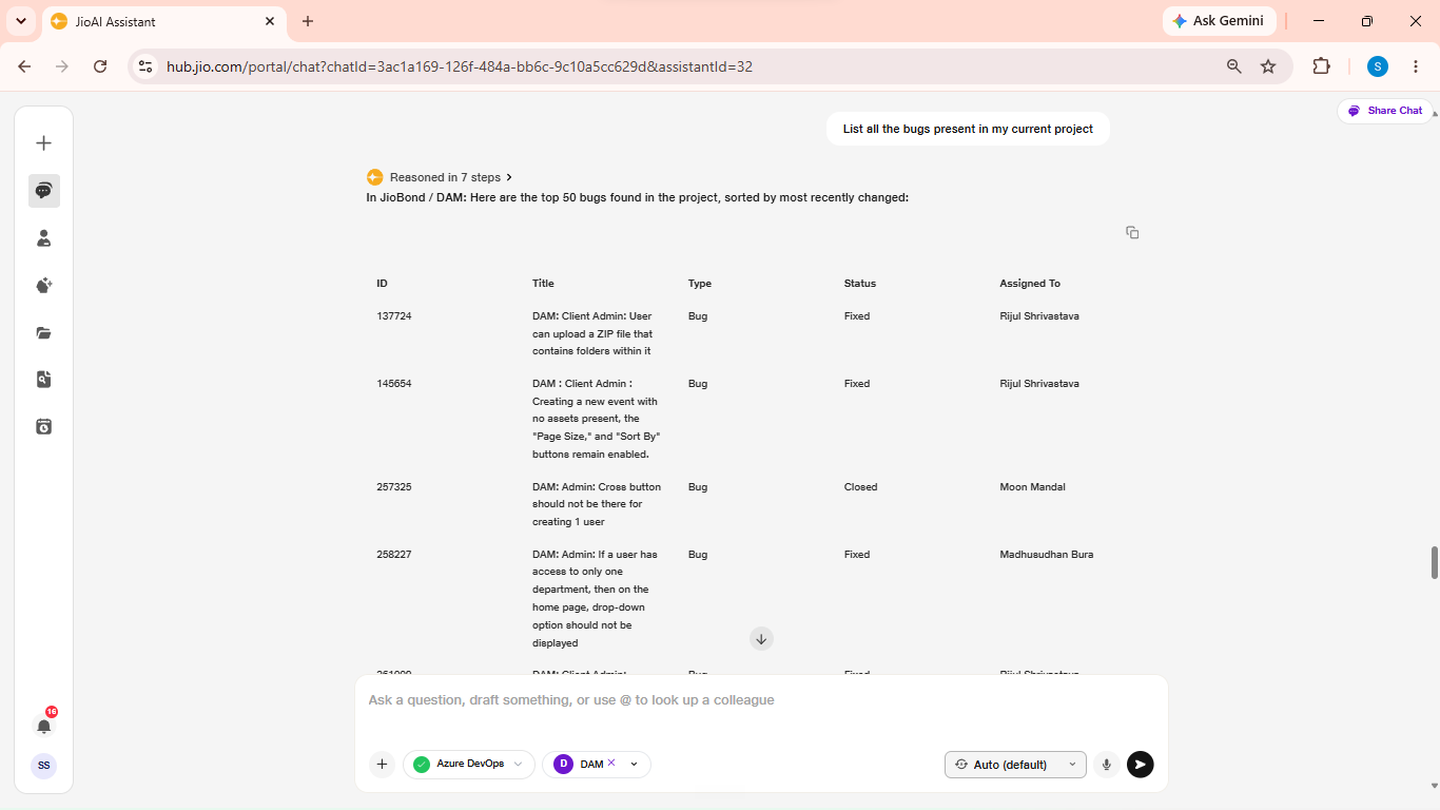
- Work item ID: Always include the ID — the agent will not guess it.
- Details: Title, type, status, and assignee in a structured table.
4. Search and list work items
Ask to find or list work items by type, status, or keyword — for example, "List open bugs assigned to me" or "Show Features in progress." Results appear in a Markdown table (up to 50 items). If more exist, the response states how many were found and notes that you can ask for the next batch or visit the Azure DevOps portal for the full list. A brief summary of types and statuses appears at the end.
- Filters: Use type, status, or assignee to narrow results.
- Pagination: Up to 50 items per response — ask for more if needed.
5. Browse repositories and backlogs
To list repositories, ask something like "Show me repositories in this project." The agent returns repo name and URL for up to 20 repos, with a note if more are available. To see backlogs, ask "What backlogs are in this project?" — the agent returns backlog names so you can orient yourself before searching work items.
- Repositories: Name and URL, up to 20 per response.
- Backlogs: Names only — use these to guide further work item queries.
6. Switch projects or clarify your query
If you need data from a different Azure DevOps project, the agent asks you to switch projects first — it only queries the currently selected project. When your question is unclear or multiple options apply (such as team or backlog category), the agent asks a follow-up before fetching. Answer with the specific choice so results stay accurate.
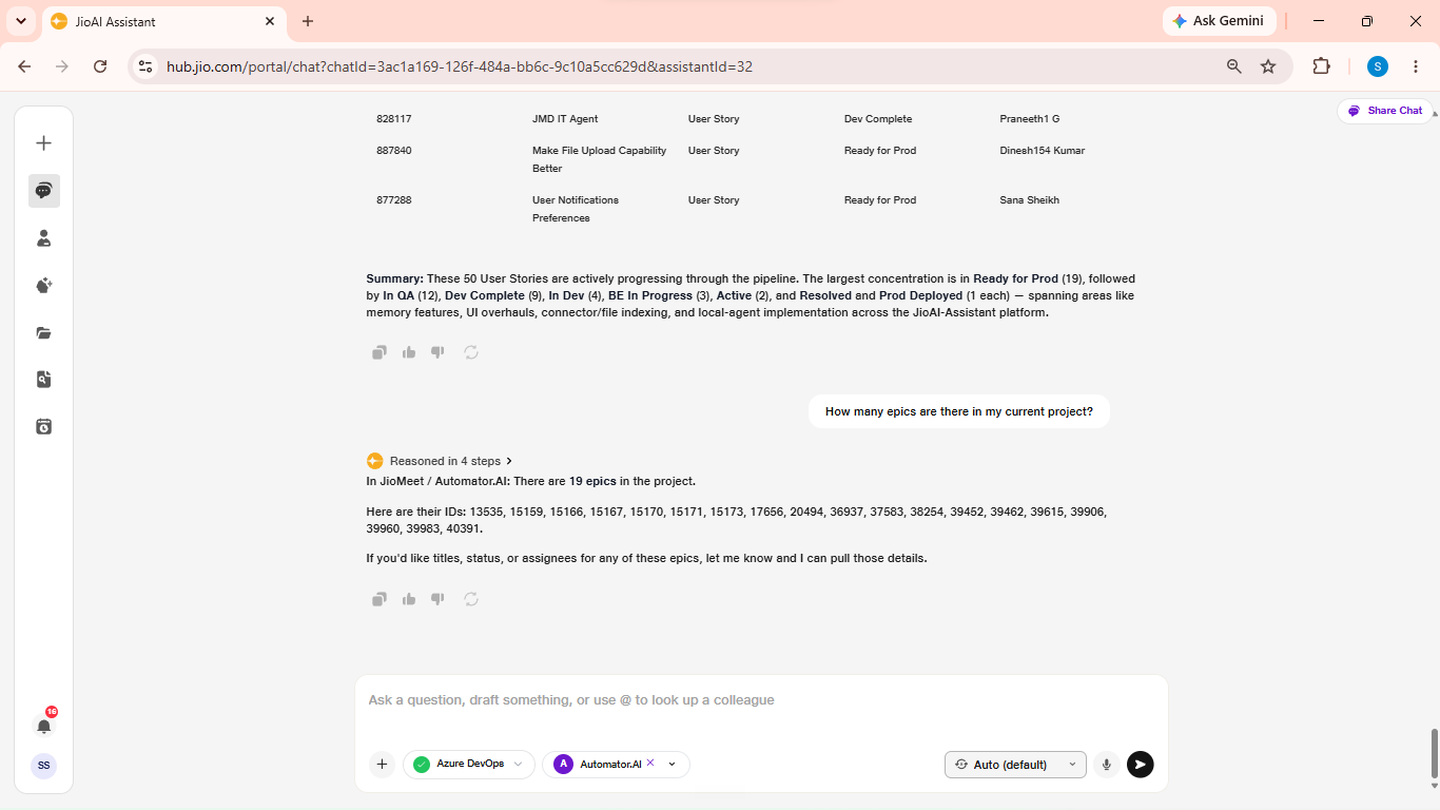
- Project switch: Required before querying another project.
- Follow-up: Answer clarifying questions for precise results.