Test Runner Agent
Your manual testing specialist for running test cases on live web URLs or real mobile devices — with live session links, progress streaming, and post-run reporting.
Overview
Test Runner Agent is a specialist assistant built for manual test execution in Jio Automator. Use it when you need to run test cases against a live website or a cloud mobile device — instead of asking in general chat or stepping through runs manually in the portal. The agent accepts test sources from Azure DevOps plans, Automator Test Manager, or CSV/XLSX files. When a run starts, you receive a public live session link immediately so you can watch progress, respond when the run needs your input, correct step outcomes, log bugs to Azure DevOps, and export a PDF report when finished.
End-to-end flow
A simple path to follow:
Left sidebar → Click Agents → Find Test Runner Agent → Launch agent → Choose web or mobile target → Provide test source and URL (web) or device + app (mobile) → Receive a public live session link → Optionally stream progress or handle human-in-the-loop prompts → Review the final report → Correct outcomes, raise ADO bugs, or export PDF as needed
How it works
Web manual runs:
Provide a live URL and a test source — Azure DevOps plan or case IDs, Test Manager cases, or a CSV/XLSX file. The agent executes manual test cases in a browser against that URL and shares a public session link as soon as the run starts.
Mobile manual runs:
Run manual tests on a real cloud device through BrowserStack. The agent fetches available Android or iOS devices and apps from your project's Config environments — you do not need to upload an APK or IPA. Pick a device and app, then provide your test cases from Test Manager, Azure DevOps, or a spreadsheet file.
Test sources:
- Azure DevOps — run cases from a test plan, specific test case IDs, or a user story - Test Manager — search for cases by plan or name and run them - CSV/XLSX — execute test cases from an uploaded or referenced spreadsheet
Public live session link:
As soon as a run starts, the agent returns a public session URL — no login required. Open it to watch execution progress, view step details, and follow the run in real time.
Monitoring and human-in-the-loop:
By default, the agent starts the run and shares the link — open it to follow progress yourself. If you ask the agent to stream or monitor the run, it reports step-by-step progress in chat. When the run pauses and needs your input — on web or when a mobile device hits a biometric prompt, disconnect, or throttling — respond in chat and the agent unblocks the session.
Post-run actions:
After a run completes, you can: - Correct step outcomes — override a step result when you verified it manually - Raise ADO bugs — log defects in Azure DevOps for failed steps - Export PDF — download a PDF execution report for sharing or audit - Sync results to Azure DevOps — push run outcomes back to existing ADO test cases
Manual execution only:
This agent handles manual test runs only. For automation recording and execution, use the Test Builder agent instead.
Tip:
For web runs, always include the target URL. For mobile runs, say which platform (Android or iOS) you need and which Config app to use — the agent handles device and app selection. Open the live session link as soon as you receive it to catch human-in-the-loop prompts early.
Walkthrough
1. Launch Test Runner Agent
Click Agents in the left sidebar, then find Test Runner Agent in the catalog. Read the card description to confirm it matches your manual testing task, then Launch agent to open a dedicated chat scoped to manual test execution. Decide whether you need a web run (live URL) or a mobile run (BrowserStack device + Config app), and have your test source ready.
- Catalog: Browse available agents.
- Launch agent: Opens a dedicated manual testing chat.
2. Run web tests from Azure DevOps
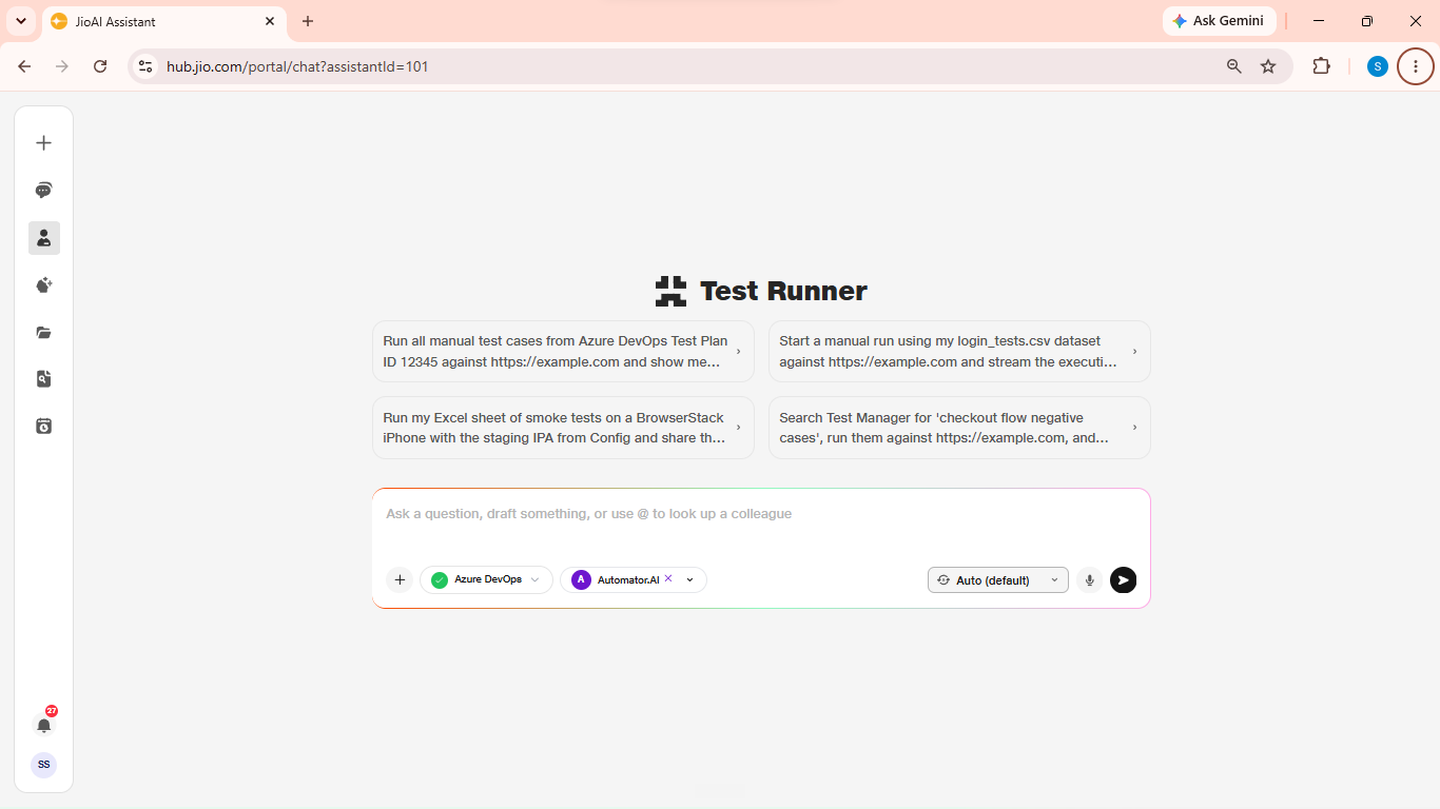
Provide an Azure DevOps test plan or case IDs and the target URL. Example: "Run all manual test cases from Azure DevOps Test Plan ID 12345 against https://example.com and show me the live session." The agent starts the run and immediately returns a public live session link. Open the link to watch manual test execution in the browser.
- Web URL: Required for browser-based runs.
- Azure DevOps: Provide plan ID, test case IDs, or user story ID.
3. Run web tests from a CSV file with streaming
Attach or reference a test case file and ask the agent to execute it against a URL. Example: "Start a manual run using my login_tests.csv dataset against https://example.com and stream the execution progress here in the chat." The agent runs the cases and either shares the live session link for you to follow, or streams step-by-step progress in chat if you asked for it.
- CSV/XLSX: Spreadsheet with your manual test cases.
- Stream: Ask to monitor progress in chat, or use the session link.
4. Run mobile tests on BrowserStack
For mobile execution, tell the agent the platform and test source. Example: "Fetch BrowserStack Android devices, pick an env app, run Test Manager checkout cases on that device, and give me the public live link." Or for iOS: "Run my Excel sheet of smoke tests on a BrowserStack iPhone with the staging IPA from Config and share the public session URL." The agent selects a BrowserStack device and a Config app from your project environments — no manual APK or IPA upload needed — then starts the run and shares the public session link.
- Mobile: Android or iOS via BrowserStack cloud devices.
- Config app: Selected from your project environments automatically.
5. Search Test Manager and raise ADO bugs
Search for specific cases in Test Manager and run them with post-run bug logging. Example: "Search Test Manager for 'checkout flow negative cases', run them against https://example.com, and automatically raise ADO bugs for any failures." The agent finds the matching cases, executes them, and logs defects in Azure DevOps for any failed steps. Review the session link for step-level details before bugs are raised.
- Test Manager: Search by plan or case name.
- Raise bugs: Failed steps logged to Azure DevOps.
6. Review results and export PDF
When the run finishes, ask for the final report and a downloadable PDF. Example: "Fetch the final execution report for session ID abcd-1234 and export it as a PDF for me to download." The agent summarises outcomes and provides a PDF download link. You can also ask to correct individual step results or sync outcomes back to Azure DevOps if needed.
- Final report: Step outcomes and failure details.
- PDF export: Download link for sharing or audit.