Test Builder Agent
Your automation specialist for recording and running test cases on live URLs — from plain-English prompts, Azure DevOps, Test Manager, or spreadsheet files.
Overview
Test Builder Agent is a specialist assistant built for automation testing in Jio Automator. Use it when you need to record new automation steps or execute existing test cases against a live application URL — instead of asking in general chat or configuring runs manually in the portal. The agent supports quick authoring from a plain-English description, structured runs from Azure DevOps test plans, Test Manager cases, or CSV/XLSX files. When a run starts, you receive a live session link immediately so you can watch progress, respond to prompts when the run needs your input, and save passed steps into an automation suite when finished.
End-to-end flow
A simple path to follow:
Left sidebar → Click Agents → Find Test Builder Agent → Launch agent → Choose an input source (prompt, Azure DevOps, Test Manager, or file) → Provide the target URL and test details → Receive a live session link → Optionally monitor progress or answer human-in-the-loop prompts → Review the final report → Save passed steps into a suite if needed
How it works
Quick authoring:
Describe the flow you want to automate in plain English — for example, "Log in with username demo and verify the dashboard loads." No test plan or file is required. The agent records steps against the URL you provide and streams the session so you can follow along.
Azure DevOps runs:
Run automation against existing Azure DevOps artefacts. Provide a test plan ID, specific test case IDs, or a user story ID along with the target URL. The agent executes the cases and shares a live session link.
Test Manager runs:
Search for test cases in Automator Test Manager and run them in automation mode. Tell the agent which plan or cases you need — it finds the matching cases and starts the run against your URL.
File-based runs:
Upload or reference a CSV or XLSX file containing test cases and ask the agent to execute them against a live URL. Useful for regression batches or imported test datasets.
Live session link:
As soon as a run starts, the agent returns a live session URL — a public link where you can watch recording or execution progress, view step details, and see screenshots. No login is required to open the link.
Monitoring and human-in-the-loop:
By default, the agent starts the run and shares the link — you open it to follow progress yourself. If you ask the agent to monitor or stream the run, it tracks progress step by step. When the run pauses and needs your input (for example, to confirm an action or answer a question), respond in chat and the agent unblocks the session.
Environment variables for credentials:
When tests need login credentials or other sensitive data, reference your project's environment or global variables instead of typing secrets in chat — for example, "use the password from my environment variables." The agent resolves and masks these values during recording and execution.
Save to suite:
After a successful run, ask the agent to save the recorded steps into an automation suite. It saves passed test cases by default — specify a suite name or let the agent find one from your project. You can also name specific scenarios to save.
Reports:
View the full run report — steps, screenshots, and recording — on the session link. PDF export is not available for automation sessions; use the session URL to review and share results with your team.
Automation only:
This agent handles automation recording and execution only. For manual test execution, use the Manual Test Runner agent instead.
Tip:
Always include the target URL and be clear about your input source — a plain-English flow, Azure plan ID, Test Manager search terms, or file name. Open the live session link as soon as you receive it to catch human-in-the-loop prompts early.
Walkthrough
1. Launch Test Builder Agent
Click Agents in the left sidebar, then find Test Builder Agent in the catalog. Read the card description to confirm it matches your automation task, then Launch agent to open a dedicated chat scoped to test recording and execution. Have your target URL and test source ready — a flow description, Azure plan ID, Test Manager case names, or a test file.
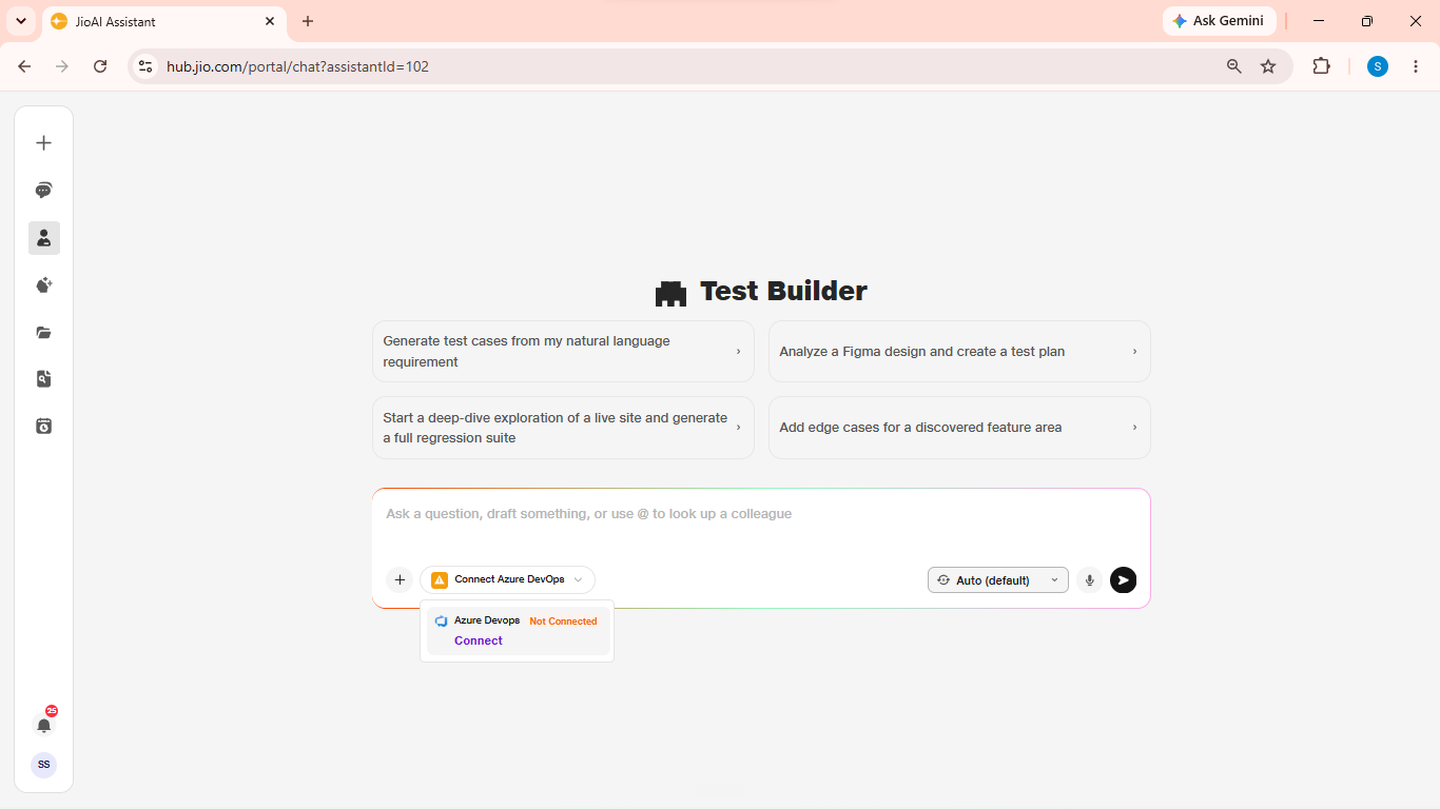
- Catalog: Browse available agents.
- Launch agent: Opens a dedicated automation testing chat.
2. Quick-author a flow from plain English
Describe the automation flow you want to record and include the live URL. For example: "Quick author a login flow on https://myapp.com/login using username demo and the password from my environment variables." The agent starts recording against the URL and immediately returns a live session link. Open the link to watch steps being recorded in real time.
- Prompt: Describe the flow in everyday language.
- URL: Always include the application URL to test against.
- Variables: Reference env/global variables for credentials — never paste secrets.
3. Run from Azure DevOps or Test Manager
For structured runs, tell the agent where your test cases live. Examples: "Run all automation test cases from Azure DevOps Test Plan ID 12345 against https://example.com" "Search Test Manager for checkout flow cases and run them against https://example.com" The agent finds the cases, starts the run, and shares the live session link. Open it to follow execution progress.
- Azure DevOps: Provide plan ID, test case IDs, or user story ID.
- Test Manager: Describe the plan or case names to search for.
4. Run from a CSV or XLSX file
Attach or reference a test case file and ask the agent to execute it. Example: "Start an automation run from my regression_cases.xlsx against https://example.com and stream the recording progress." The agent runs the cases from the file against your URL. Ask to stream progress if you want step-by-step updates in chat, or open the live session link to watch directly.
- File: CSV or XLSX with your test case dataset.
- Stream: Ask to monitor progress, or use the session link.
5. Handle human-in-the-loop and review results
If the run pauses and needs your input — for example, to confirm a dialog or choose an option — the agent asks you in chat. Reply with your answer and the run continues. When the run finishes, ask for the final report — for example: "Fetch the final report for session ID abcd-1234." The agent summarises outcomes, recorded steps, and any failures. Open the session link for full step details, screenshots, and the recording.
- HITL: Answer prompts in chat when the run pauses.
- Report: Session link has steps, screenshots, and recording.
6. Save passed steps into a suite
When you are satisfied with the recording, ask the agent to save the results. Example: "Save the passed steps from session abcd-1234 into my Checkout suite." The agent saves passed test cases into the named automation suite. You can then run, edit, or extend those scenarios from Automator as usual.
- Save: Passed steps go into your automation suite.
- Suite name: Specify the target suite or describe it by name.