Test Pilot Agent
Your QA planning specialist for the full manual test lifecycle — from requirements and designs into structured test plans with live refinement and export.
Overview
Test Pilot Agent is a specialist assistant built for manual test planning in Jio Automator. Use it when you need to turn requirements, Figma designs, Azure DevOps work items, attached files, or a live website into a comprehensive manual test plan — instead of asking in general chat or authoring cases from scratch. The agent works in two ways: requirement-driven generation from documents and work items, or autonomous web exploration that maps feature areas on a live URL. When generation starts, you receive a preview link immediately so you can watch the plan build, refine scenarios through chat, and save or sync the final plan to Test Manager or Azure DevOps.
End-to-end flow
A simple path to follow:
Left sidebar → Click Agents → Find Test Pilot Agent → Launch agent → Choose your input type (requirements, Azure work item, Figma, file, or live URL) → Receive a preview link → Review and refine scenarios → Save to Test Manager, export to CSV/XLSX, or push to Azure DevOps
How it works
Requirement-driven generation:
When you have requirements, user stories, acceptance criteria, Figma design links, Azure DevOps work items, or attached files — but no live URL to explore — the agent builds a structured manual test plan from that context. Share your scope, target platform, and any constraints in plain language.
Live URL exploration:
When you provide a live URL and want the agent to explore, crawl, or map a running application, it autonomously discovers feature areas and generates test coverage from what it finds on the site. Put exploration instructions in your message and always include the URL separately — for example, depth of coverage, flows to focus on, or areas to exclude.
Azure DevOps work items:
Provide a work item ID with organisation and project, or paste the full work item URL. The agent generates test cases directly from that work item — you do not need to copy the work item content into chat first.
Figma designs:
Share Figma design links and ask the agent to analyse the designs and create a test plan aligned to the UI flows and states shown.
Preview link:
As soon as generation starts, the agent returns a preview URL where you can watch the plan being built in real time. Open it immediately — the preview link is your starting point for review.
Review and refinement:
When the plan is ready — or when you ask to see progress — the agent shows scenario summaries, coverage areas, and test case details. Refine through conversation: ask for additional edge cases, adjust priorities, add tags, or expand coverage for a specific feature area.
Save, export, and sync:
When you are satisfied with the plan: - Save to Test Manager — persist the plan in your Automator repository - Export to CSV or XLSX — download a spreadsheet for offline review or sharing - Push to Azure DevOps — sync finalized test cases to an existing ADO test plan
Two modes, one agent:
If you have requirements or documents, use requirement-driven generation. If you have a live URL to explore, use web exploration mode. The agent picks the right approach based on what you provide — if both a URL and requirements are present, it uses exploration when you want site-wide coverage discovered from the running application.
Tip:
Be specific about scope upfront — target platform (web or mobile), number of cases, priority focus, or named flows. Open the preview link as soon as you receive it, then refine in chat before saving or syncing.
Walkthrough
1. Launch Test Pilot Agent
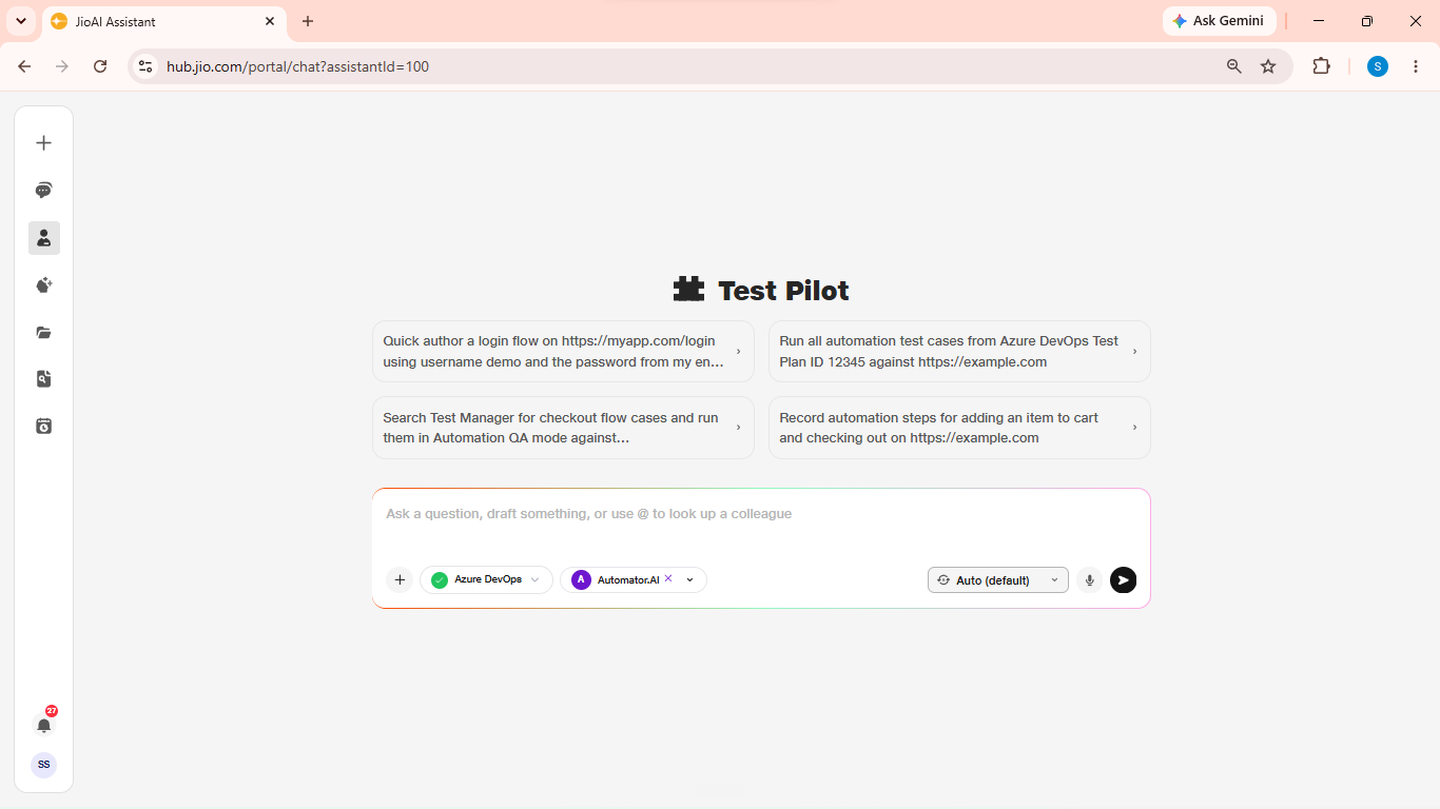
Click Agents in the left sidebar, then find Test Pilot Agent in the catalog. Read the card description to confirm it matches your test planning task, then Launch agent to open a dedicated chat scoped to manual test plan generation. Have your input ready — requirements text, an Azure work item link, Figma URLs, attached files, or a live application URL.
- Catalog: Browse available agents.
- Launch agent: Opens a dedicated test planning chat.
2. Generate from requirements or natural language
Describe what you need tested in plain language. Example: "Generate test cases from my natural language requirement." Include the feature, user flows, acceptance criteria, and any constraints — for example, target platform, smoke vs regression depth, or priority areas. Attach supporting files if you have requirement documents. The agent starts generation and immediately returns a preview link. Open it to watch scenarios being created.
- Requirements: Describe scope, flows, and constraints in chat.
- Files: Attach PDFs or documents as additional context.
3. Generate from an Azure DevOps work item
Provide a work item ID with org and project, or paste the full URL. Example: "Generate test cases from Azure work item 8688 for org JioMeet project Automator.AI" The agent generates test cases directly from the work item content. Add instructions in the same message — for example, scope, case count, or browser vs mobile focus.
- Work item: ID + org/project, or full Azure DevOps URL.
- Instructions: Add scope or count expectations in the same message.
4. Analyse Figma designs or explore a live URL
For design-driven plans, share Figma links. Example: "Analyse a Figma design and create a test plan." For site-wide coverage from a running application, provide a live URL. Examples: "Explore this URL and map out all feature areas." "Start a deep-dive exploration of a live site and generate a full regression suite." The agent either analyses the design flows or autonomously explores the URL, discovers feature areas, and generates test cases for each. You receive a preview link as soon as exploration starts.
- Figma: Share design links for UI-flow-based test plans.
- Live URL: Agent explores the site and maps feature areas automatically.
5. Review scenarios and refine coverage
When generation is complete — or when you ask for a summary — request a review. Example: "Show me a summary of the generated scenarios and coverage." Review feature areas, scenarios, priorities, and gaps. Refine through chat — for example: "Add edge cases for the Checkout feature area." Ask for additional scenarios, priority changes, tag updates, or expanded coverage for specific flows.
- Summary: Scenarios, coverage areas, and priorities.
- Refine: Add edge cases or adjust through conversation.
6. Save, export, or sync to Azure DevOps
When the plan is final, save or export it. Example: "Save this finalized plan to the Test Manager repository." You can also ask to export as CSV or XLSX for offline sharing, or push test cases to an existing Azure DevOps test plan. Provide any required custom field values if prompted during ADO sync.
- Test Manager: Persist the plan in your Automator repository.
- Export / ADO sync: Download as spreadsheet or push to Azure DevOps.