Document Creation
Ask the assistant to generate a document you can download and edit.
Overview
Document Creation turns a short description into a draft office file — Word document, PowerPoint deck, or Excel sheet — that you can download and finish in your usual apps. Use it when you need a first version fast: a status note, a slide outline, or a simple table structure. The assistant produces a draft in chat; you review it, download it, and polish formatting, branding, and facts before sharing.
End-to-end flow
A simple path to follow:
New Chat → Describe the document type, audience, and main sections in one message → Send → Wait for the draft → Preview in chat if shown → Download or open the file → Edit locally before sending to others
How it works
Be specific:
Tell the assistant who will read it, how long it should be, and which sections to include — the more detail you give upfront, the closer the first draft will be.
Draft first:
Treat every output as a starting point: check names, numbers, and policy wording yourself before you send anything outside your team.
Download:
Use the download or open link in chat to save the file to your computer with template and formatting of your choice.
Tip:
Try a concrete request like “Create a one-page Word update for leadership on Q2 delivery risks, with three bullet sections” instead of a vague “make a document.”
Walkthrough
1. Describe the document
In the chat box, say what type of file you need (Word, PowerPoint, or Excel), who it is for, and the main points or slide outline.
Mention tone if it matters — formal for leadership, shorter for a team note. You can list section headings you want so the structure matches your habit.
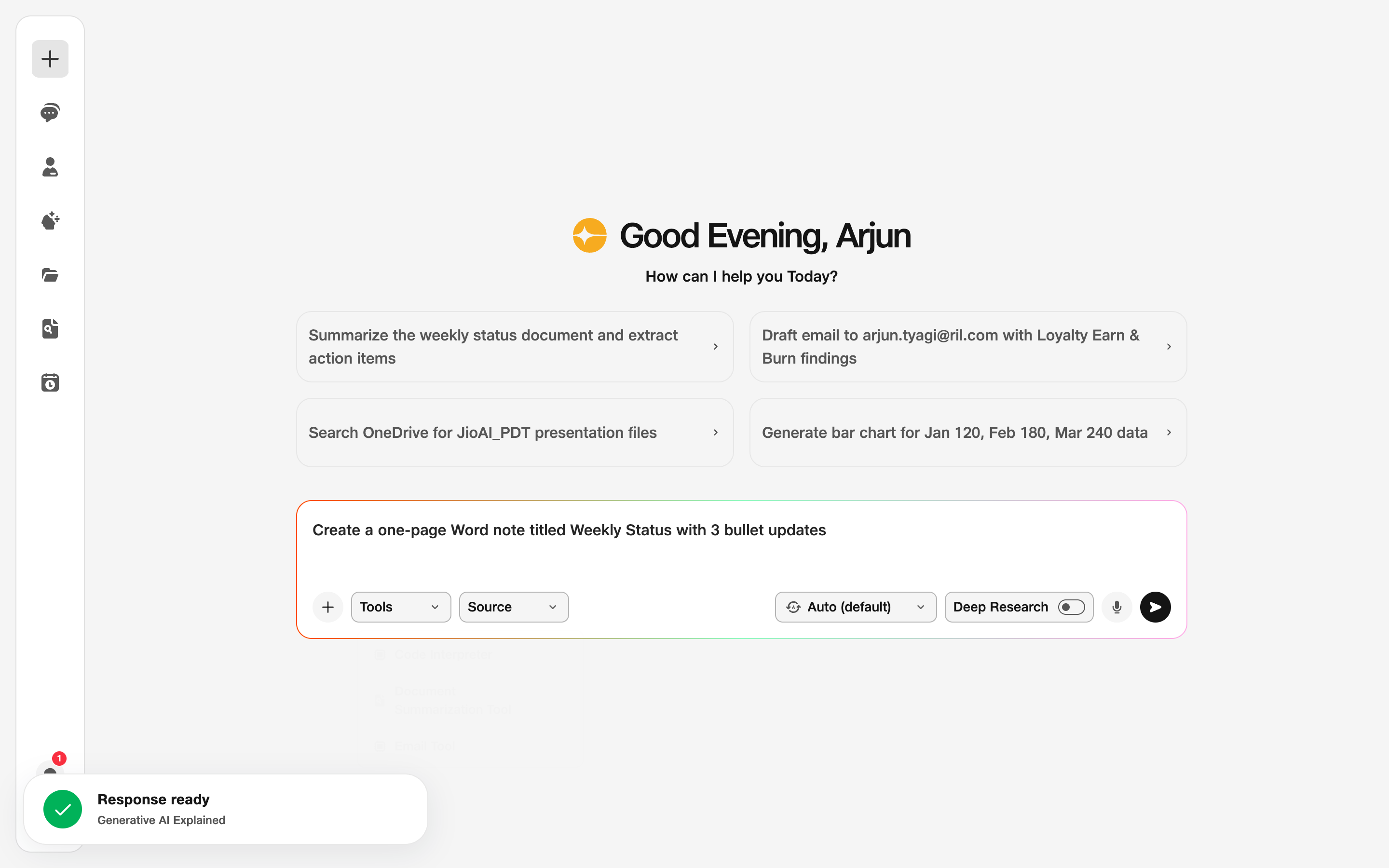
- Prompt: Be clear about format and purpose.
2. Generate and download
Click Send and wait for the assistant to generate the file — a preview panel or download card usually appears in the chat when it is ready.
Use the download or open link in chat to save the file to your computer with template and formatting of your choice.
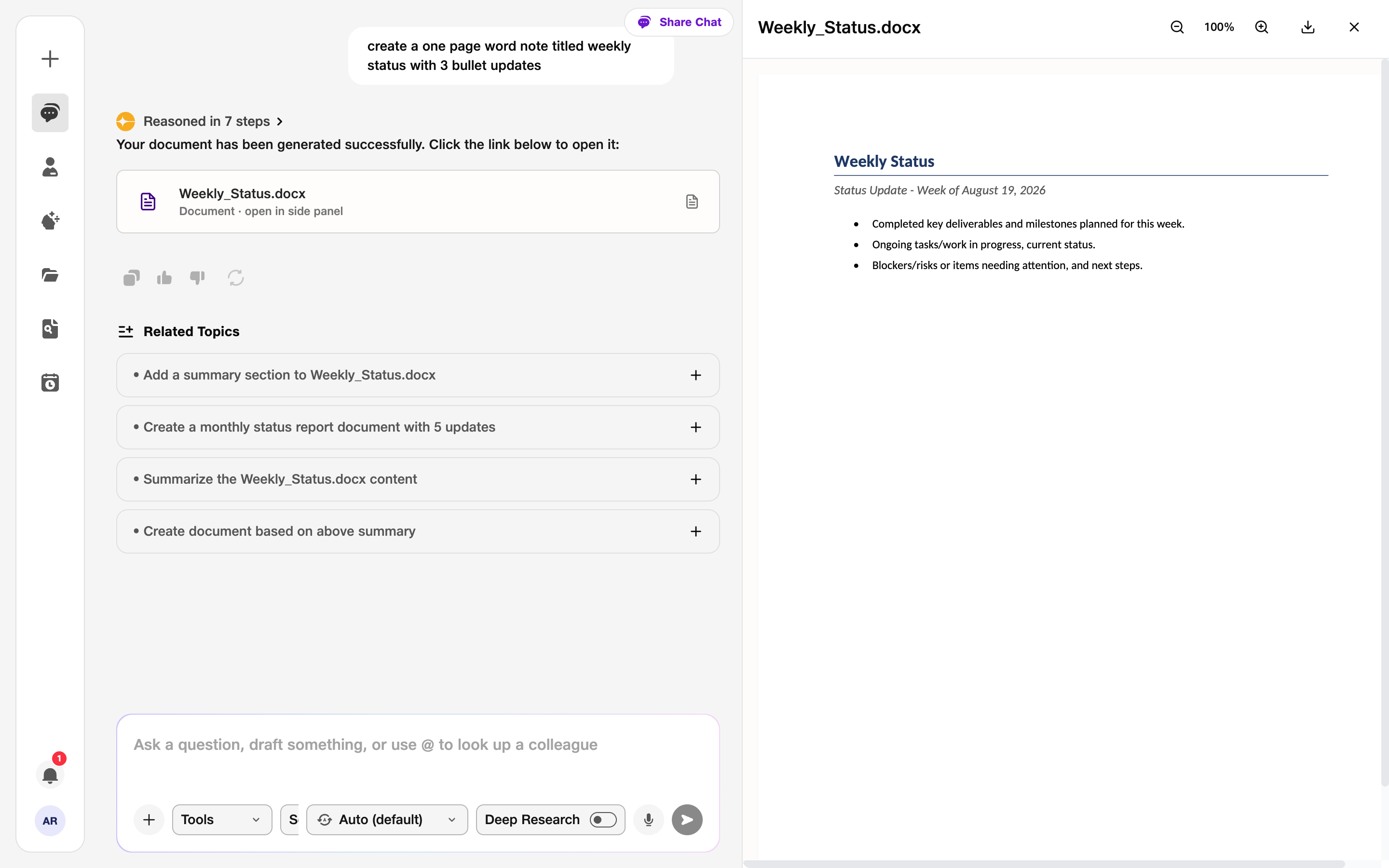
- Download card: Open or download the file.
- Side panel: Preview the document when shown.