Draft Email
Describe what you need to say; get a ready draft to edit and send.
Overview
Draft Email turns a short brief into a ready-to-review email — subject line and body — so you spend less time staring at a blank message. Use it for status updates, polite follow-ups, meeting recaps, or first drafts to stakeholders. You describe the purpose and key points; the assistant writes the draft in chat; you open it in Outlook (or your mail app), edit tone and facts, and send from your own mailbox.
End-to-end flow
A simple path to follow:
Open Tools → Select Draft Email → Describe recipient, purpose, tone, and must-include points → Send → Read subject and body in chat → Click Open in Outlook → Edit and send from your email
How it works
Brief is key:
Tell the assistant who the email is for, why you are writing, and any points that must appear — deadlines, asks, or attachments you will add yourself.
Tone:
Say if you want formal, friendly, or very short language; you can also ask for a softer or firmer version in a follow-up message.
You send it:
The assistant does not send mail for you — always review every line and send only from your own account when you are satisfied.
Tip:
Example: “Draft an email to my colleague asking for their weekly status by Friday, friendly but clear.”
Walkthrough
1. Select Draft Email
Open Tools in the chat and choose Draft Email — this tells the assistant to format its reply as an email draft.
Starting in Draft Email mode usually gives you a proper subject line and structured paragraphs instead of a casual chat answer.
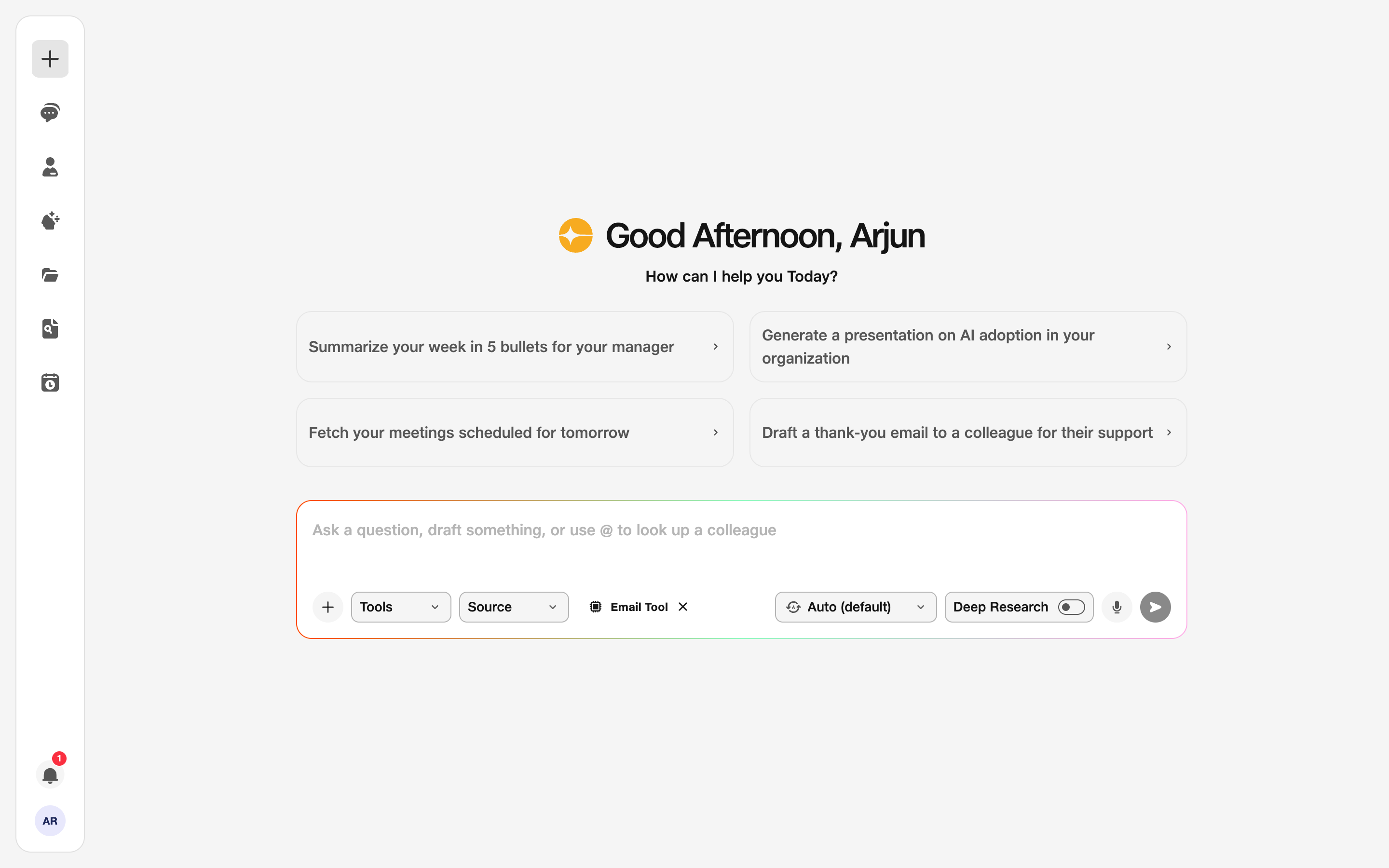
- Tools: Activate Draft Email.
2. Give your brief
Describe who the email is to, what you need to communicate, and anything that must be included — dates, project names, or a specific ask.
Mention if you want bullets or short paragraphs. Click Send and wait for the full draft to appear in the chat window.
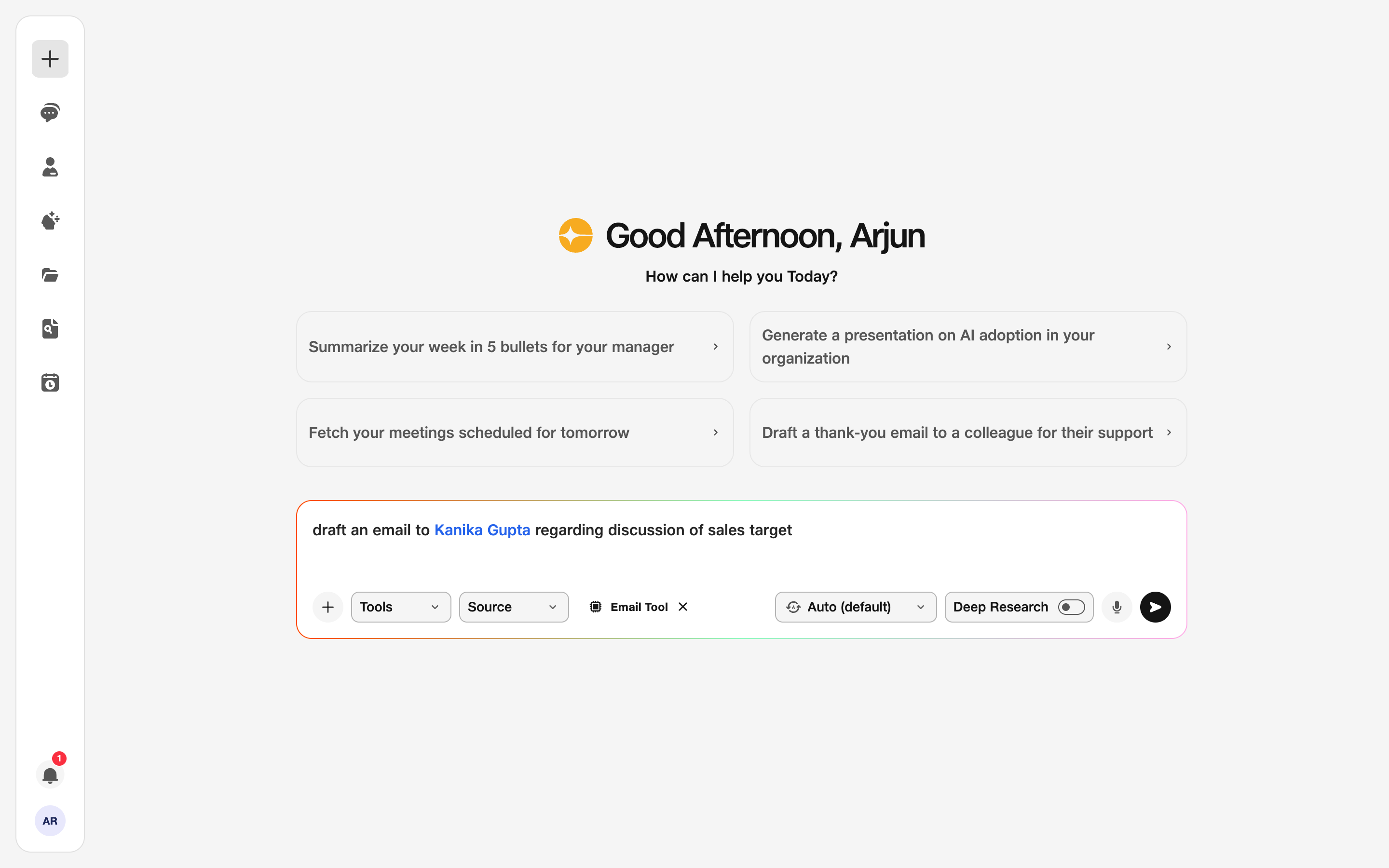
- Brief: Purpose and key points.
3. Review the draft
Read the subject and body carefully in chat — check names, dates, and tone before you open it in your mail app.
Click the Open in Outlook link (or equivalent) to move the draft into your mailbox. Make final edits there, attach files if needed, and press Send when you are ready.
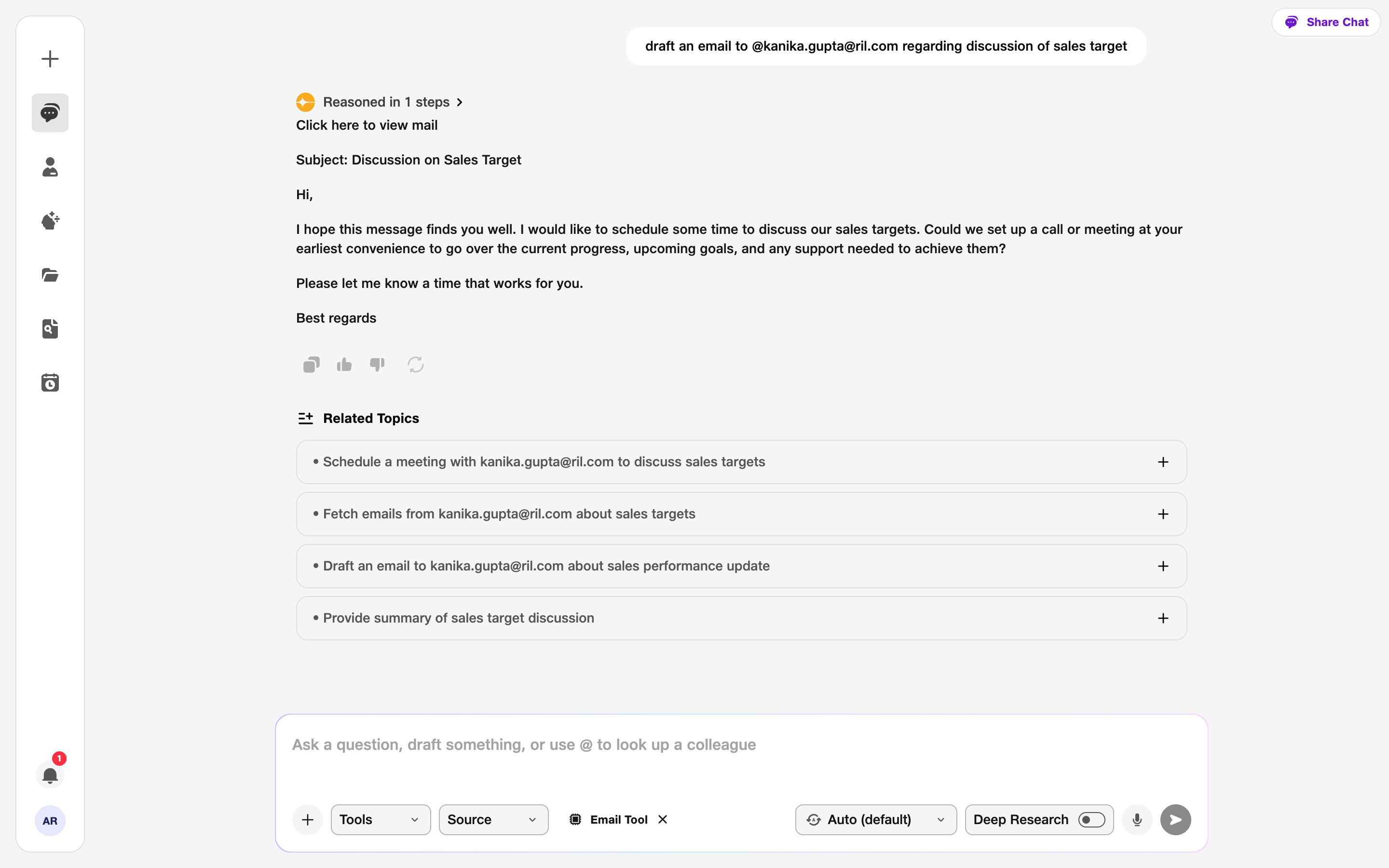
- Draft: Ready email in chat.
- Outlook: Open the link to review and send.