Document Summarization
Attach a document, ask for a summary, and read the key points.
Overview
Document Summarization reads a long file you attach and returns a shorter, easy-to-scan summary — main points, decisions, or action items — so you do not have to read every page yourself. Use it before a meeting, when onboarding to a new topic, or when someone sends you a lengthy PDF. Success is a summary you can skim in a minute and trust enough to decide whether you need to read the full document.
End-to-end flow
A simple path to follow:
Attach your document (PDF, Word, or similar) → Select Document Summarization or ask plainly to summarise → Say what format you want (bullets, actions, one paragraph) → Send → Read the summary → Ask follow-ups on any section that needs more detail
How it works
Upload first:
Attach the file before you ask for a summary — the assistant needs the document in the chat to read it; asking to summarise without an attachment usually will not work.
Ask clearly:
Tell the assistant if you want bullet points, a short paragraph, action items only, or decisions highlighted — different formats suit different meetings.
Follow-ups:
You can ask “expand section 2” or “list only risks” in the same chat without re-uploading the file, as long as the attachment is still in the conversation.
Tip:
A helpful prompt is: “Summarise this document in five bullet points and list action items with owners if mentioned.”
Walkthrough
1. Attach a document
Click + in the chat bar and upload the PDF, Word file, or other document you want summarised — wait until the file name appears on the chat bar.
Very large files may take longer to process. If upload fails, try a smaller export or split the document and summarise one part at a time.
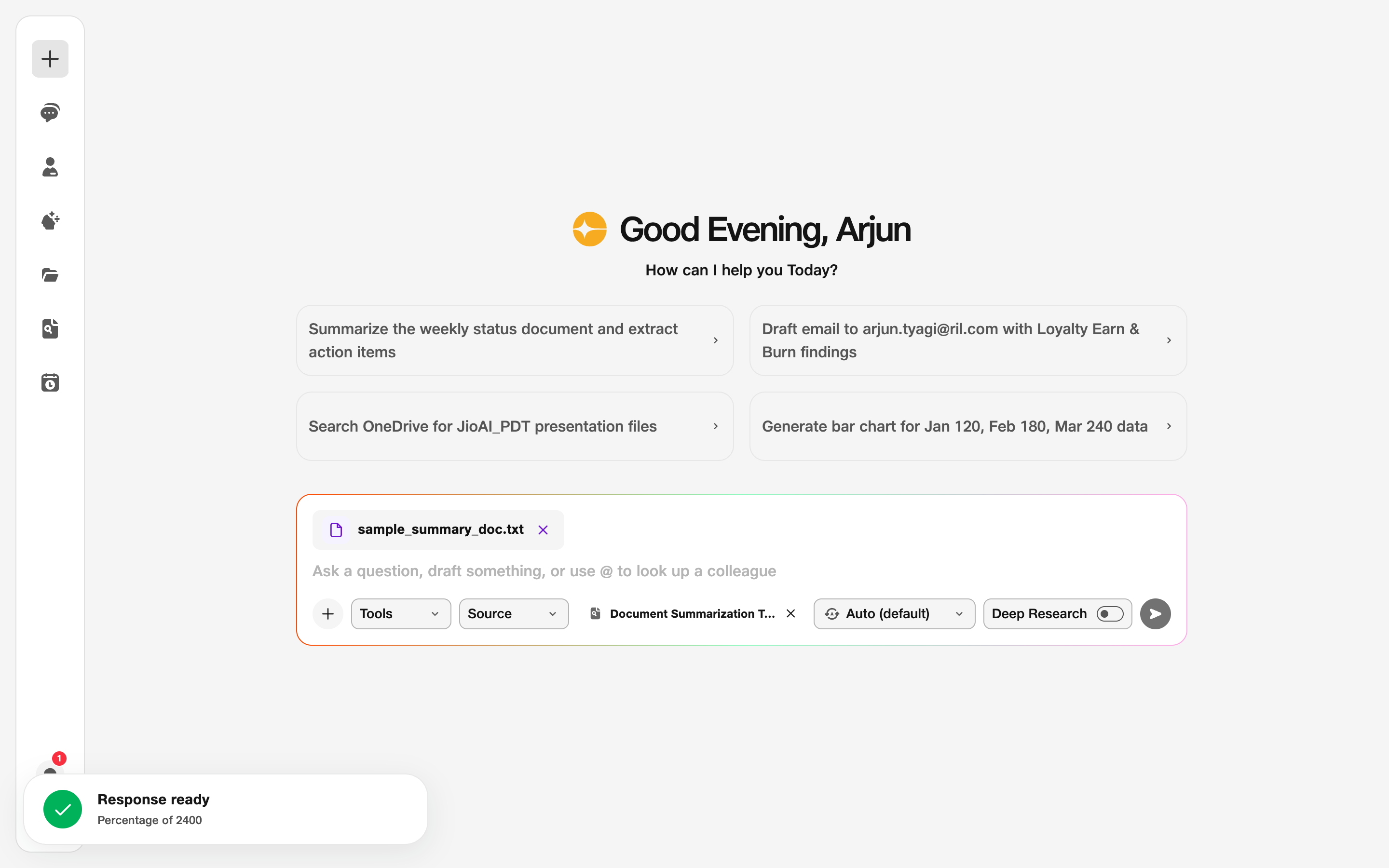
- Attachment: File appears on the composer.
2. Ask for a summary
Type a clear request — for example “Summarise this doc for my manager in bullet points” — and click Send.
Say whether you care most about decisions, risks, dates, or action items so the summary matches how you will use it in your meeting or email.
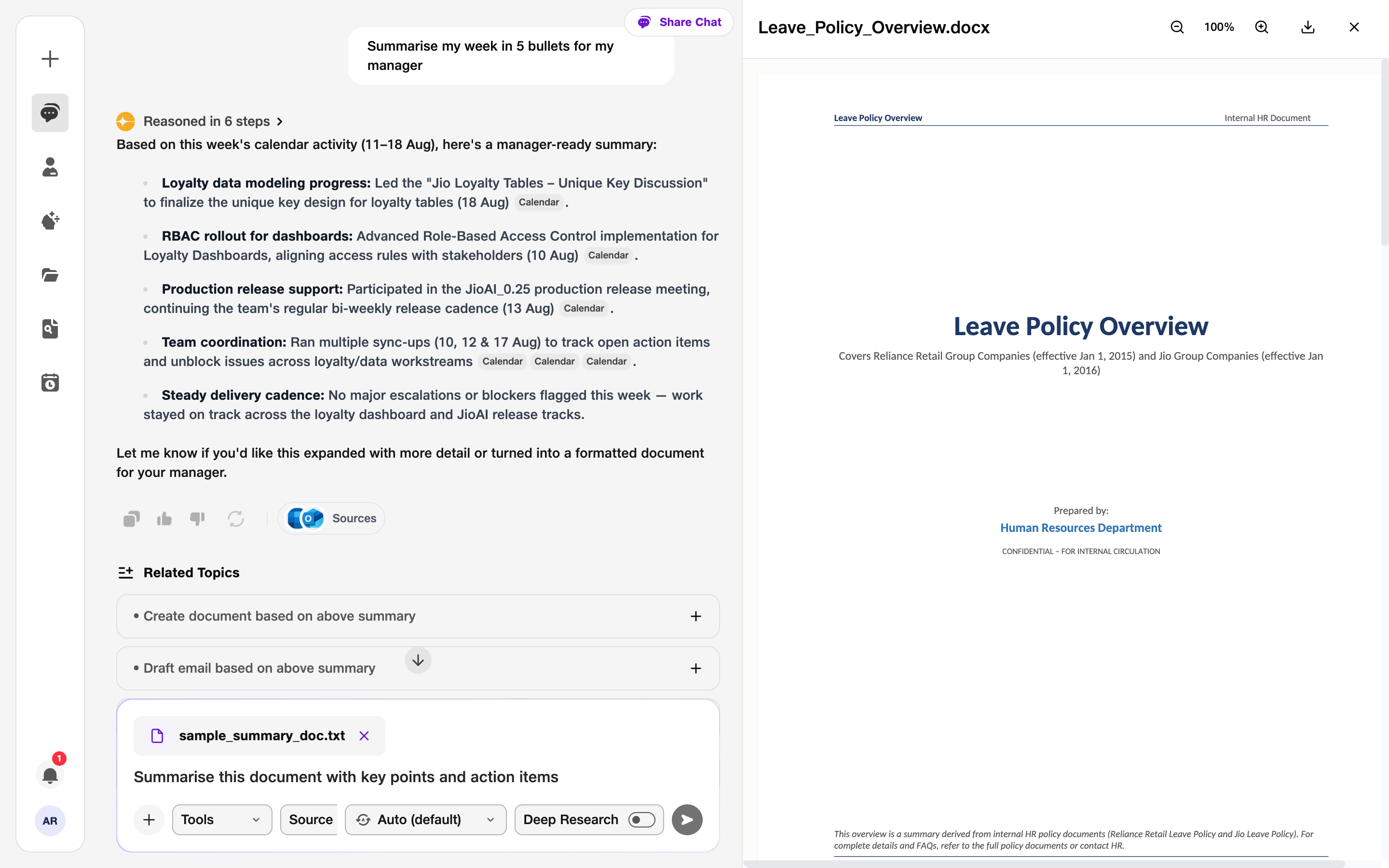
- Prompt: Ask for key points or actions.
3. Read the summary
Scroll through the assistant’s reply and check the key points, decisions, and any action items it listed.
Spot-check important numbers or names against the original if the summary will go to others. Ask a follow-up in the same chat if one section needs more depth.
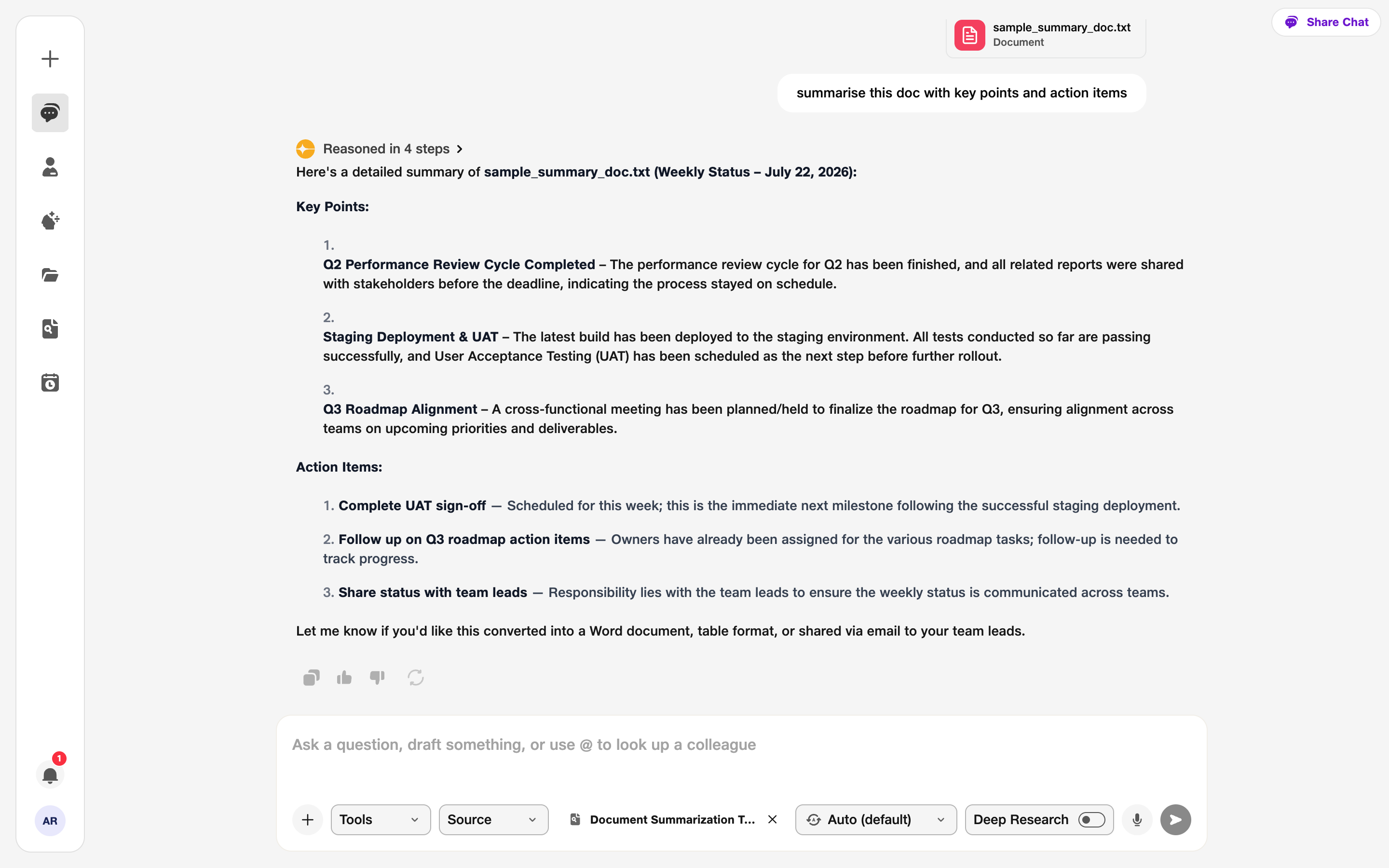
- Summary: Key points and actions in chat.