HR Tool
Get answers on leave, benefits, and HR guidance from approved sources.
Overview
The HR Tool answers everyday people questions — leave rules, benefits, holidays, and common HR policies — using company-approved information instead of general internet guesses. Use it when you are unsure how something works for employees at your location or role. It gives guidance to help you decide your next step; for formal applications or exceptions, you still follow official HR channels.
End-to-end flow
A simple path to follow:
Open Tools → Select HR Tool → Ask a specific HR question (leave type, location, benefit name) → Send → Read the answer → Follow official HR process for formal requests if needed
How it works
Approved sources:
Answers are meant to reflect company HR content available to the tool — treat them as guidance and confirm critical decisions with HR if policy is unclear.
Guidance vs process:
The tool explains rules and options; submitting leave, claims, or exceptions still happens through the official HR systems your company uses.
Role-aware:
Some policies differ by location, grade, or employment type — mention your situation in the question so the answer is more relevant.
Tip:
Example: “What is the casual leave policy for my location?” — add your city or role if policies vary across the company.
Walkthrough
1. Select HR Tool
In chat, open Tools and click HR Tool so your question is answered from HR-focused sources rather than a general chat reply.
If HR Tool is not listed, your account may not have it enabled — check with your admin or use official HR portals for urgent matters.
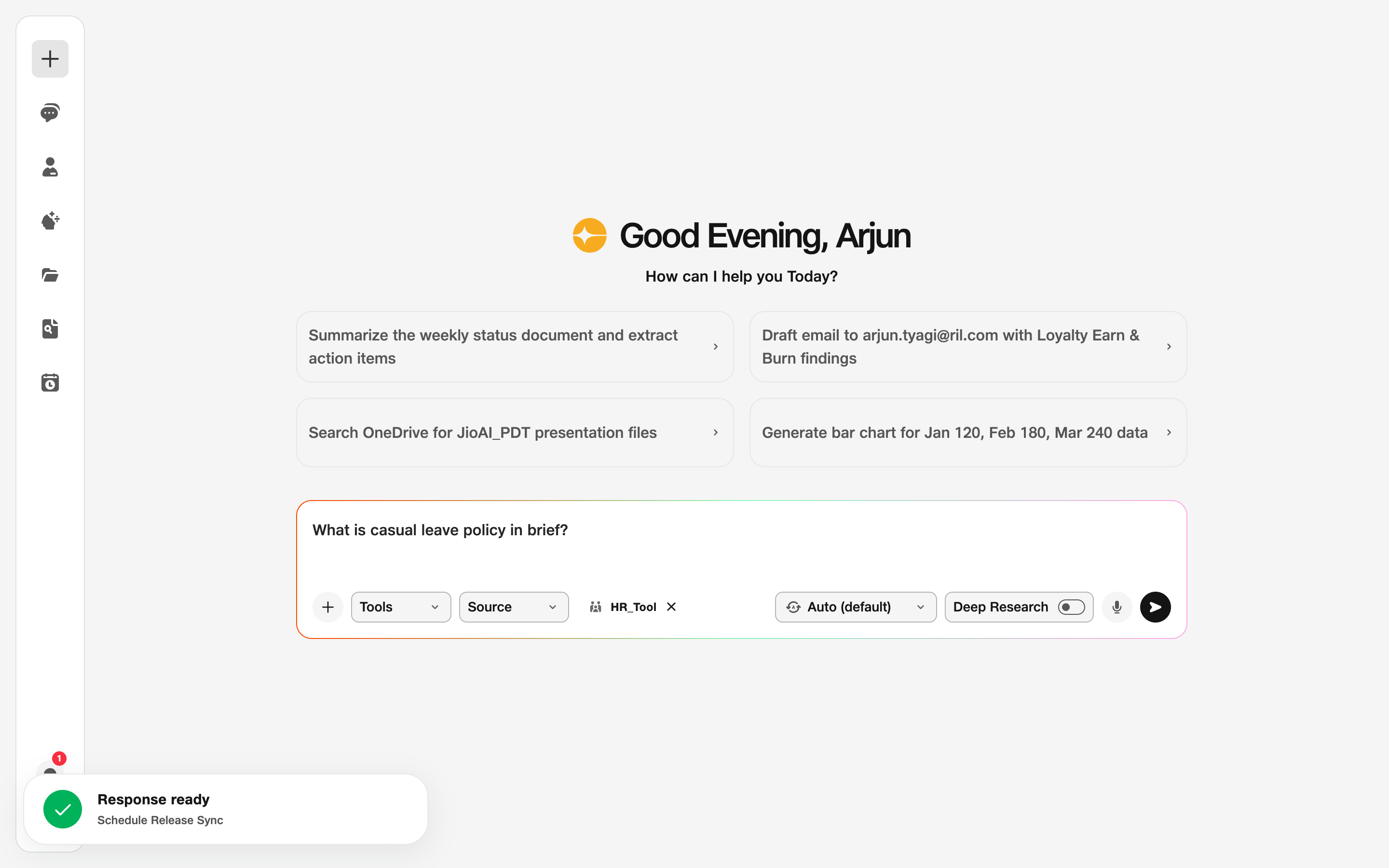
- Tools: Activate HR Tool.
2. Ask your question
Type a clear question — name the leave type, benefit, or policy topic and include location or role if policies differ.
Click Send and read the full answer. Note any links or next steps mentioned. For official submissions, use the HR system the answer points you to.
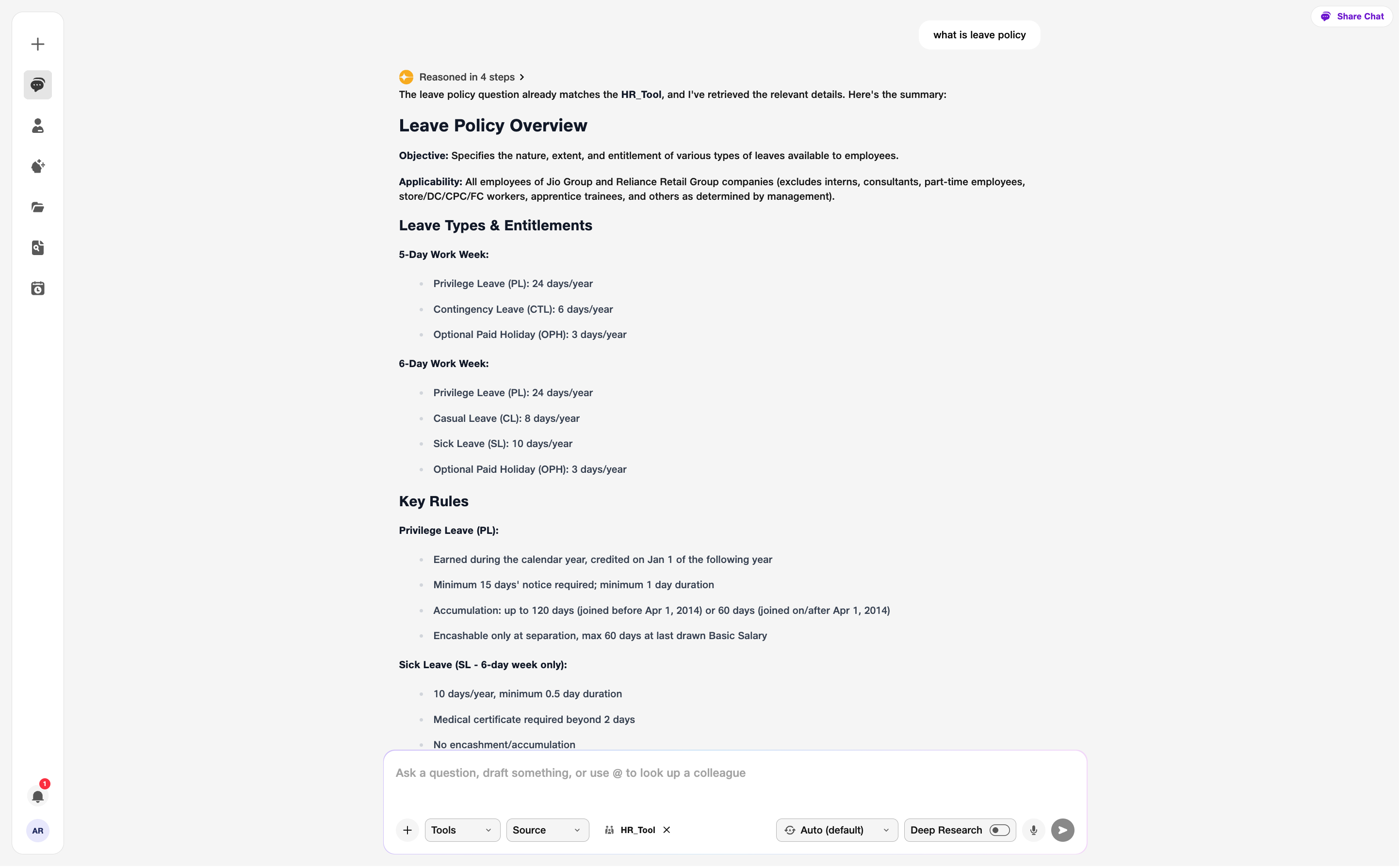
- Question: Be specific about leave type or benefit.