Video Generation
Describe a short scene and get a clip you can play or download.
Overview
Video Generation creates a short video clip from a text description you provide — useful for simple visual concepts, mood clips, or creative drafts. Describe one clear scene with motion and style; when the clip is ready, play it in chat or download it to share after you check it meets your needs.
End-to-end flow
A simple path to follow:
Open Tools → Select Generate Video → Describe one clear scene with motion and style → Send → Play the finished clip → Download if you want to keep or share it
How it works
Motion helps:
Mention how things should move — slow pan, walking person, waves rolling — because video needs action, not just a static scene description.
Play and refine:
Play the clip in chat when it appears; for another version, describe specific changes in the same conversation.
Tip:
Example: “Short cinematic clip of ocean waves at sunset, slow camera pan, calm mood.”
Walkthrough
1. Describe the video
Select Generate Video from Tools, then describe the scene — what is on screen, how it moves, and the overall look and mood — and send.
Describe the scene clearly in one short message, then click Send to start video creation.
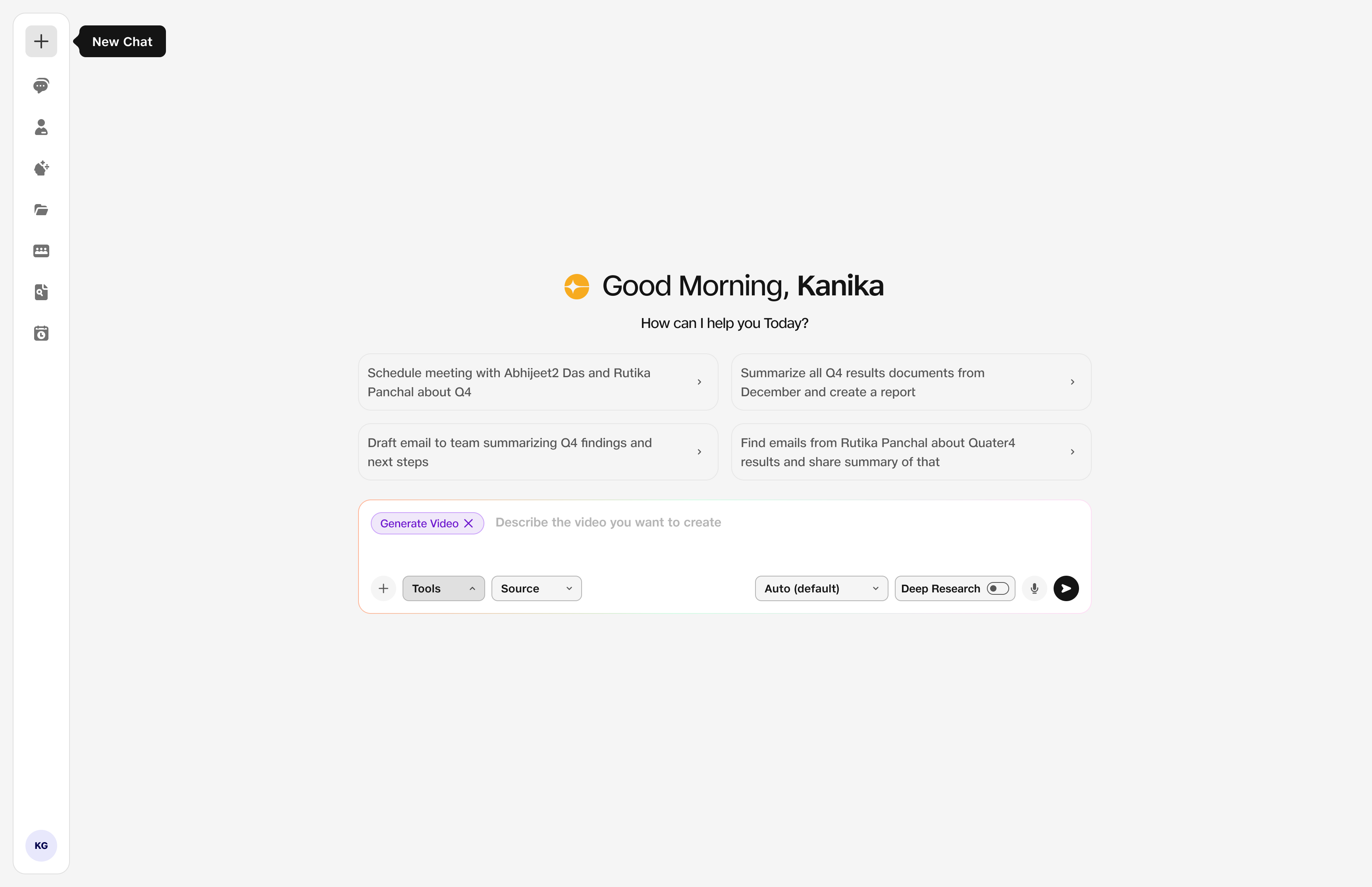
- Prompt: Include motion and style.
- Send: Starts video creation.
2. Video created
When the video is ready, the finished clip appears in chat — play it to review motion and length.
Download the clip if you want to keep or share it. For another version, describe specific changes in the same chat.
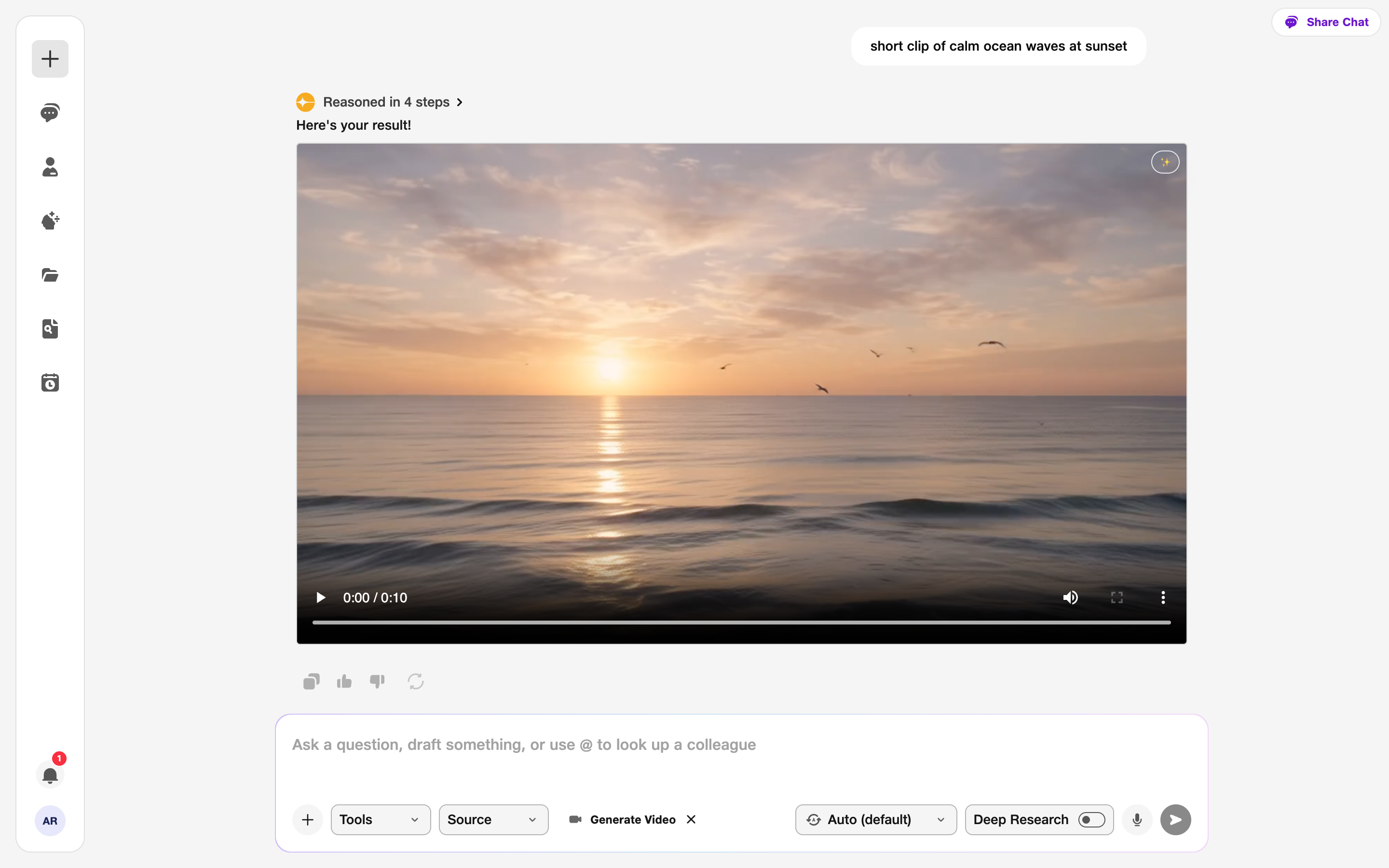
- Result: Finished clip in chat.
- Play & download: Review, then save if needed.