Image Generation
Describe a scene in everyday language and get a visual you can download.
Overview
Image Generation turns a short written description into a picture inside your chat — useful for concept art, simple illustrations, slide visuals, or brainstorming how something might look. Describe what you want to see in plain language; the assistant creates the image and shows it in the conversation. You can download it or ask for small changes (colours, style, layout) in follow-up messages in the same chat.
End-to-end flow
A simple path to follow:
Describe the image in chat (or Tools → Generate Image) → Include subject, style, and mood → Send → View the result in chat → Download or ask for refinements
How it works
Clear descriptions:
Name the main subject, setting, colours, and style — for example “flat illustration, blue and white, corporate” — instead of a single vague word like “nice picture.”
Creation in chat:
After you send, the image appears in the conversation when it is ready — stay on the same chat to see it.
Refine in chat:
If the first result is close but not perfect, describe what to change — “warmer colours” or “remove the background” — in the same conversation without starting over.
Tip:
Example: “Create a simple illustration of a team collaborating around a dashboard, clean corporate style, light background.”
Walkthrough
1. Describe the image
Type what you want to see — who or what is in the scene, the style (photo-like, cartoon, flat icon), and any colours or mood — then click Send.
You can open Tools → Select Generate Image Tool, then simply describe the picture in chat. Describe the image exactly you want and get the output.
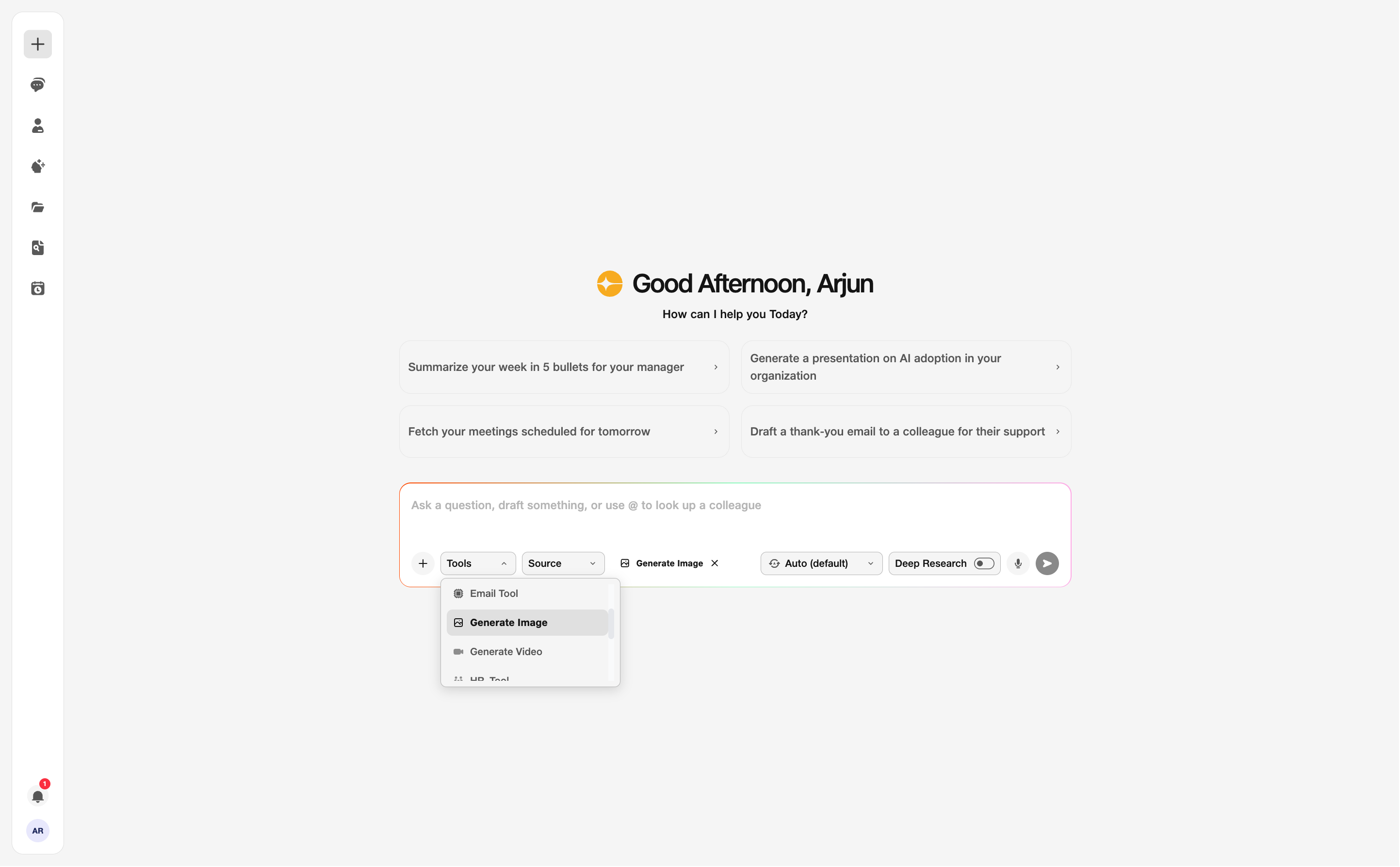
- Prompt: Describe subject and style.
2. Creation in progress
The assistant creates the image and shows progress in the chat.
Stay in this conversation so you can see the result as soon as it is ready.
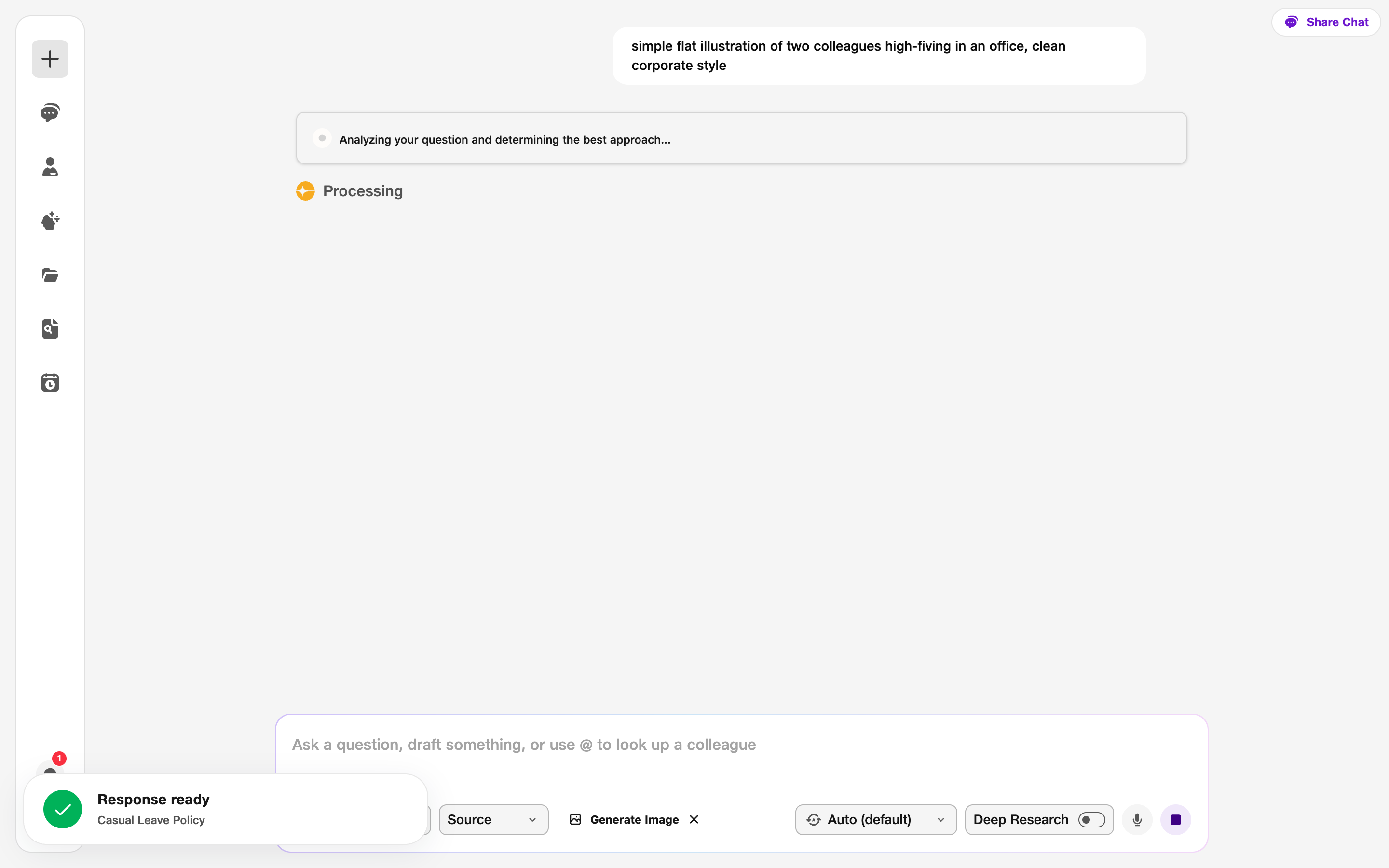
- In progress: Image is being created.
3. Final image
When creation finishes, the image appears in the chat — zoom in if needed and decide whether it fits your deck or document.
Use Download to save it to your device. If you want changes, reply in the same chat with specific edits rather than rewriting the whole description from scratch.
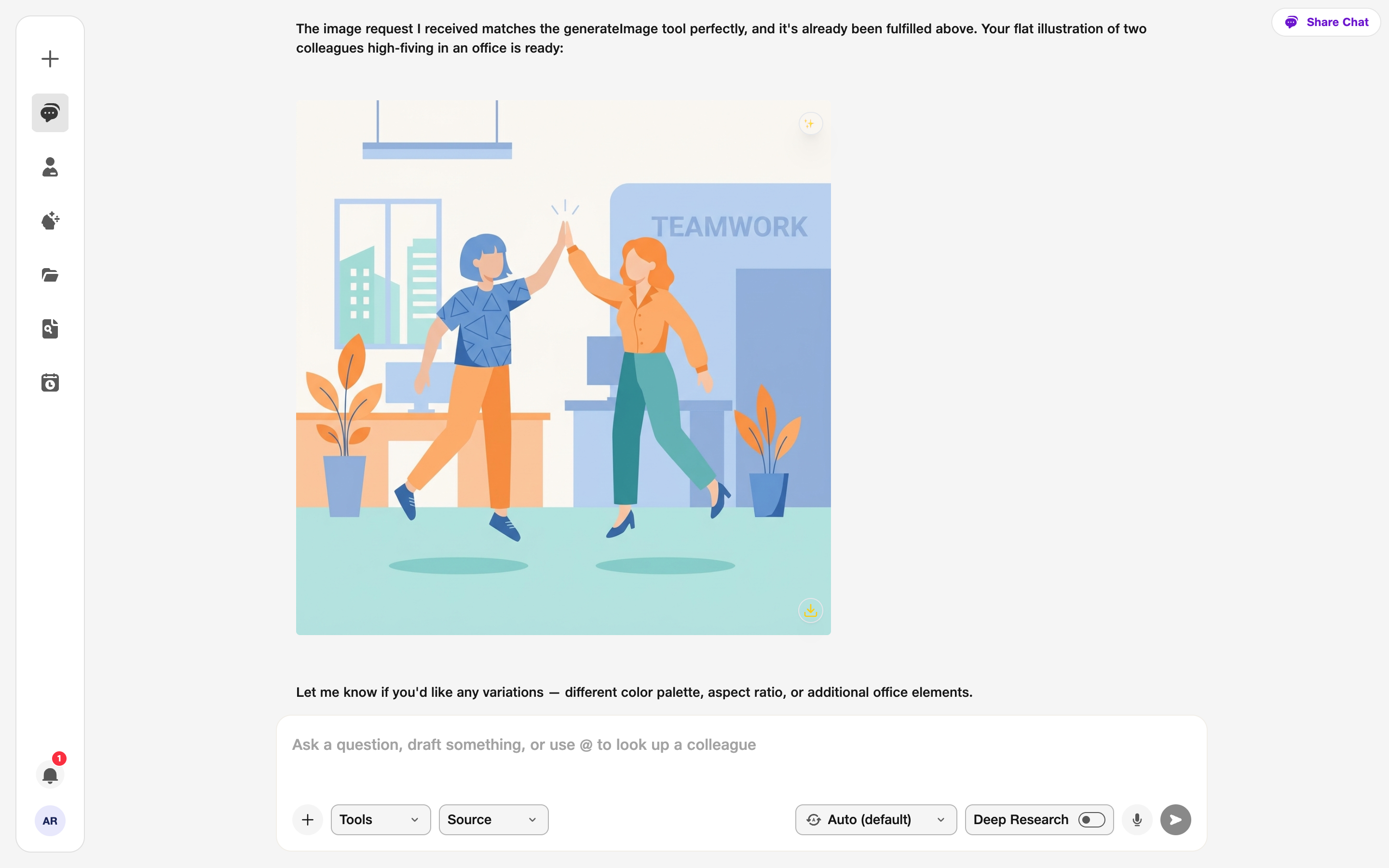
- Result: Final image in chat.
- Download: Save to your device.